Secure Redact Enterprise
The Enterprise Dashboard
Users
Projects Management
Connected Integrations
Activity logs
The Enterprise Dashboard
Welcome to the Enterprise Dashboard: a comprehensive view of all data across your team’s Secure Redact account. Access the Dashboard via the Menu (top left).
Both Owners and Admins can view the dashboard. There can only be one owner of the account, but there can be multiple admins.
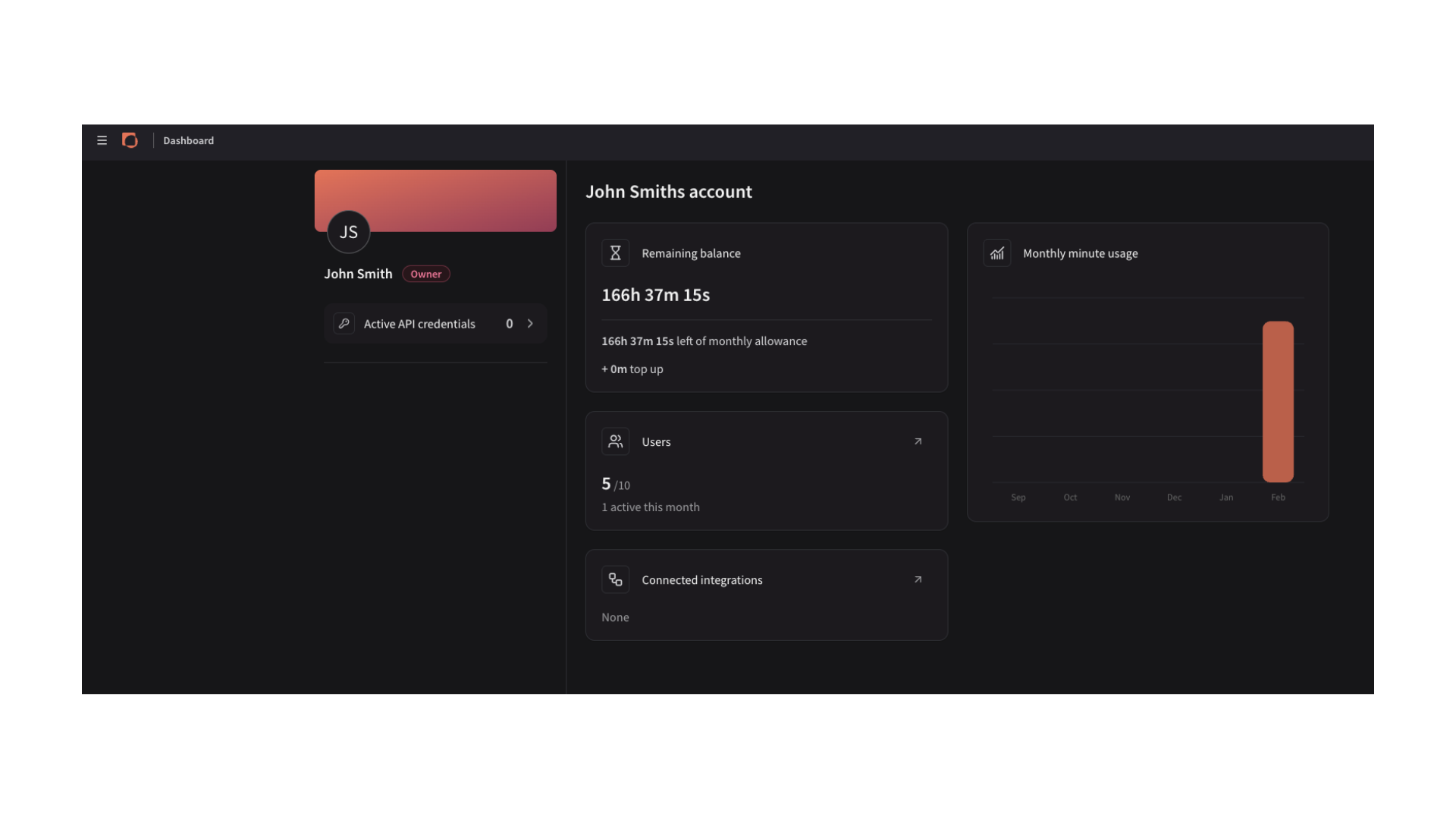
Monthly Minute Usage: Monitor your team’s monthly activity and video volume to track productivity and identify peak usage periods.
Remaining Balance: Monitor your team's total redaction minutes to ensure sufficient capacity and prevent project interruptions.
Users: Review team activity levels and manage users, roles, and permissions within this comprehensive monthly summary.
Connected Integrations: View and manage active software connections or browse and link new third-party tools to your account.
Active API Credentials: Manage your personal API credentials here to generate new keys or ensure secure, programmatic access.
Users
Open the Users Panel via the Dashboard or via the Menu (top left), under Settings. Here are all the users associated with your team’s account. View the Role type assigned to them (Owner, Admin or Member), when they last logged in to Secure Redact, and when they became a user. Add, edit or delete users via the Users Panel.
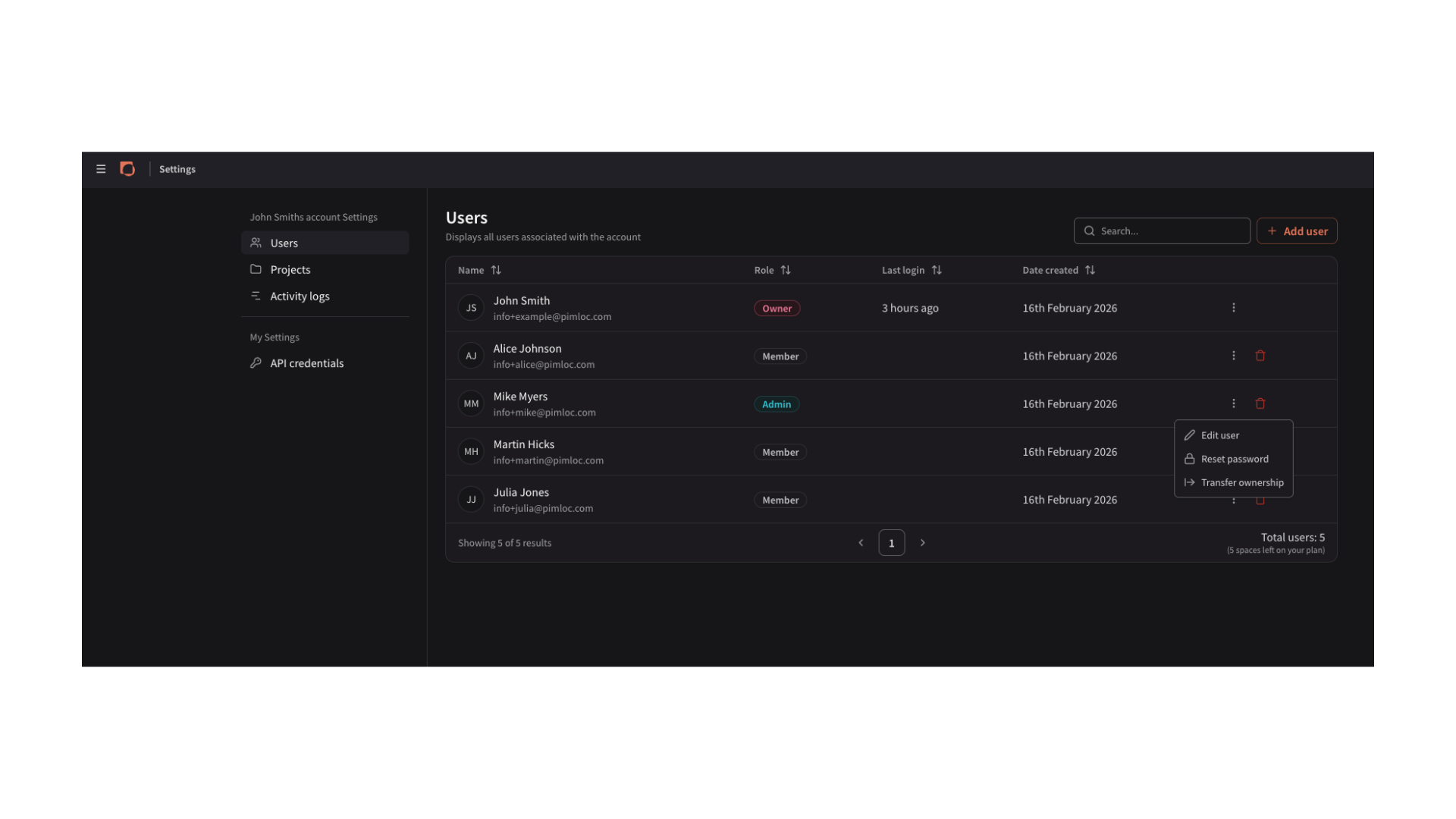
Three dots icon (next to each user)
Edit user = edit the user’s details - their name, email or role.
Reset password = Force that user to reset their password.
Transfer ownership = Transfer ownership of your team’s Secure Redact Account to that user.
Delete a user using the delete icon next to each user
Search through users via the Search bar
How to add new users
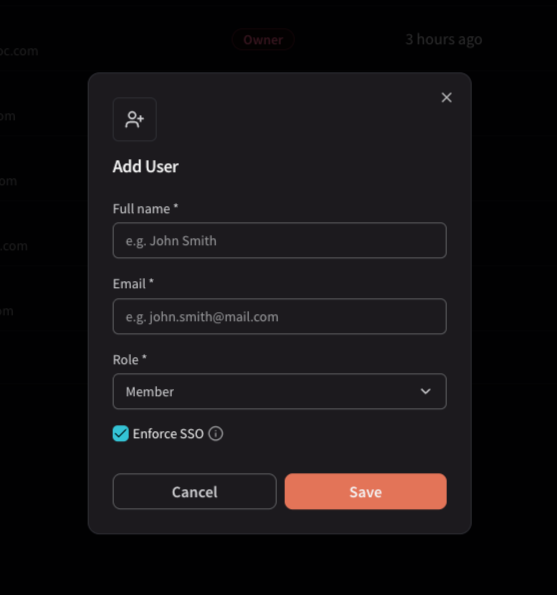
Click Add user (top right) of the Users Panel.
Add their name, email related to Secure Redact, and their role. Roles are as follows:
Owner = Owner of the Secure Redact Account and has full access. Can see the Dashboard, Add/Edit users, Update Projects and access, download Activity logs.
Admin = Has the same access as the owner but cannot transfer ownership of the account.
Member = Can upload, edit and redact footage to projects they are assigned to, but cannot see the Enterprise Dashboard, Activity logs, or Add/Edit users.
Choose to Enforce SSO or not when the user signs in.
Click Save.
The user will receive an email notifying them they have been added to your account. This email will include instructions on how to log in, verify their account and access the system.
Projects Management
Open the Projects Management Panel via the Menu (top left), under Settings. (N.B.: Menu > Projects takes you to your app homepage).
Here are all the projects associated within your team’s account. View what types of files have been uploaded to each project (videos, images, audio files or documents), when each project was created and by whom and the assigned users. As an Owner or Admin, you can see all the projects within your team’s account, regardless of whether you are assigned to the project or not.
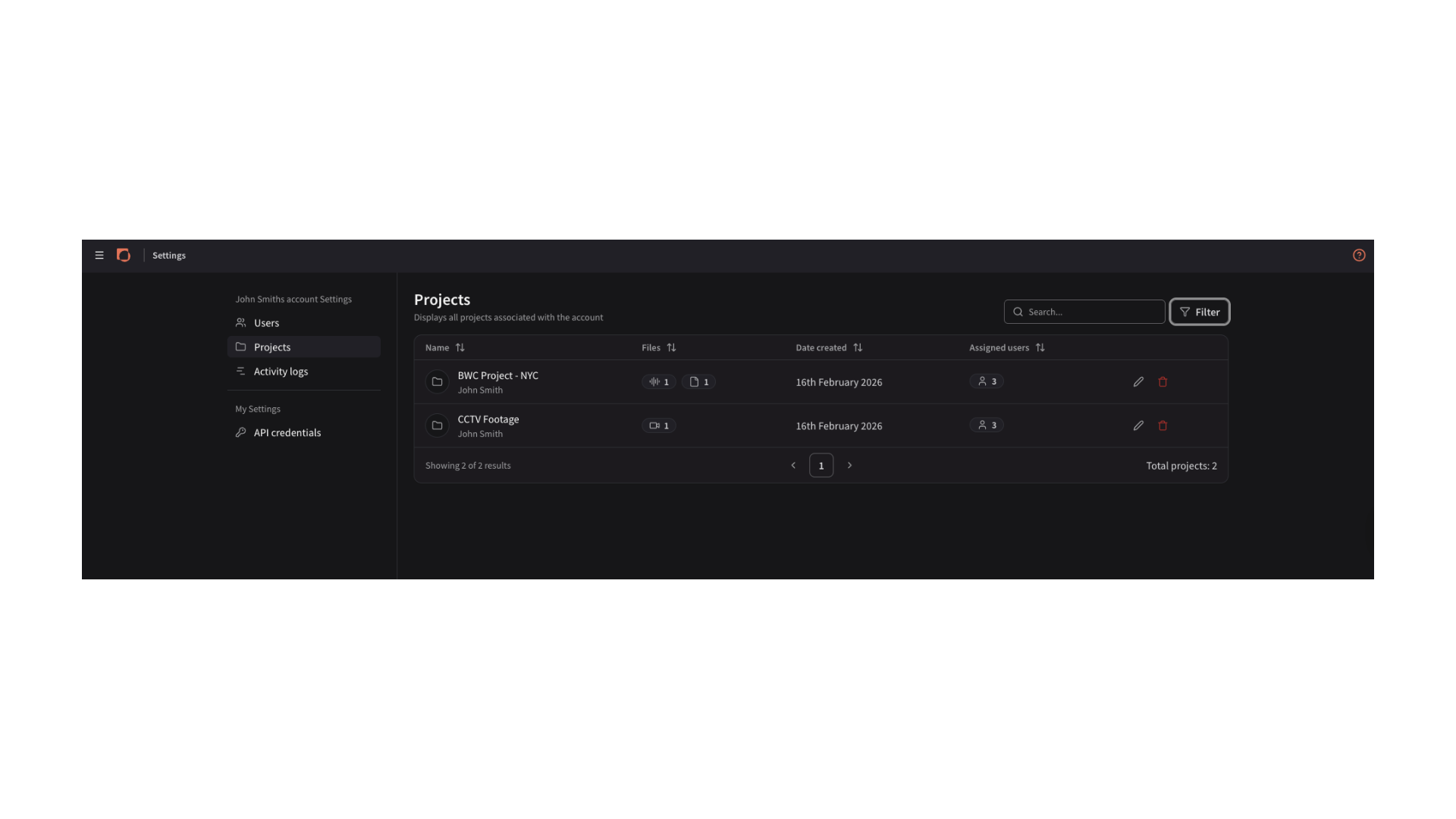
Pencil icon (next to each project) - edit the Project’s name and assigned users
Delete a project using the delete icon next to each project
Search and user the filter option to look through projects
Assigned users - hover on the people icon to see who has access to each project
Activity logs
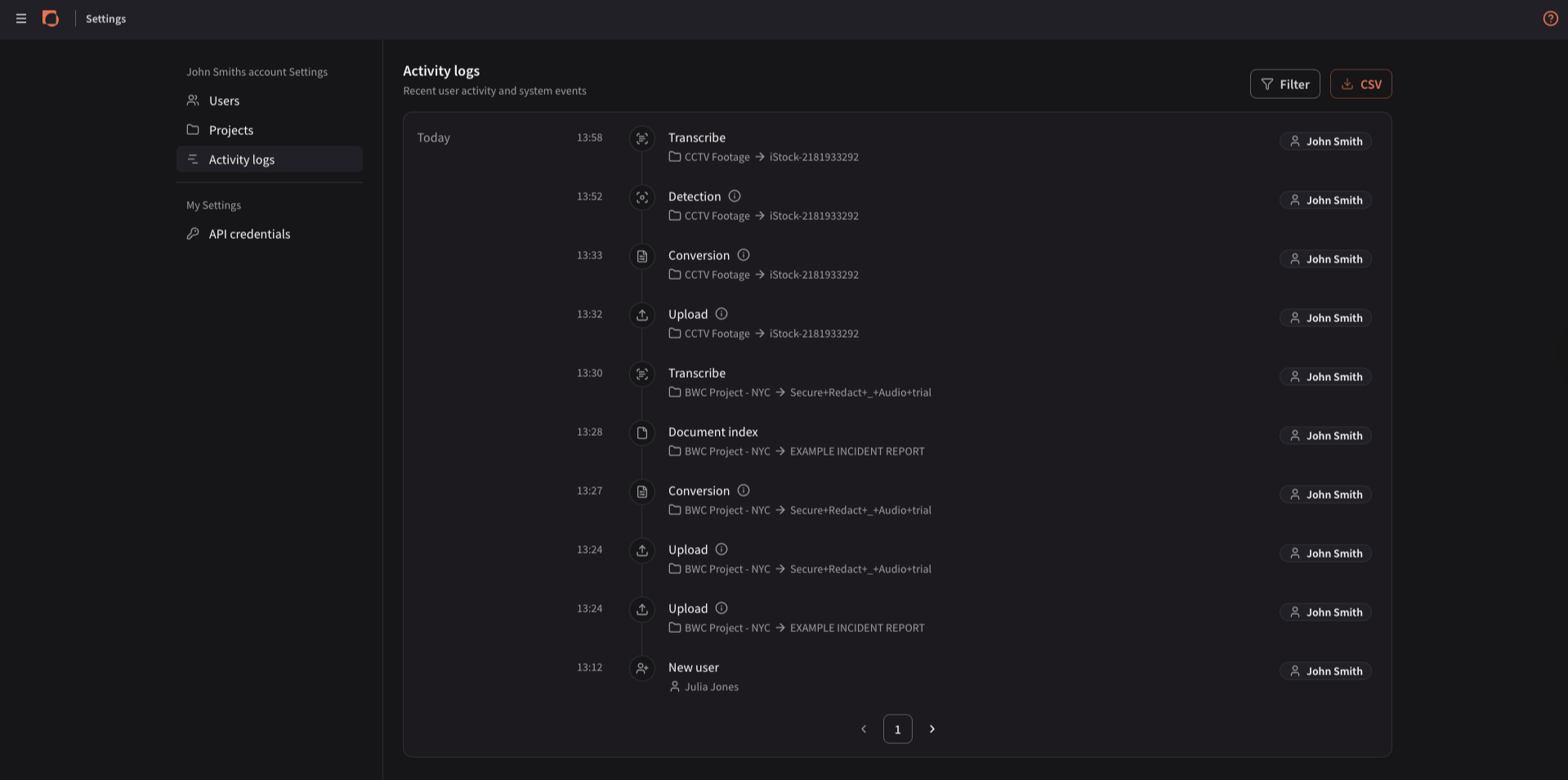
Open the Activity logs via the Menu (top left), under Settings.
Here are all your users’ recent activity. Use the Filter (top right) to filter by Project, Users, Activity types and/or Date range. Any filters selected will be applied when you download the CSV.
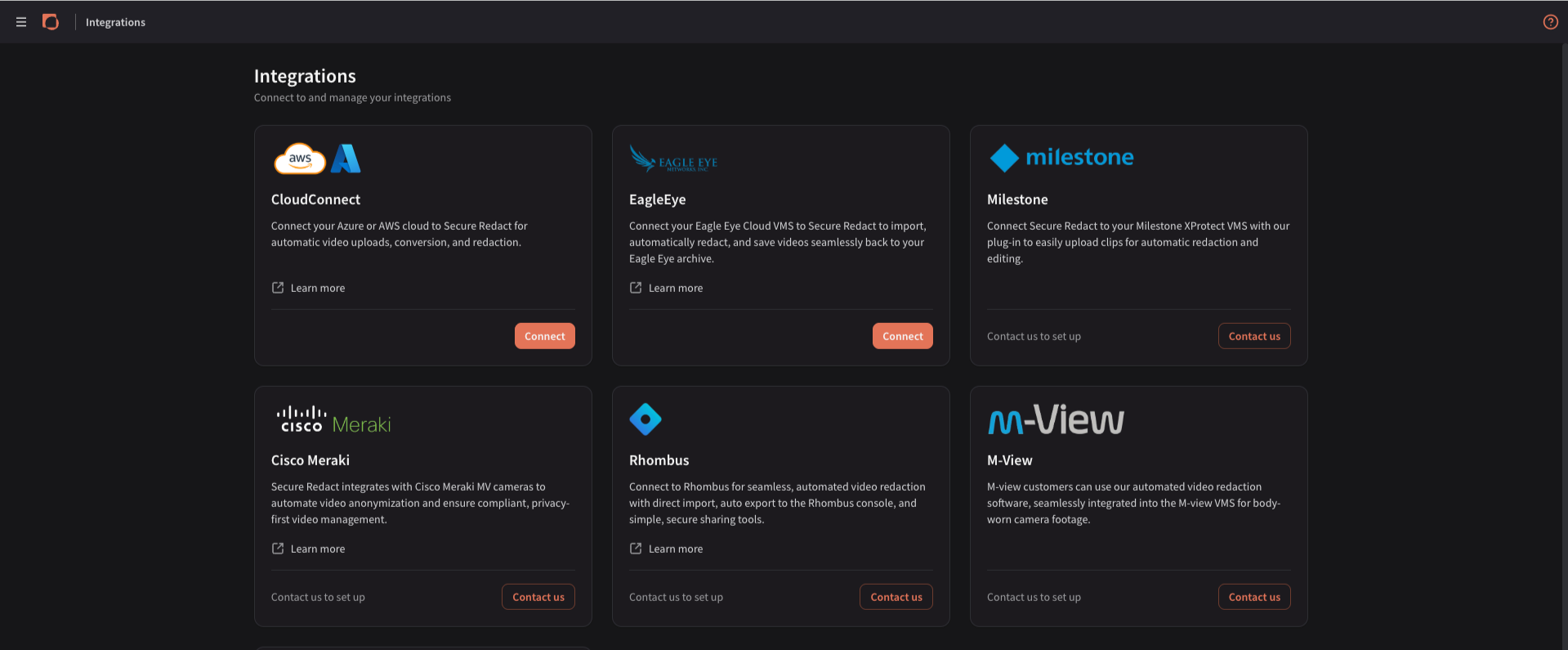
Connected Integrations
Open the Connected Integrations via the Dashboard or via the Menu (top left), under Settings.
Connect to and manage all your integrations. N.B.: once an integration is connected, it will only be connected to your account as opposed to your users’ accounts.