
How to redact documents
Upload multi-page PDFs, Word, PowerPoint or Excel documents to Secure Redact to automatically detect PII - then review and selectively redact.
Upload PDF/Word/PPT/Excel File(s) and add to any Project. Then click Upload. Secure Redact will detect the PII mentioned below.
The Navigation Bar
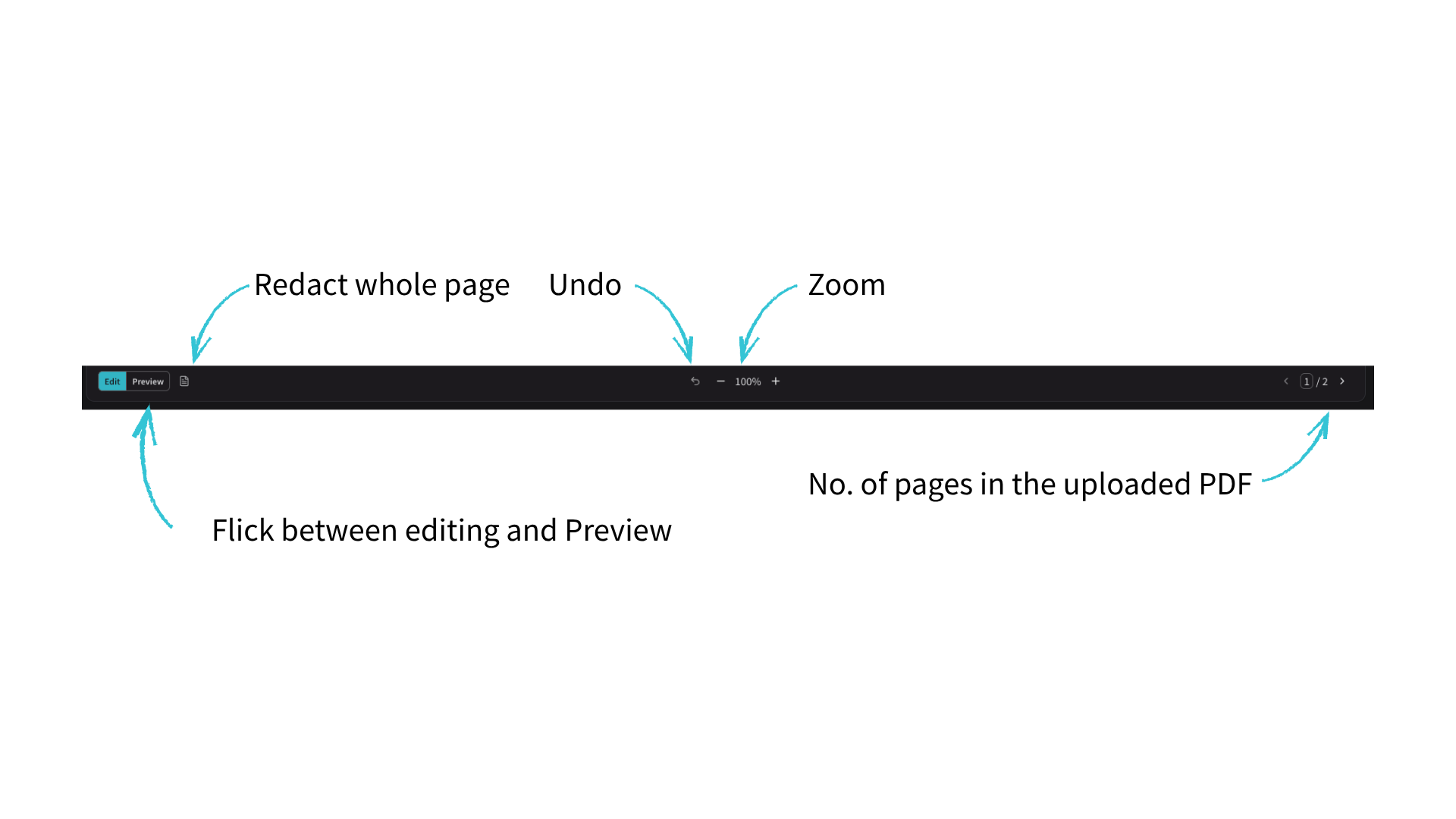
Use the Navigation Bar to adjust the view of your documents as you edit/redact:
Edit / Preview = flick between editing and redaction preview to see what your final redacted document would look like. (keyboard shortcut B)
Redact whole page = redact the entire page that you are on.
Undo = undo your most recent action.
Zoom = zoom in/out to edit your pages more clearly
How to redact a document with Secure Redact
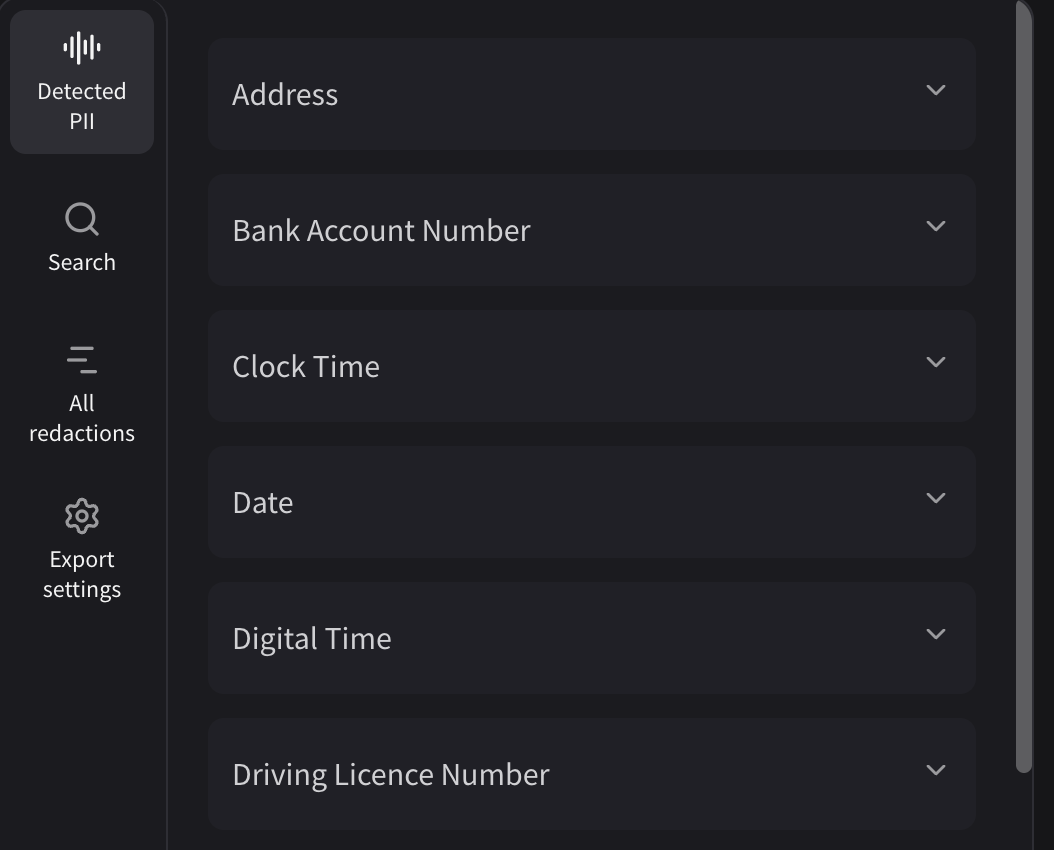
1) Detected PII
This section is where Secure Redact lists all the PII it has detected in categories, ready for you to choose what to redact.
Click a particular tick box to redact one or all instances of it in your document.
Select all instances of “Address”, “Date” etc.
Choose to redact partial or the full detected PII (e.g. a phone number, leaving the last 3 digits visible).
All selected redactions will be added to the All Redactions Panel, with their respective label (e.g. “Address”, “Date” etc.)
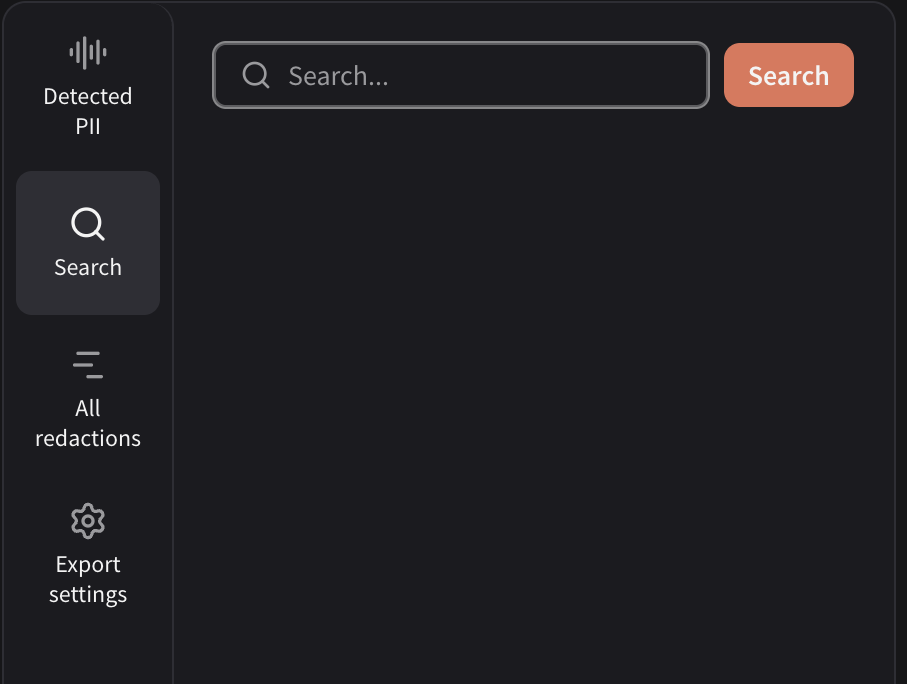
2) Search
Search for specific words, phrases, numbers etc. to highlight or redact. Then click + sign to Add redaction.
This will also be added to the All Redactions Panel, where you’ll have the opportunity to add a label as needed.
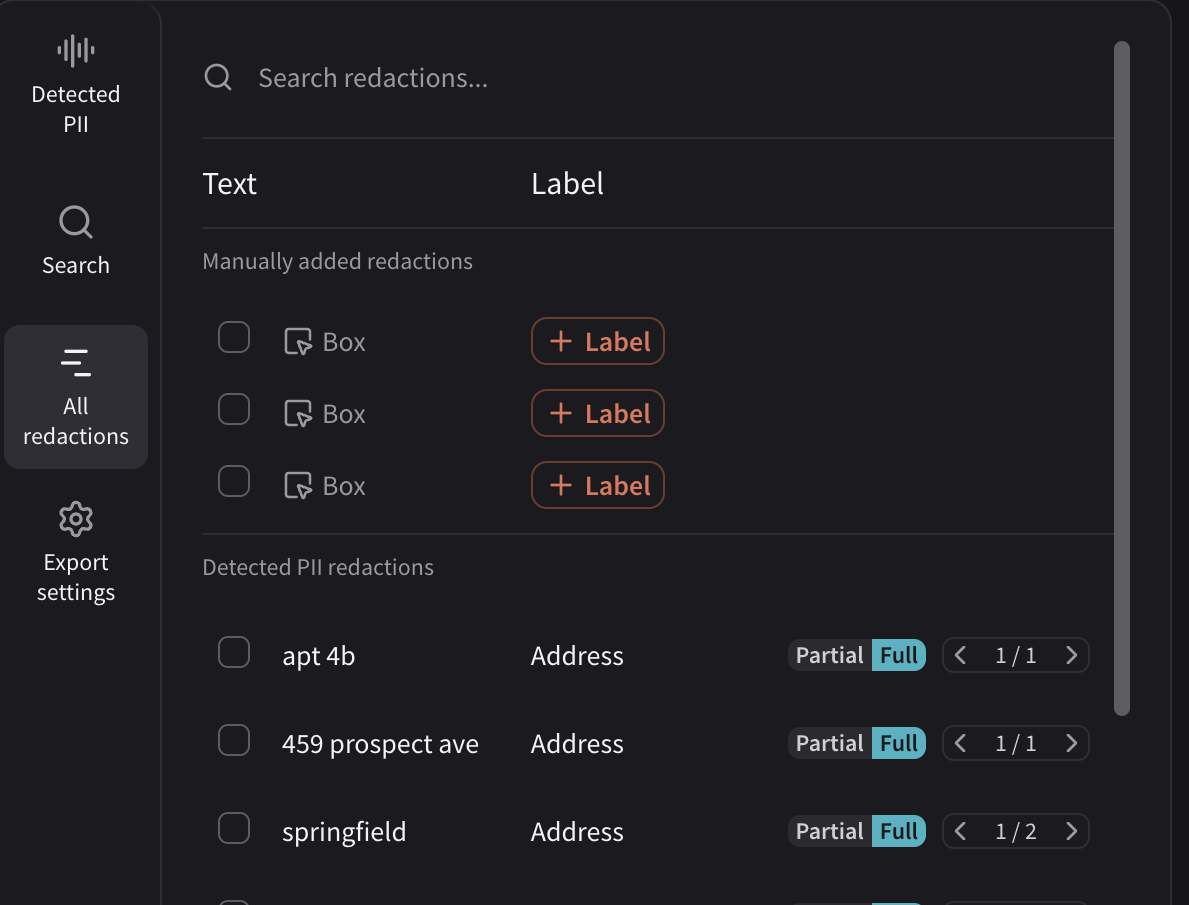
3) All Redactions Panel
View all your selected redactions in one place — words, phrases, numbers and more. When you export, you can choose to include labels on the redacted areas. Use this panel to add or edit those labels, or to remove a redaction entirely before exporting.
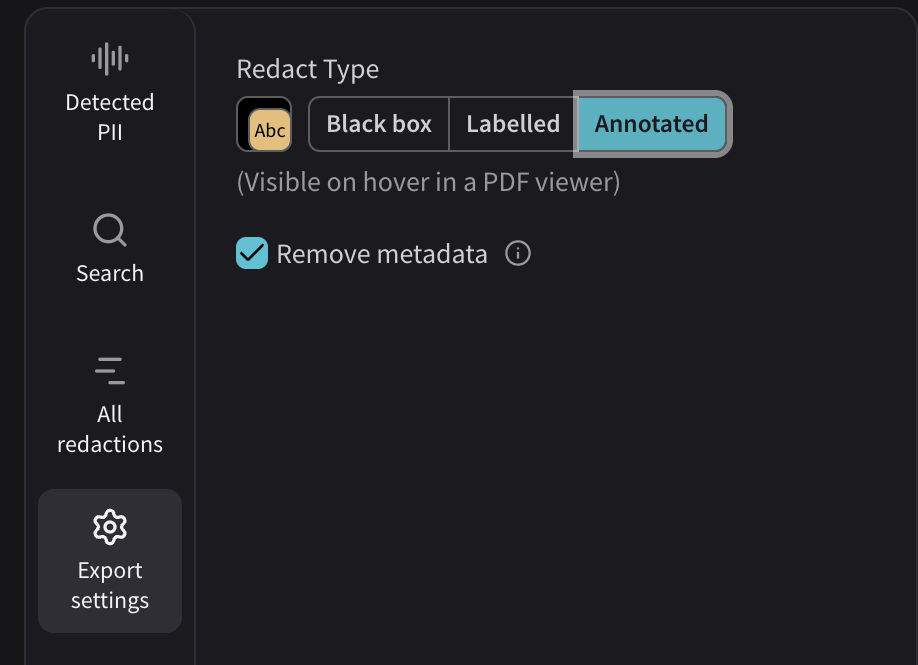
3) Export Settings
Update your redaction settings here before exporting. Choose to have either:
Black Box
Labelled (e.g. “Address” on a black box redaction)
Annotated (the label is visible on hover in a PDF viewer)
You can also choose to remove the metadata, which means that Document details such as author and date edited will not be accessible to viewers of the file.
Then click Export, top right.
Secure Redact detects the following forms of PII in documents:
Address
Bank Account Number
Clock Time
Credit Card Number
Credit/Debit Card
Criminal Records Office
Date
Digital Time
Driving Licence
Driving Licence Number
DVLA
Email
Health Insurance Number
Iban
Identity Number
Medical Condition
Money
National Firearms Licensing Management System
National Insurance Number
NHS Number
Passport
Person
Phone Number
Police National Computer IDs
Prison Number
Profanities
Social Media Handle
Sort Code
SWIFT Code
UK Postcode
Unique Taxpayer Reference
URL
Username
Vehicle Number Plate
Vehicle Number
Vehicle Registration Number