
How to delete a track, box or audio range in Pimloc Redact
This page explains how to delete tracks, boxes and audio ranges in a video, and when to unredact instead of deleting.
Delete or unredact?
Deleting and unredacting both stop something being hidden in the export, but they aren't the same.
Unredact keeps the box or track, but shows what's under it in the export. You can redact it again at any time. The track stays on the timeline, as a grey bar instead of a red one.
Delete removes the box or track completely. There's no undo for deleting in a video, so a deleted box or track can't be recovered.
Unredact when the box is on the right thing but it doesn't need hiding, for example a police officer who can be identified. Delete when the box is wrong, for example a box on a poster that was mistaken for a face.
To unredact a box, select it and click the eye on the toolbar next to it, or press R. This unredacts every track of that person or object. To unredact a whole row, use the eye next to its label on the timeline.
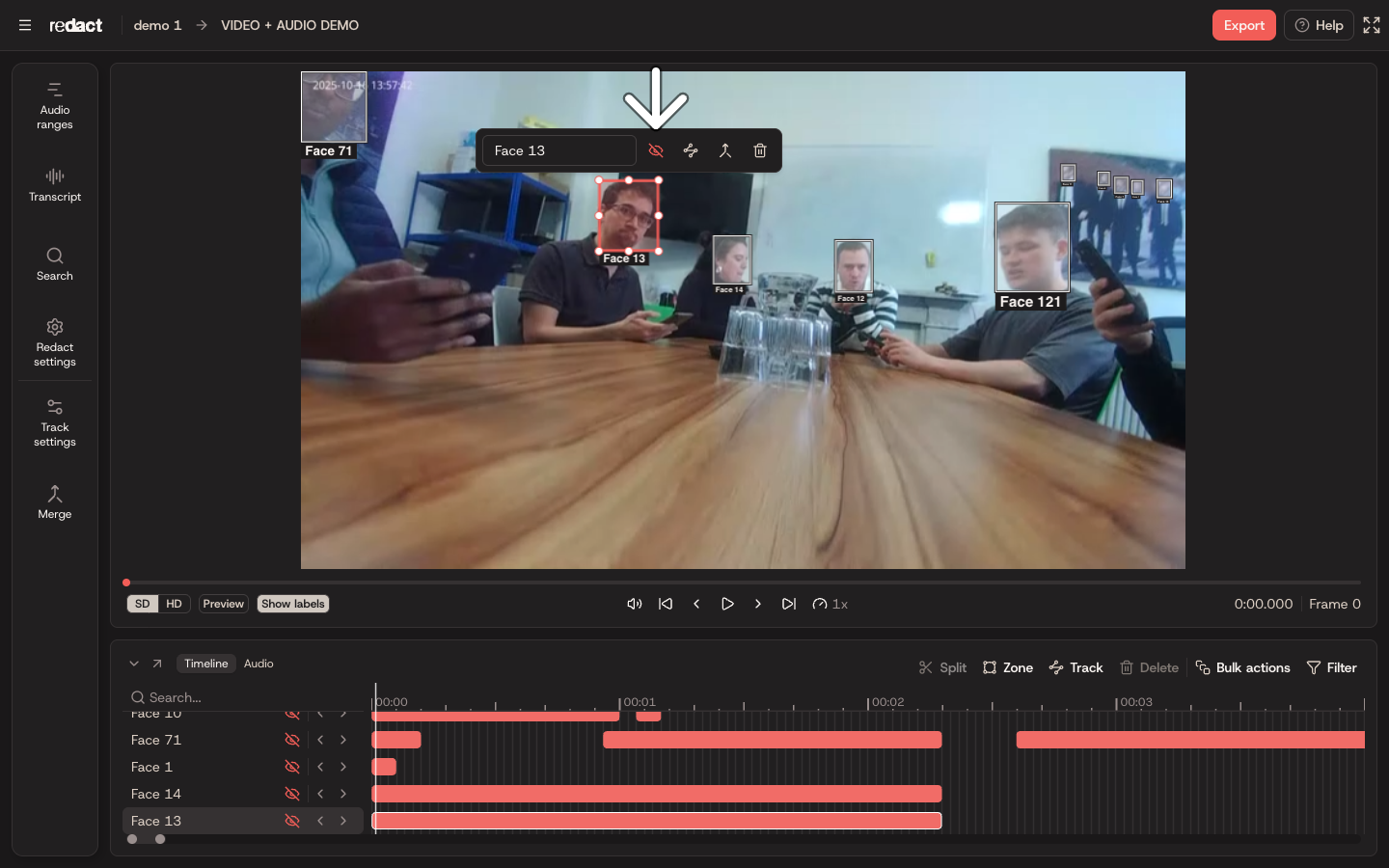
Delete a box on one frame
A box marks one person or object on one frame. To delete just that box:
Pause the video on the frame.
Click the box to select it.
Click Delete frame (the bin) on the toolbar next to the box, or press Delete or Backspace.
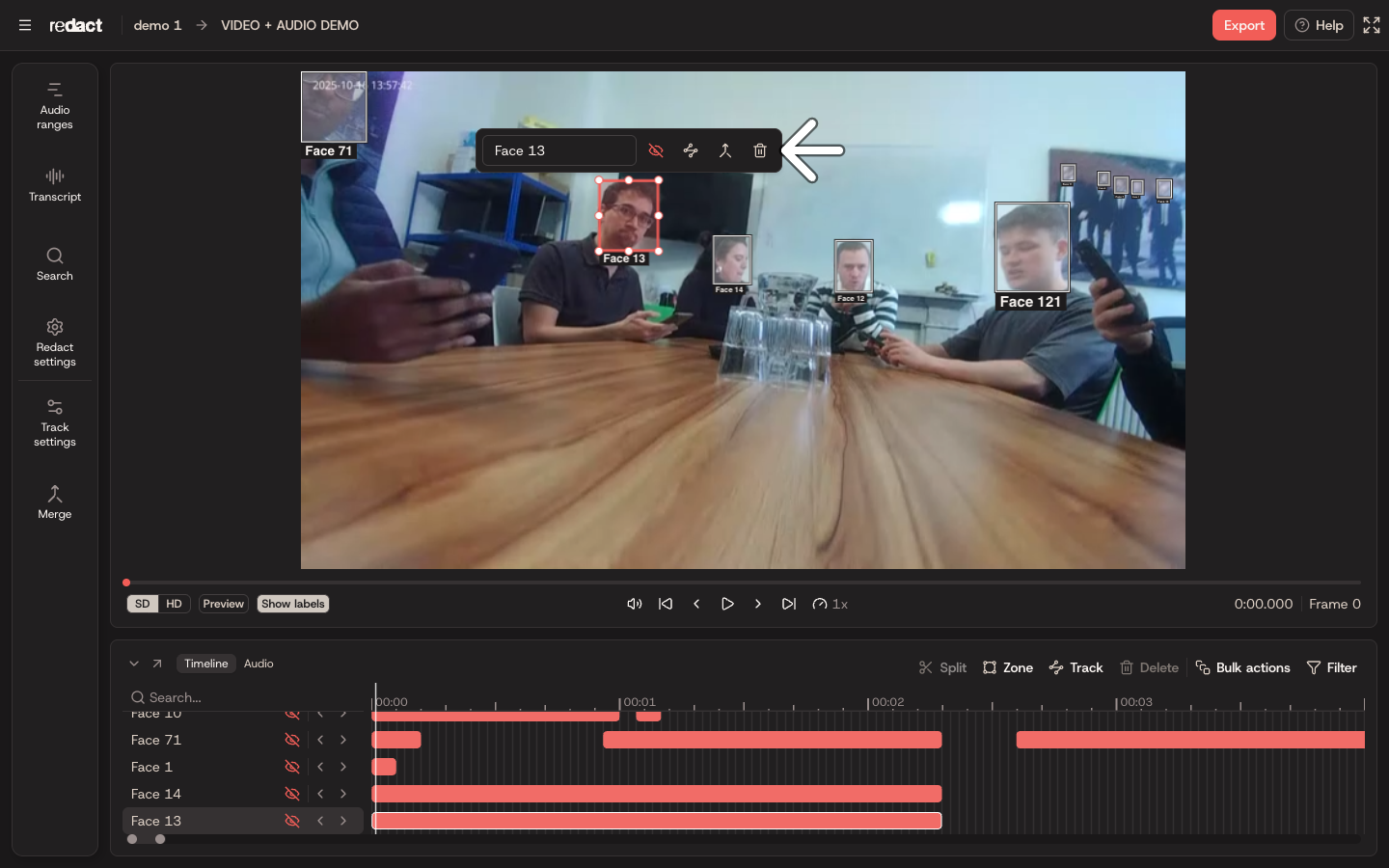
The box is deleted straight away, with no message to confirm. What happens to its track depends on where the frame is:
The first or last frame of the track: the track gets one frame shorter.
A frame in the middle: the track is split in two, either side of the deleted frame. Both parts stay in the same row.
The track's only frame: the whole track is deleted.
Delete a whole track
A track is every box for one appearance of a person or object, shown as one bar on the timeline. To delete it:
Select the track by clicking its bar on the timeline. To delete every track in a row, click the row's label instead.
Click Delete on the Timeline Toolbar, or press Delete or Backspace.
A Delete track message warns that tracks can't be recovered once deleted. Click Delete or press Enter to delete it. Click Cancel or press Esc to keep it.
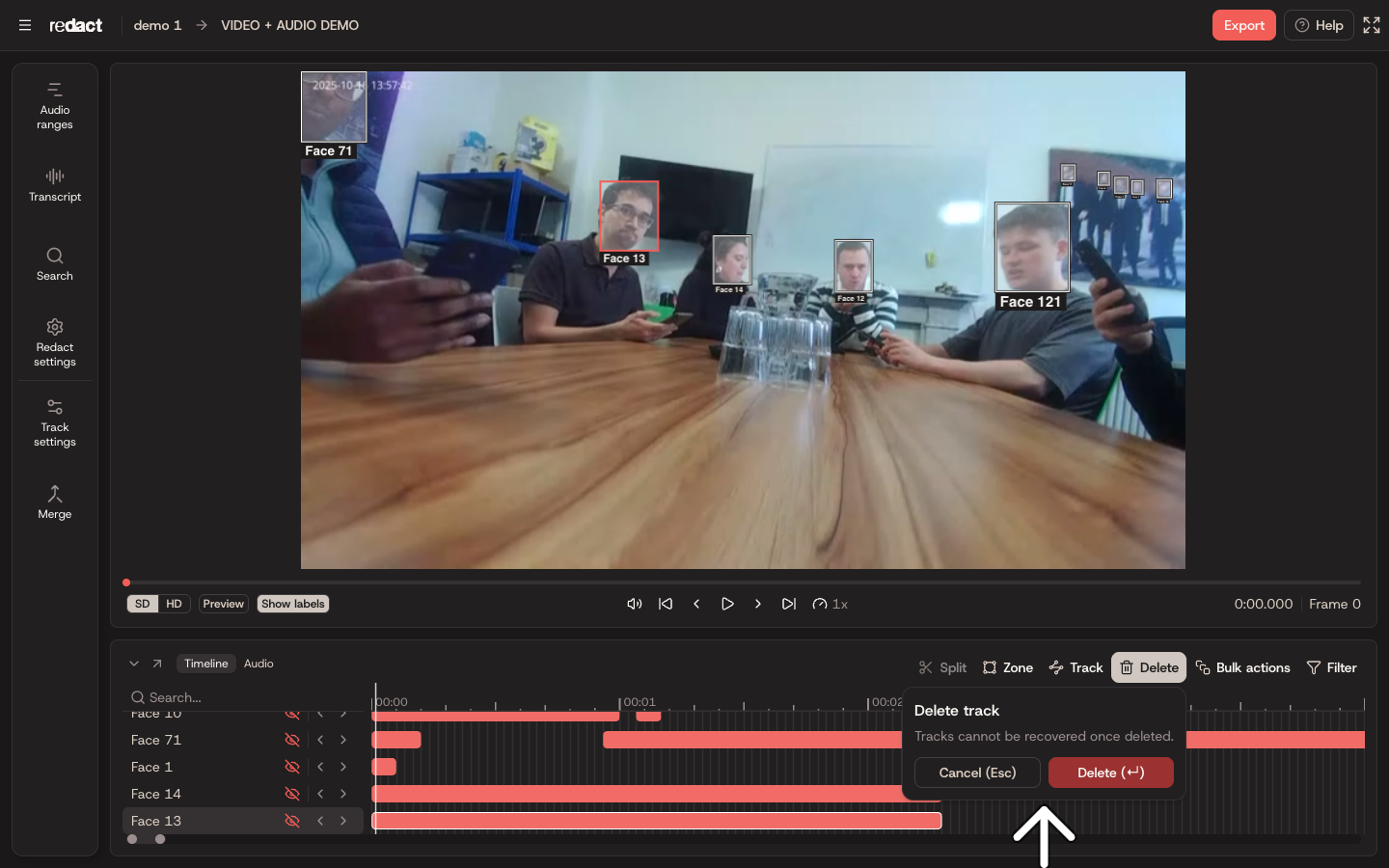
If you only want to remove part of a track, split it first and delete the part you don't need. See How to use the video timeline.
Delete an audio range in a video
An audio range is a part of the sound that will be muted or bleeped. To delete one:
Open the Audio tab at the bottom of the editor.
Click the range on the waveform to select it.
Click Delete on the Audio Toolbar, or press Delete or Backspace. You can also right-click the range and choose Delete audio range.
The range is deleted straight away. If you delete the wrong one, click Undo on the Audio Toolbar, or press Ctrl + Z (Cmd + Z on a Mac).
Keyboard Shortcuts
Delete or Backspace = Delete the selected box, track or audio range
Enter / Esc = Confirm or cancel deleting a track
R = Redact or unredact the selection
Ctrl + Z (Cmd + Z) = Undo the last change to an audio range
For the rest of the editor's shortcuts, see Keyboard shortcuts.