
How to manage users, projects and files in Pimloc Redact Enterprise
The Settings pages let Enterprise admins manage everyone and everything in their account: users, projects, files, activity, shares, usage and API credentials. This page explains each one.
Open Settings
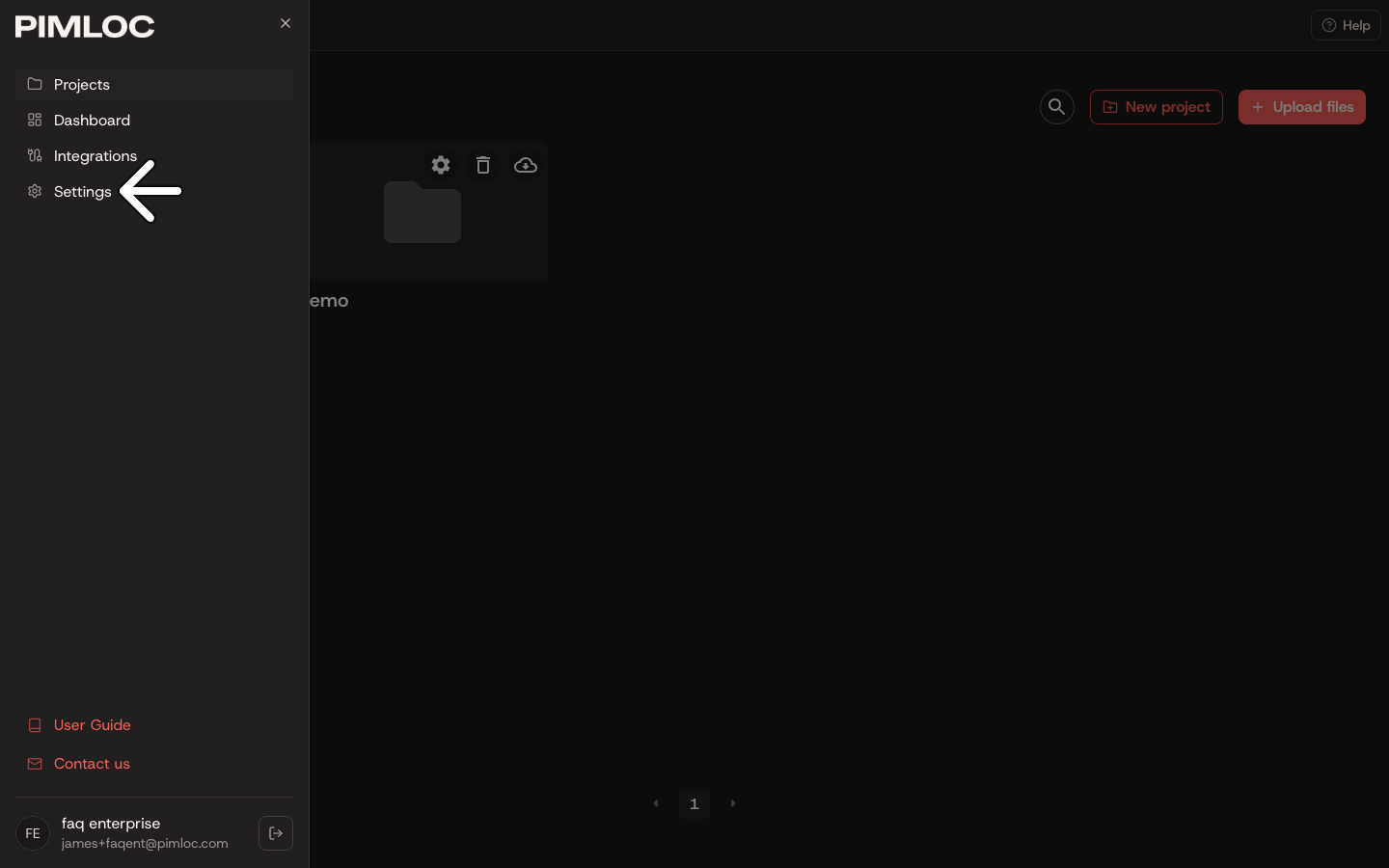
Click the menu at the top left of any page, then click Settings.
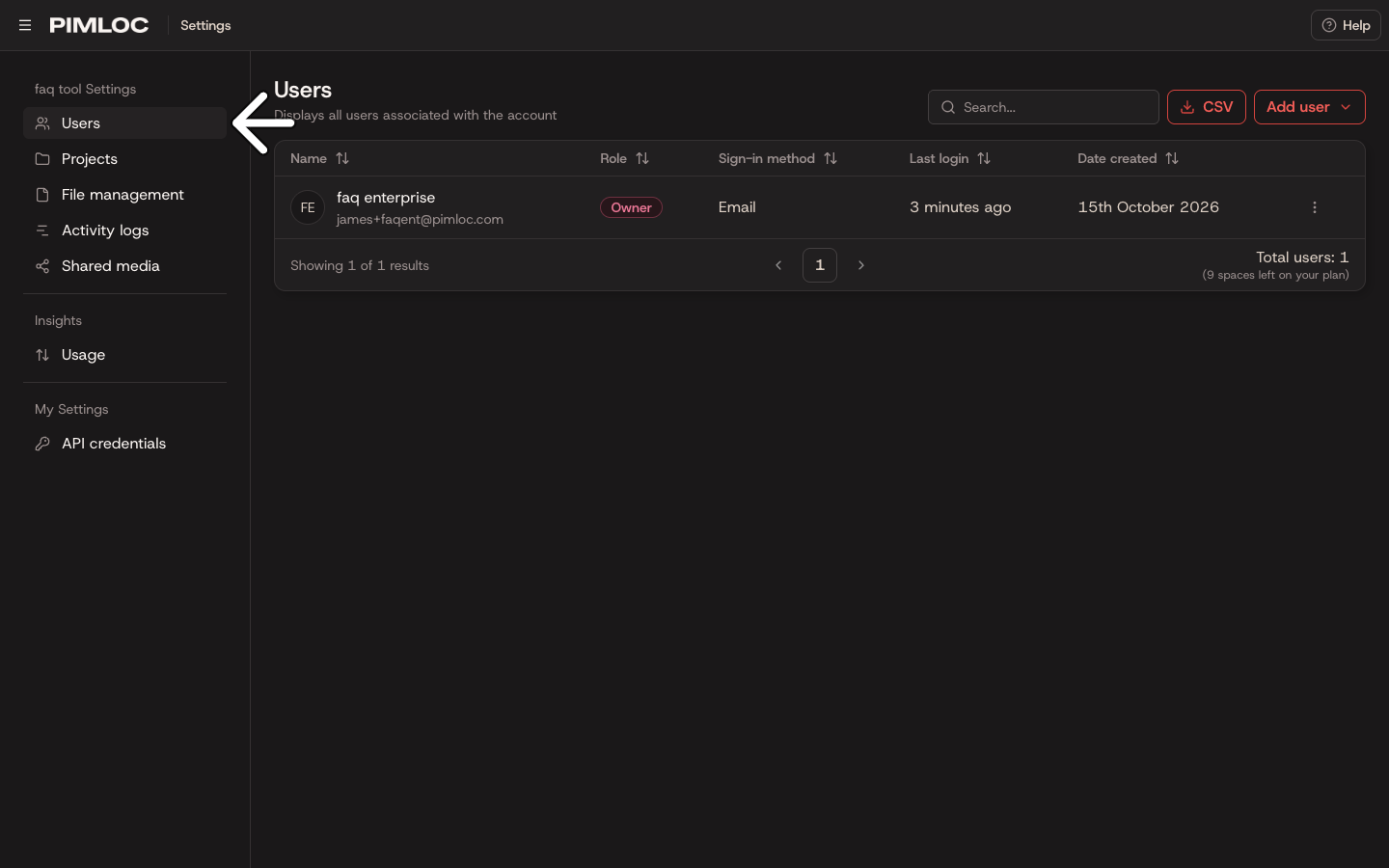
Settings opens on Users. The pages are listed down the left:
Users, Projects, File management, Activity logs and Shared media are under your account's name. They cover the whole account.
Usage is under Insights.
API credentials is under My Settings. It's only for your own credentials.
Only the account owner and admins see the account pages. Members only see My Settings, with their own API credentials and the media they've shared.
Users
The Users page lists everyone in the account, with their role, how they sign in, when they last logged in and when they were added. Click a column heading to sort by it, or type in Search to find someone. Under the list, you can see how many users you have and how many spaces are left on your plan.
There are three roles:
Owner is the person who owns the account. There's only one.
Admin can use all the Settings pages.
Member can use Pimloc Redact, but can't manage the account.
To download the list of users as a spreadsheet, click CSV.
Add one user
Click Add user, then Single user.
Enter their Full name and Email.
Choose a Role: Member or Admin.
Check Enforce SSO. See Check Enforce SSO below.
Click Save.
Add several users at once
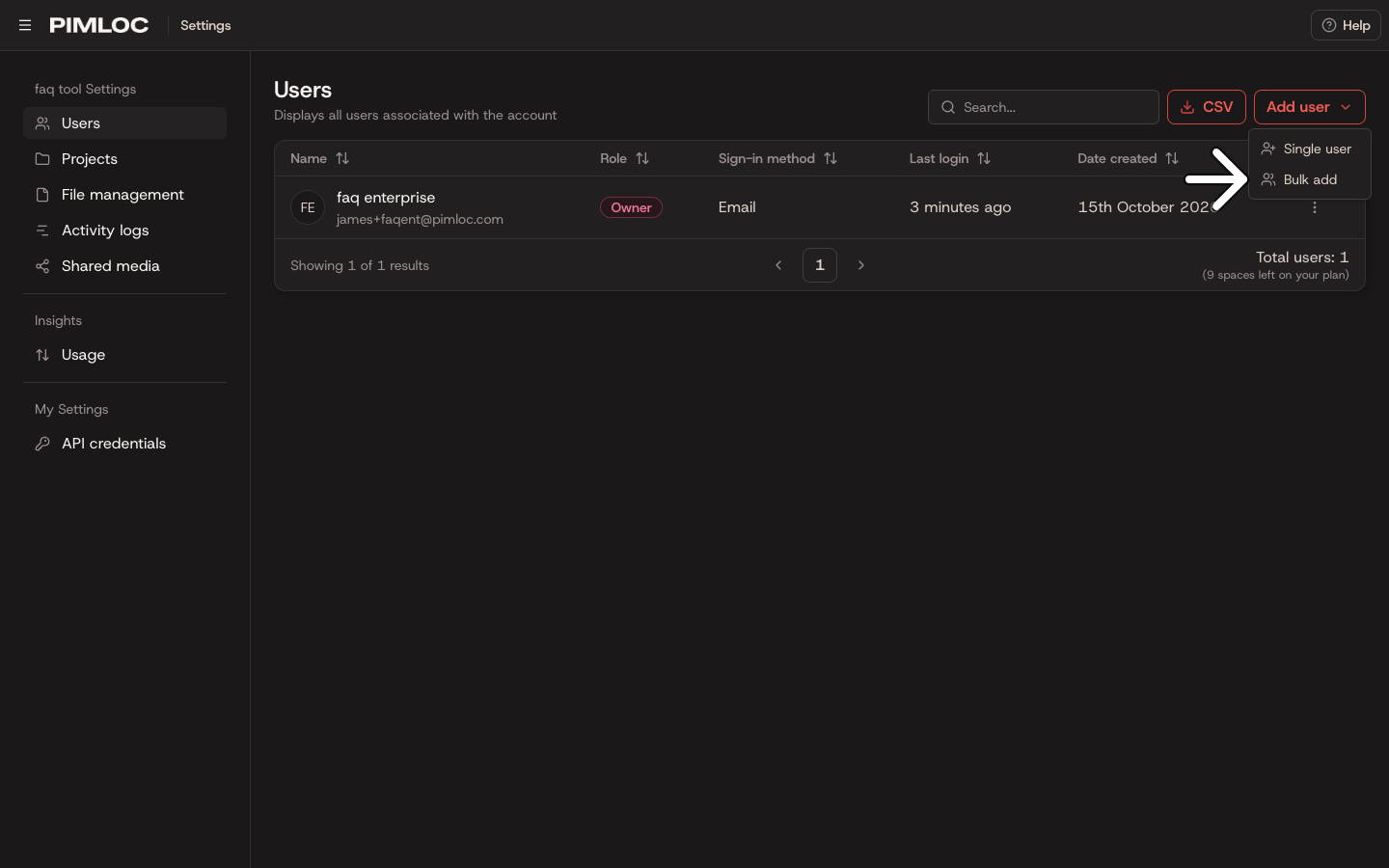
Click Add user, then Bulk add.
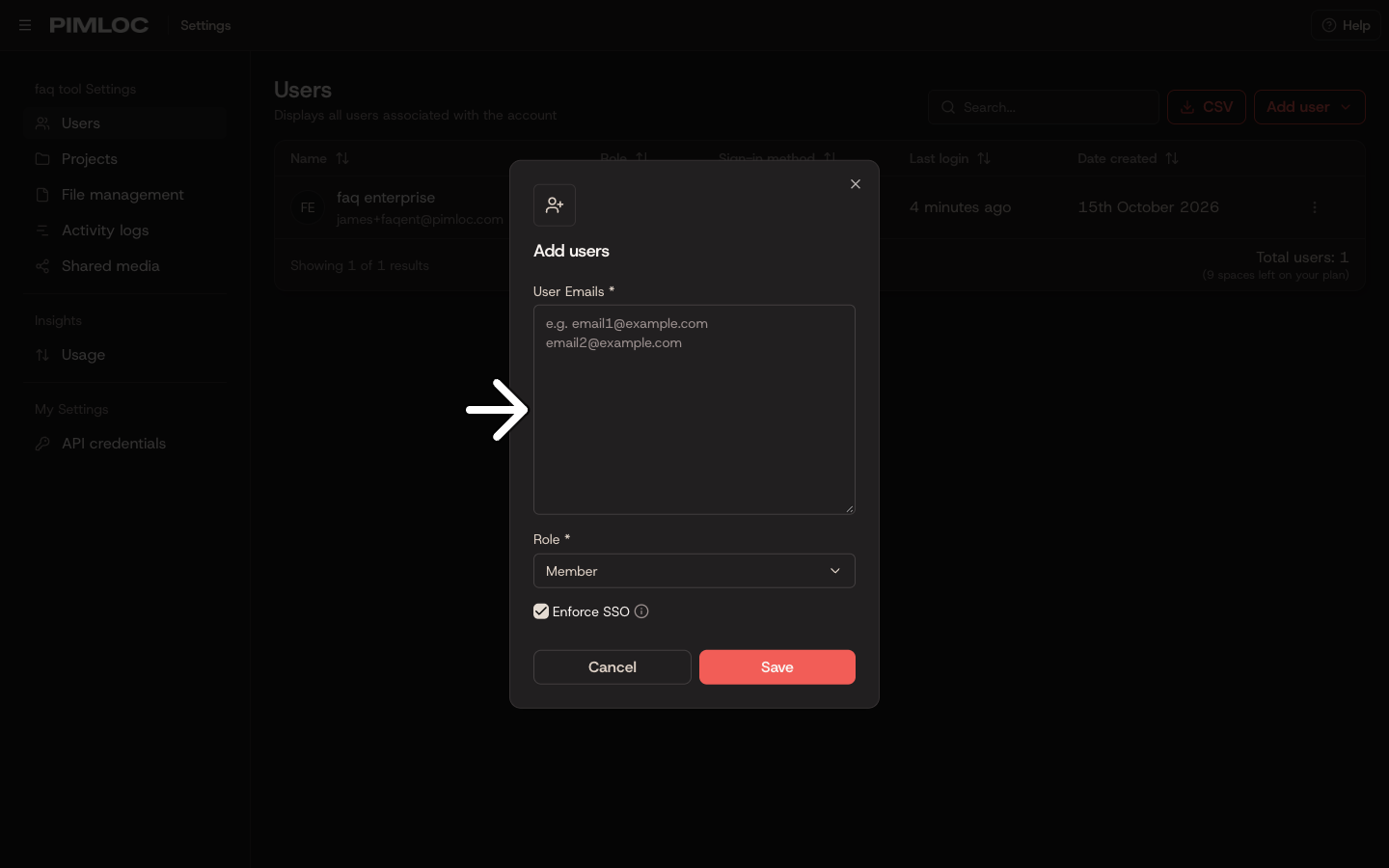
Paste their email addresses into User Emails, one per line. You can also separate them with spaces.
Choose a Role. Every user you add gets the same role.
Check Enforce SSO. It applies to every user you add.
Click Save.
Pimloc Redact makes each user's name from their email address. For example, john.smith@example.com becomes "John Smith". You can change it later with Edit user.
Check Enforce SSO
Enforce SSO is ticked when the dialog opens. It makes the new user sign in through your organisation's single sign-on (SSO) provider, such as Microsoft or Google, instead of with a password.
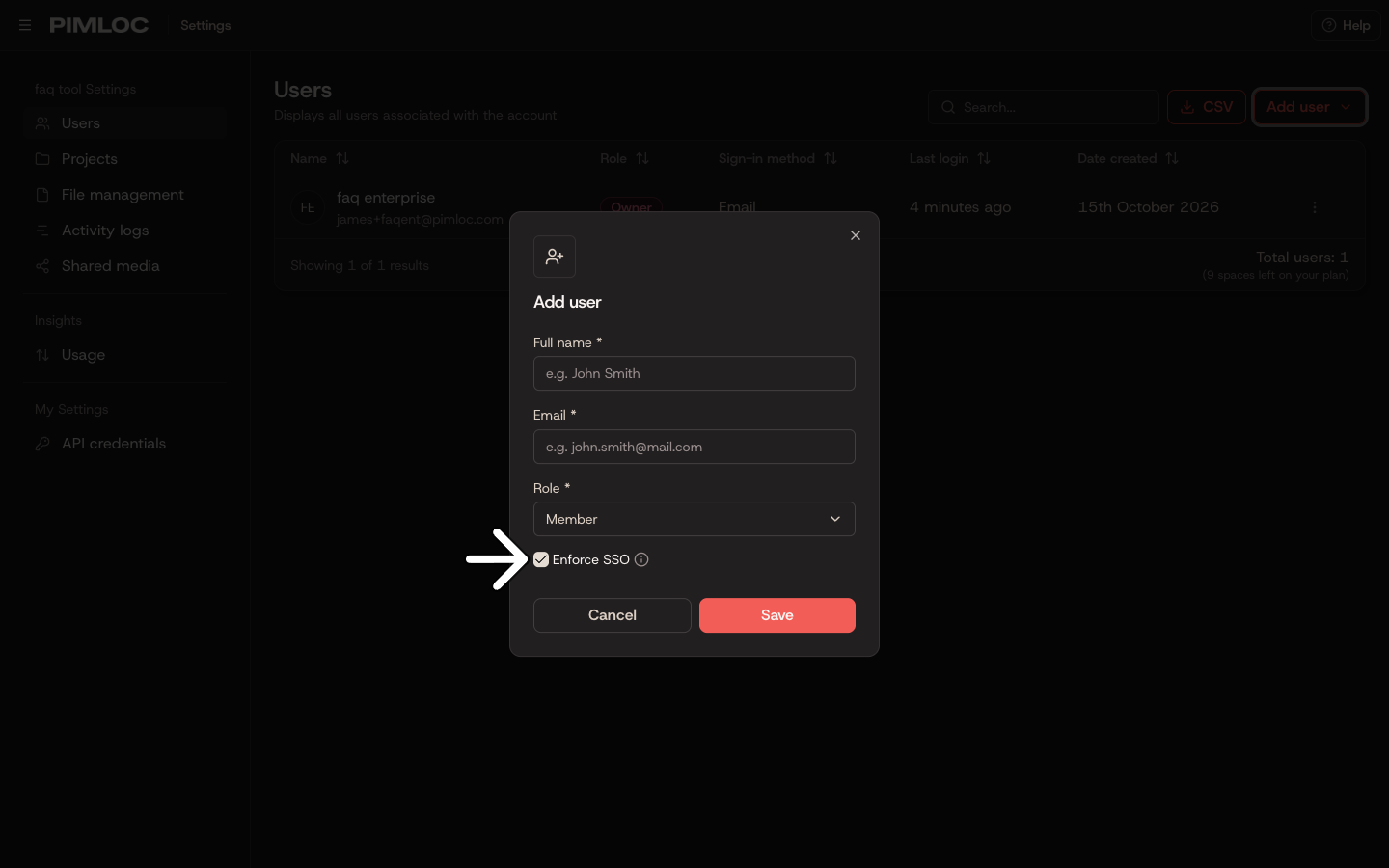
Leave it ticked if your account uses SSO and the new user will sign in through it.
Untick it if your account doesn't use SSO, or the user needs to sign in with an email and password. If you leave it ticked by mistake, they can't log in with a password.
The Sign-in method column shows SSO or Email for each user.
Edit, reset or remove a user
Click ⋮ at the end of a user's row:
Edit user changes their name or role. You can't change the email address, or the owner's role.
Reset password sends them an email with a link to reset their password. The link is also shown, so you can copy it and send it yourself.
Transfer ownership makes them the account owner, and makes you an admin. Only the owner sees this option, and it can't be undone.
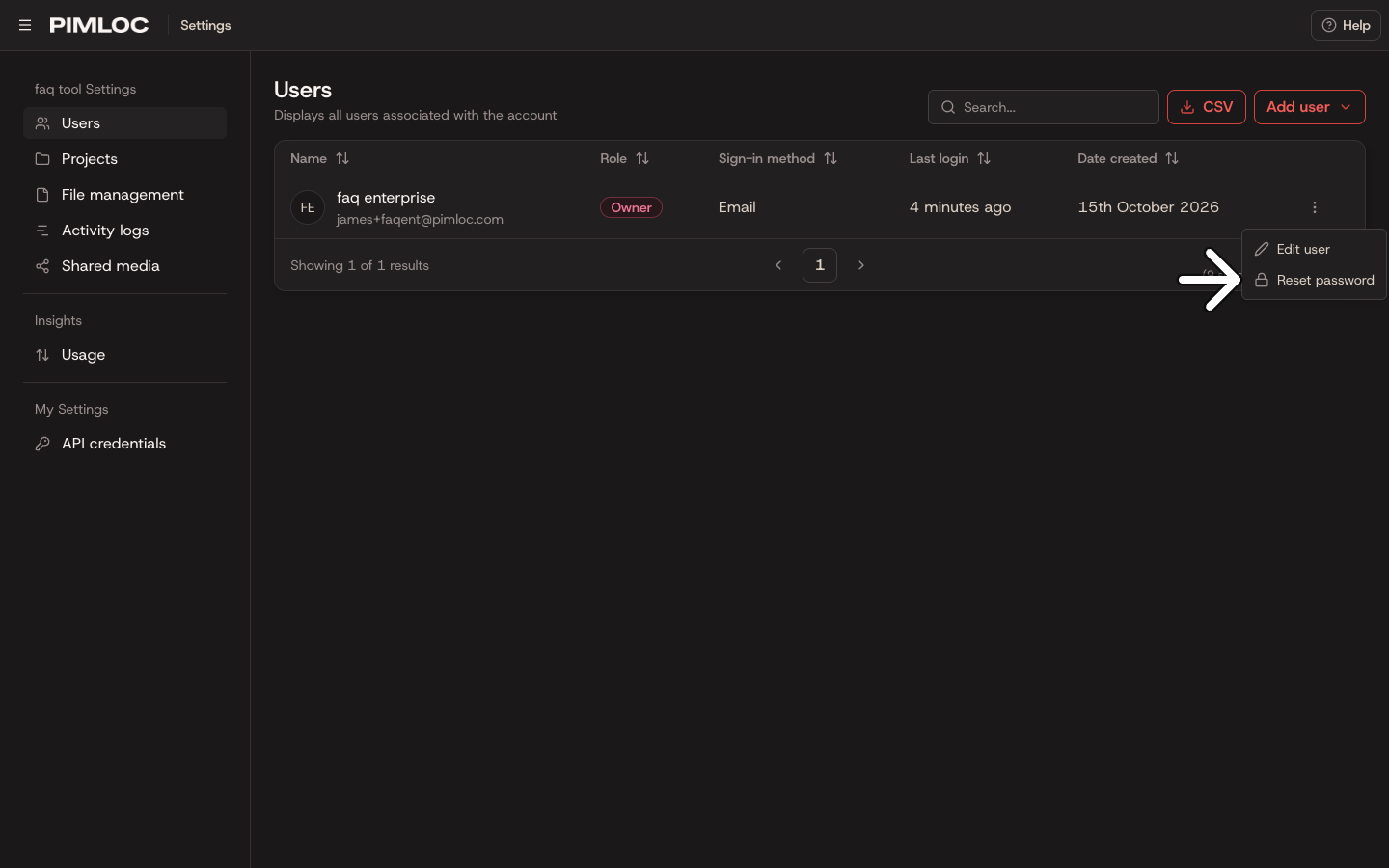
To remove a user, click the bin at the end of their row, then Delete User. This can't be undone. You can't remove yourself.
Projects
The Projects page lists every project in the account. For each project, it shows who created it, how many of each type of file it holds, when it was created and how many users are assigned to it. Hover over the number of assigned users to see who they are.
Type in Search to find a project by name. Click Filter to show only the projects created by certain users.
To create a project, click New project on the Projects home page. You can assign users to it there.
Rename a project or assign users
Click the pencil at the end of the project's row.
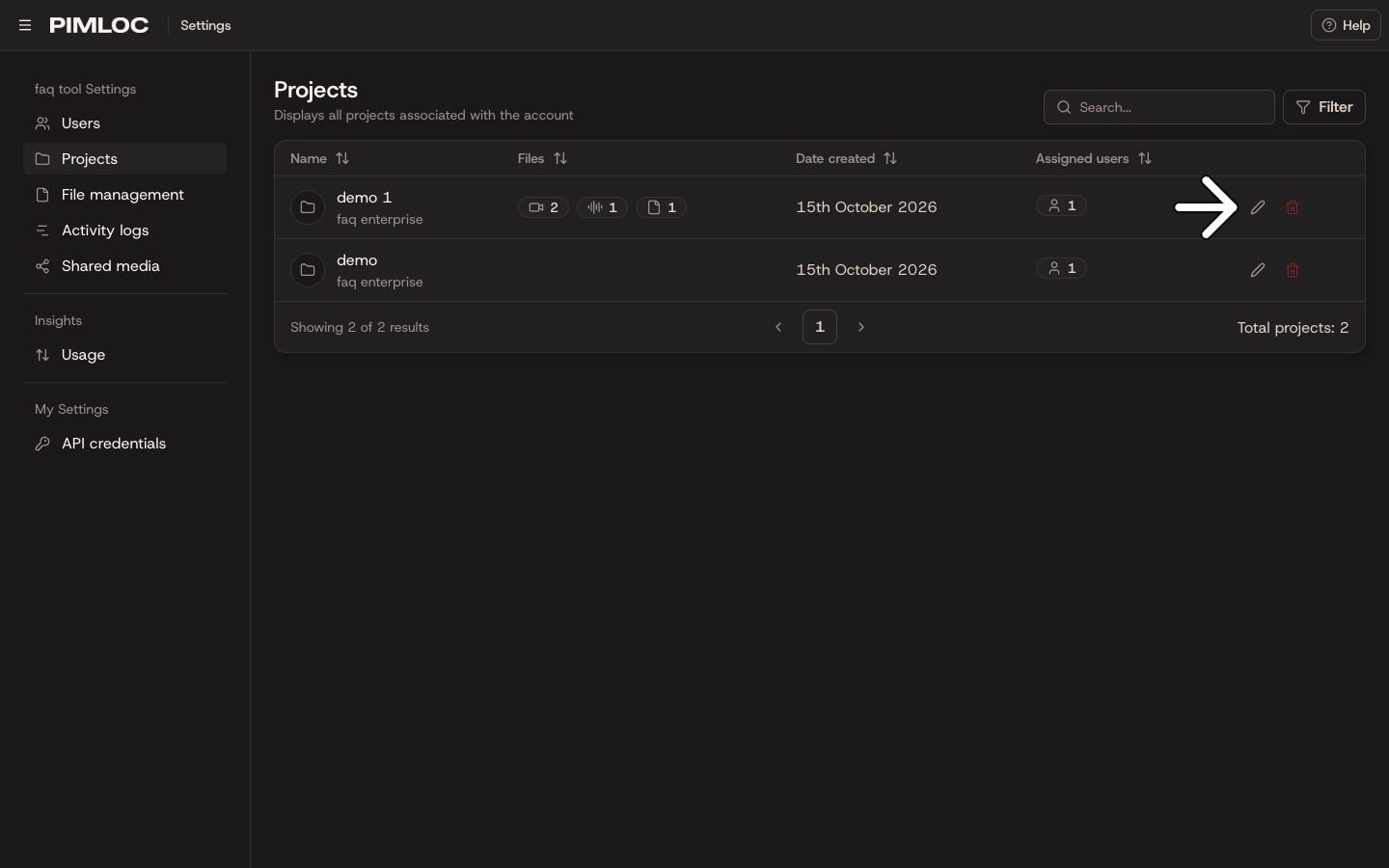
To rename the project, change the name in the first box.
To give people access, add them under Assigned users. To take access away, click the × next to their name.
Click Save.
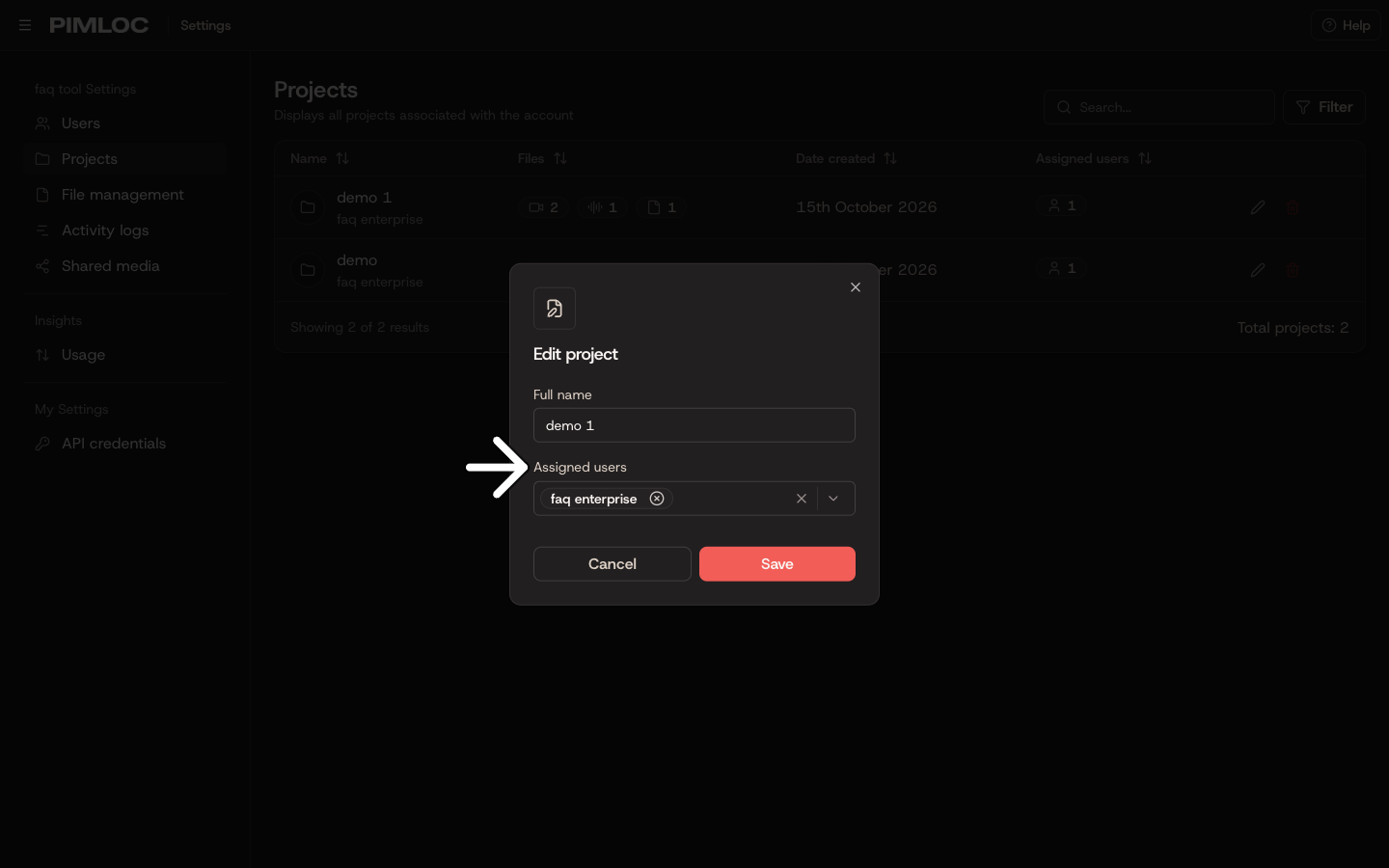
Assign users when someone needs to see and work on the files in a project.
Delete a project
Click the bin at the end of the project's row, then Delete Project. This can't be undone.
File management
The File management page lists every file in the account, from every user and project. Use it to find and delete old files you no longer need. It shows each file's project, when it was uploaded and who uploaded it.
Click Filter to narrow the list:
File age finds files more than, or less than, a set number of days, weeks, months or years old. For example, "More than 6 Months old".
File type shows only video, audio, image or document files.
Uploaded by shows only files from certain users.
Project shows only files in certain projects.
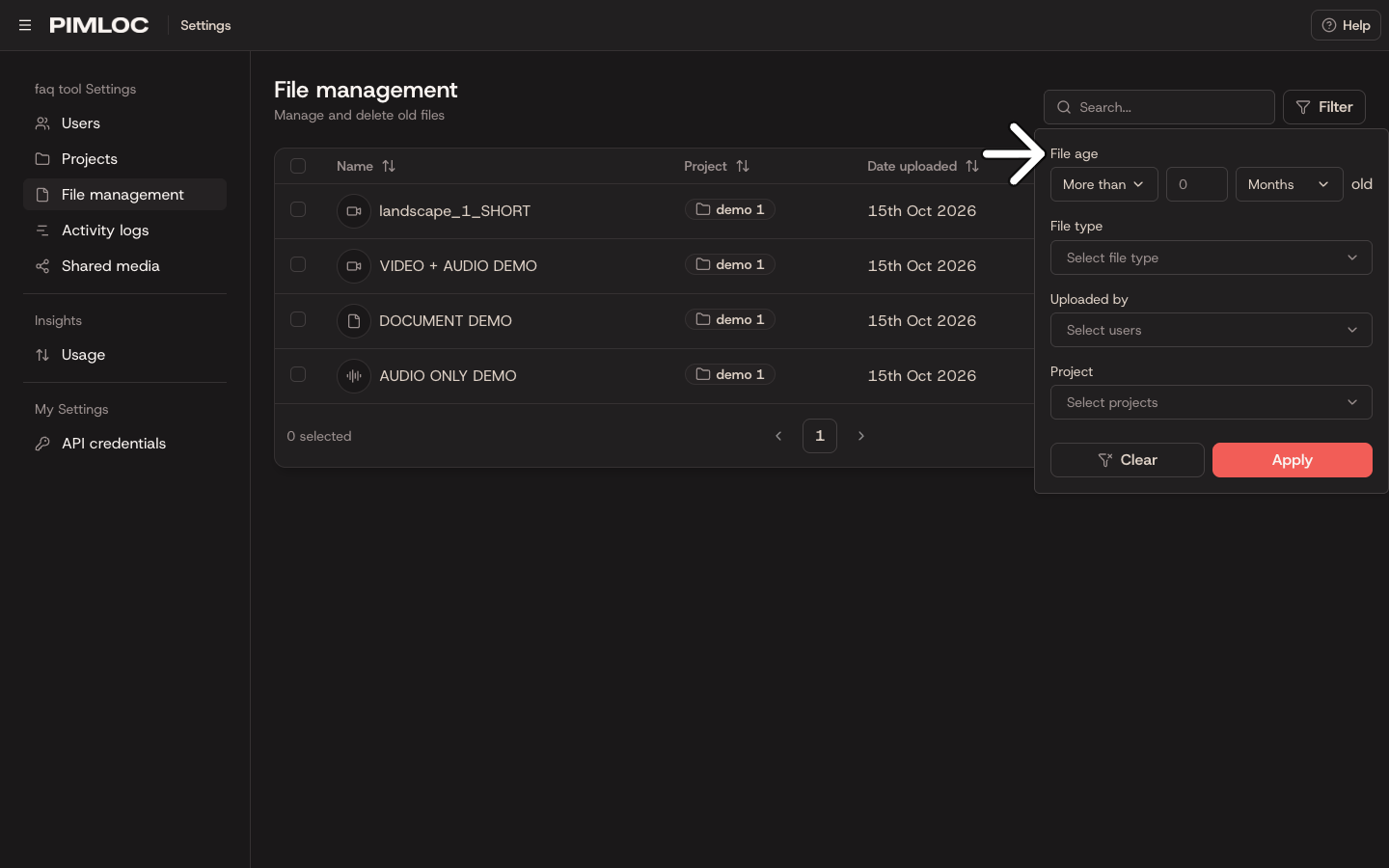
The list updates as soon as you change a filter. The filters you've chosen appear above the list. Click the × on one to remove it. The page's address keeps your filters, so you can bookmark a view, such as files more than a year old.
Delete files
One file. Click the bin at the end of its row, then Delete file.
Several files. Tick the box next to each file, or tick the box in the heading to select every file on the page. Then click Delete 2 selected at the bottom, and Delete Files. The button shows how many you've ticked.
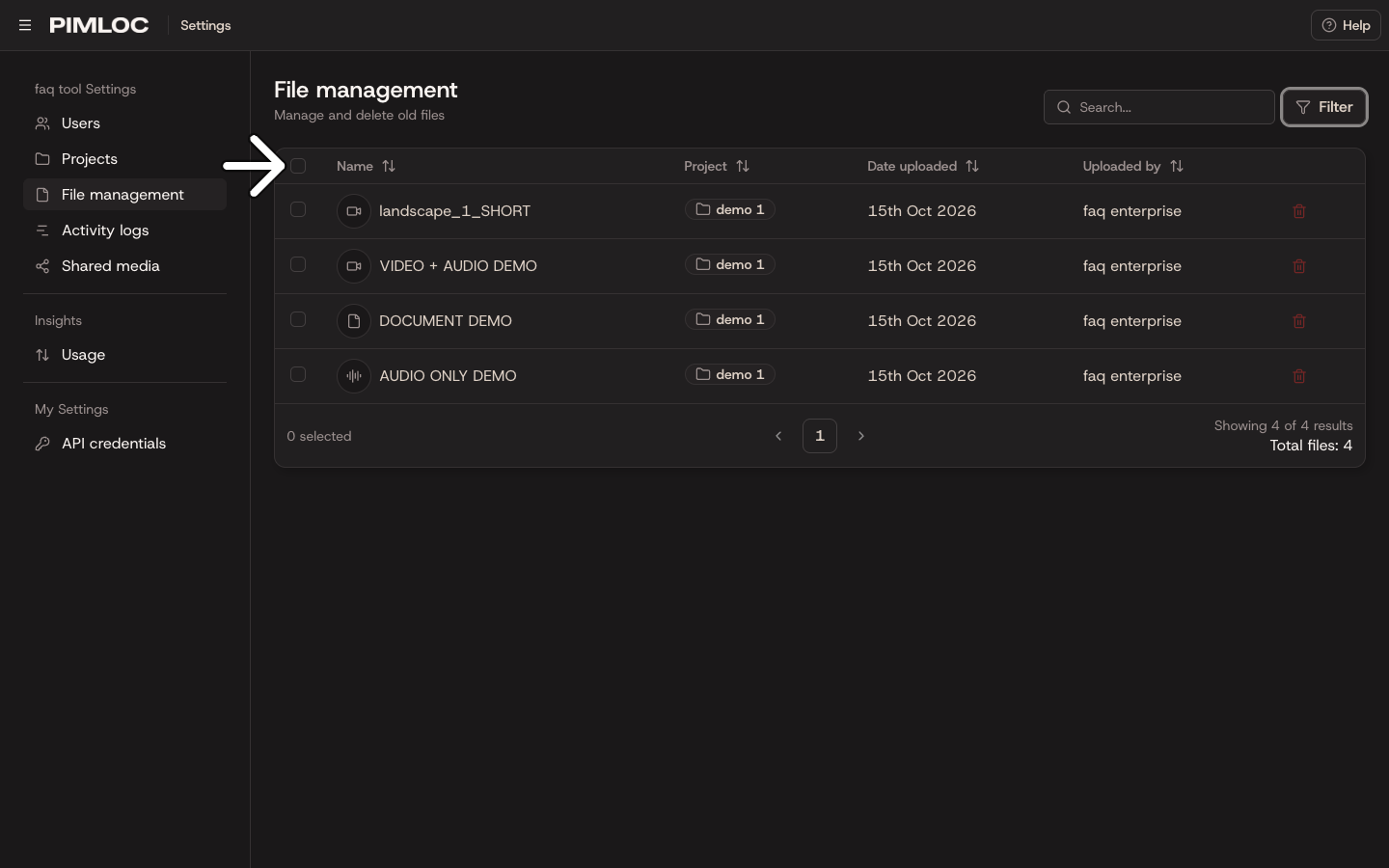
Deleted files are removed from our servers. This can't be undone. You can't open or download files from this page. To do that, open the file's project.
Activity logs
The Activity logs page shows what's happened in the account, newest first, grouped by day. Each entry shows the time, what happened, the project and file if there was one, and who did it. For example, logins, uploads, downloads, files being opened, exports, shares, and users or projects being added or removed.
To find particular activity, click Filter, choose what you want, then click Apply:
Project shows activity in one project. Choose a project to see activity on its files.
Users shows activity by certain people.
Activity types shows only certain kinds of activity, such as Media Download or Share Created.
Date range shows activity between two dates. Choose Last week, Last month or Last 3 months, or pick dates on the calendar.
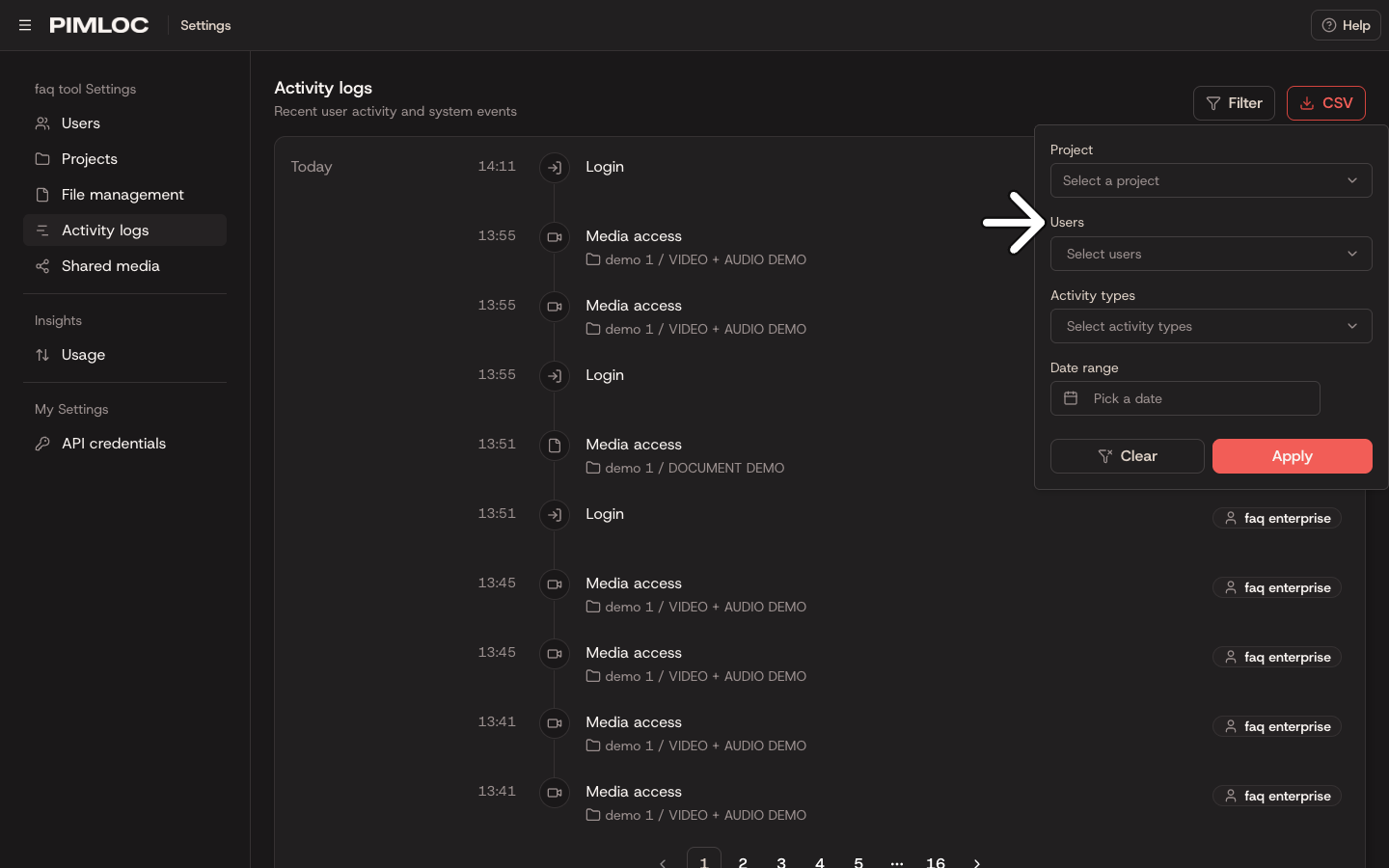
Click Clear to remove every filter.
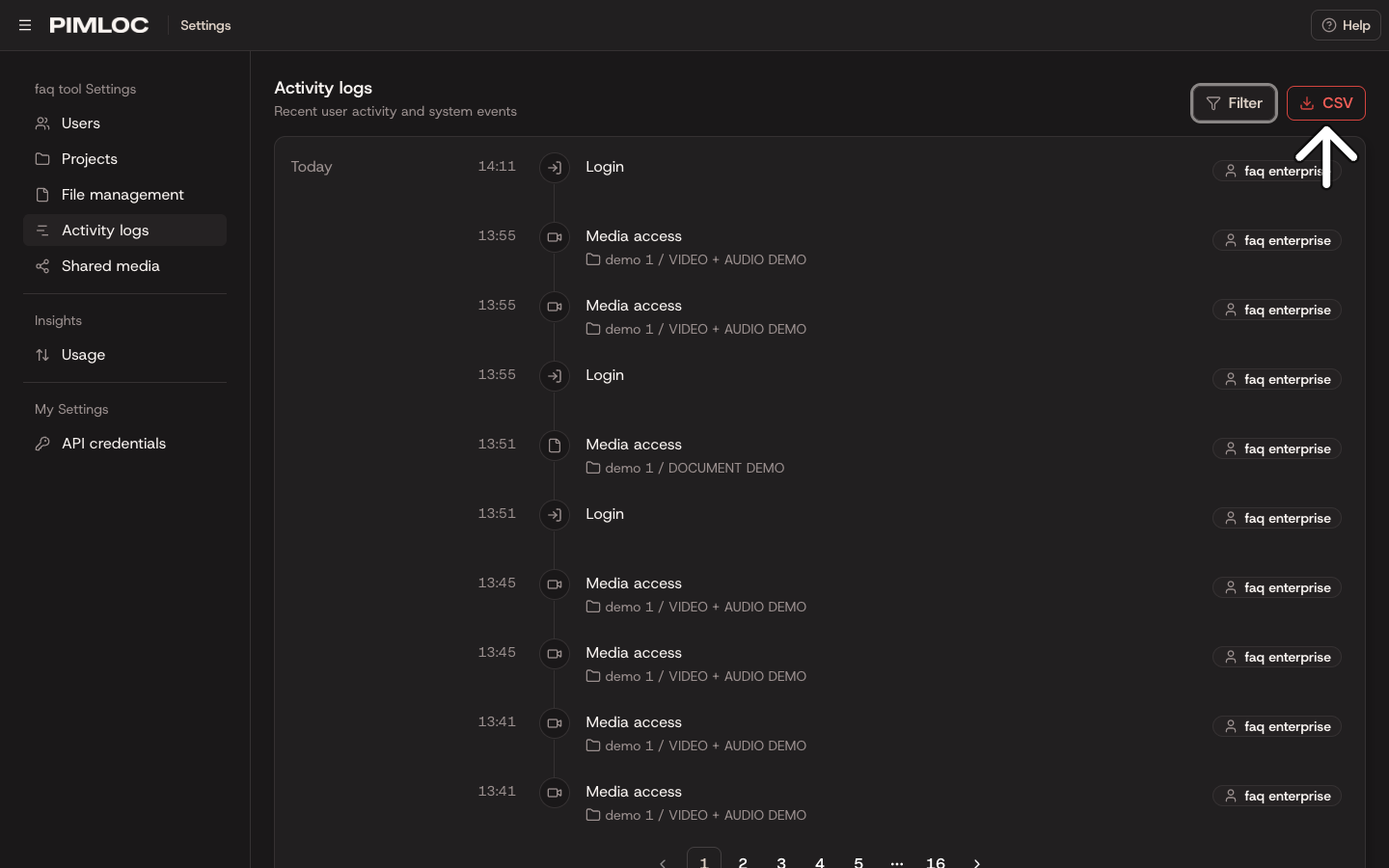
To download the activity as a spreadsheet, click CSV. The file includes the filters you've applied, so filter first to download only what you need.
Shared media
The Shared media page lists every share made in the account. A share sends a redacted file to someone by email, with an expiry date. For each share, the page shows the file, who it was shared with, who shared it, when it was created, when it expires and when it was last opened.
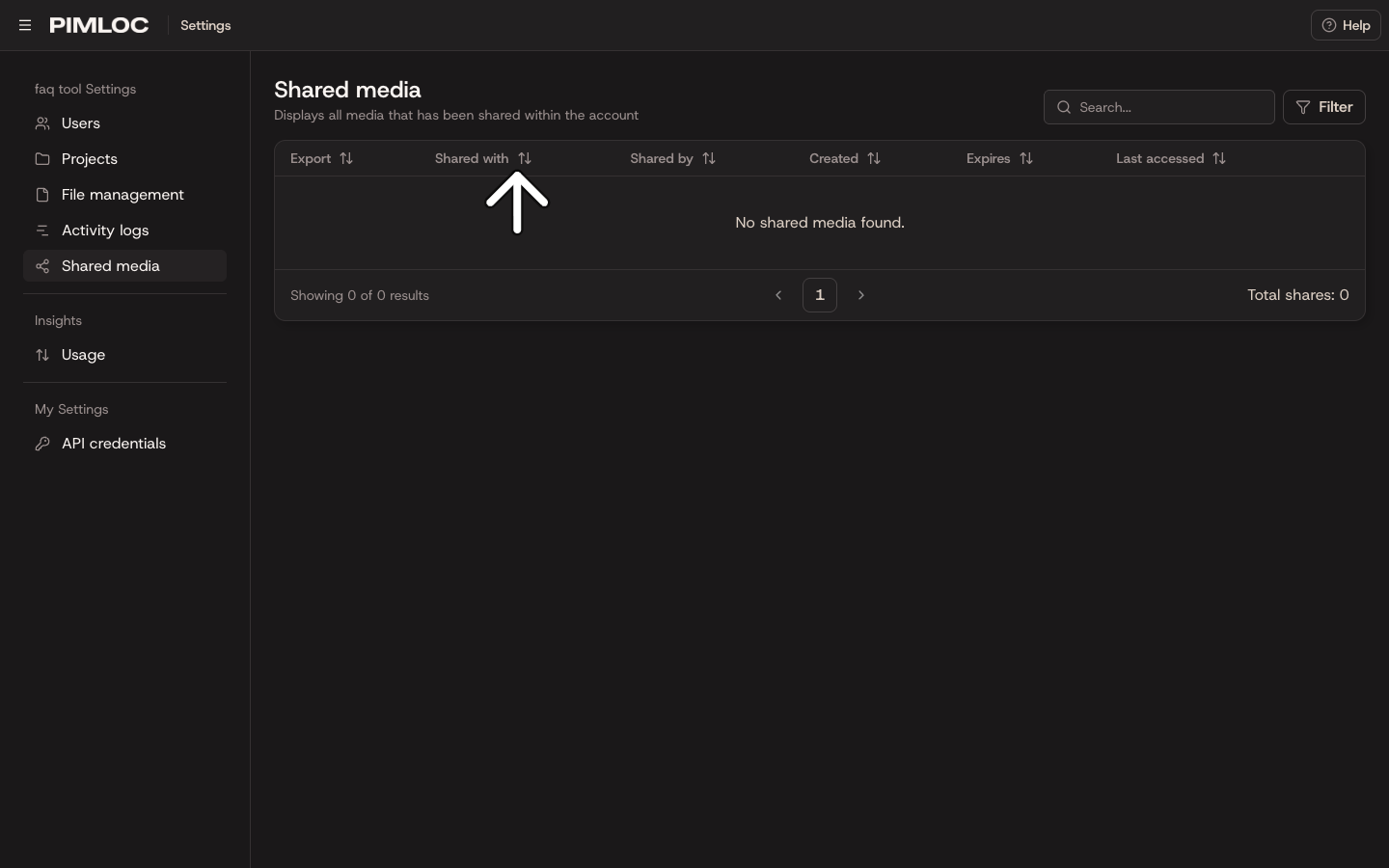
Click a file's name to open it.
Type in Search, or click Filter, to find shares by file, by who they were shared with or by who shared them.
To stop someone opening a share before it expires, click Revoke. The share stops working straight away.
Usage
The Usage page, under Insights, shows how much the account has uploaded and downloaded. It starts with the last 3 months.
To change the time period, click the dates at the top. Choose Last 24 hours, Last week, Last month or Last 3 months, or pick a start and end date on the calendar.
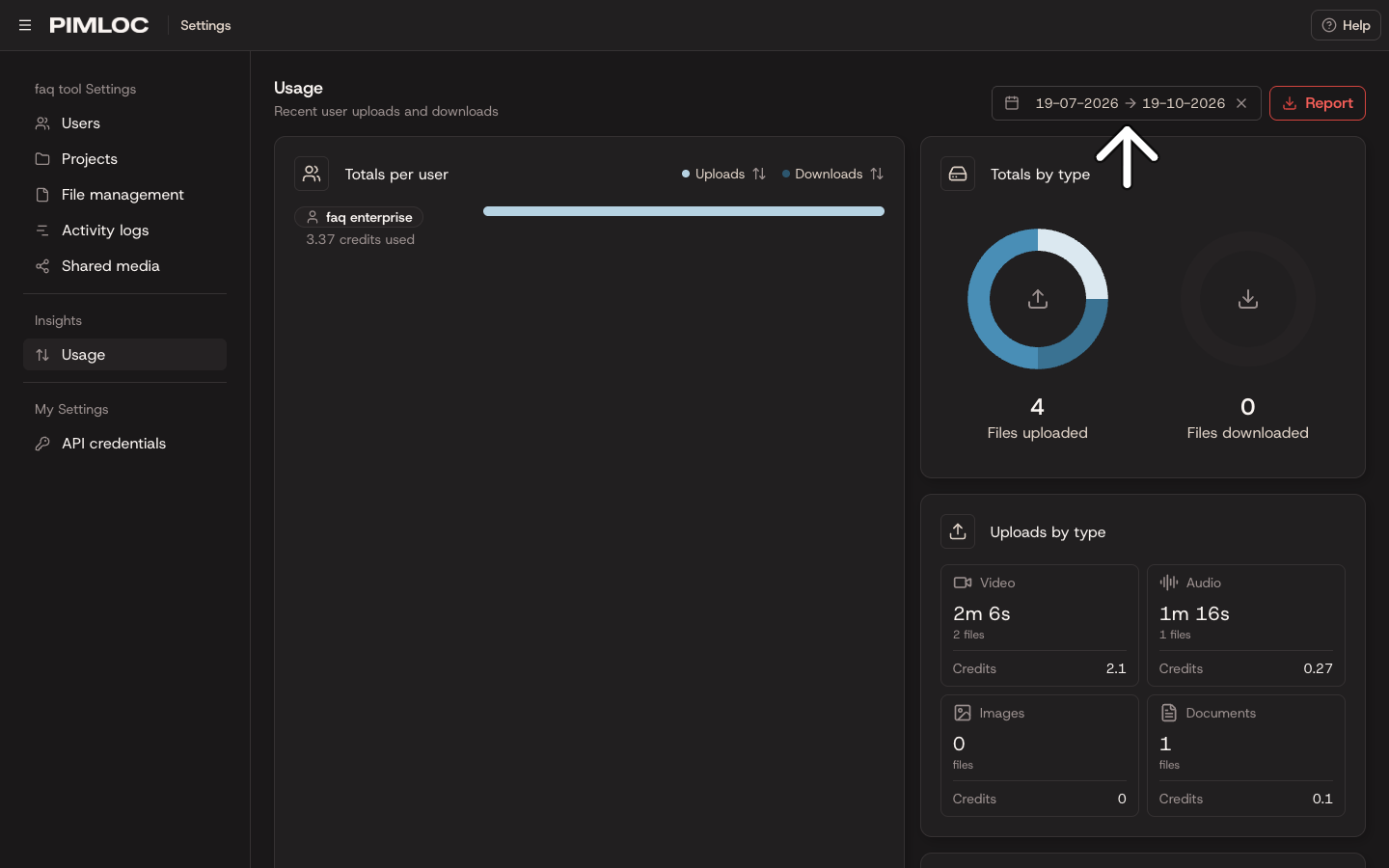
The page shows:
Totals per user: how many files each person uploaded and downloaded, and how many credits they used. Click Uploads or Downloads to sort by it.
Totals by type: the files uploaded and downloaded, split into video, audio, image and document.
Uploads by type: the number of files, total length and credits used for each type.
Top contributors: who uploaded and who downloaded the most files.
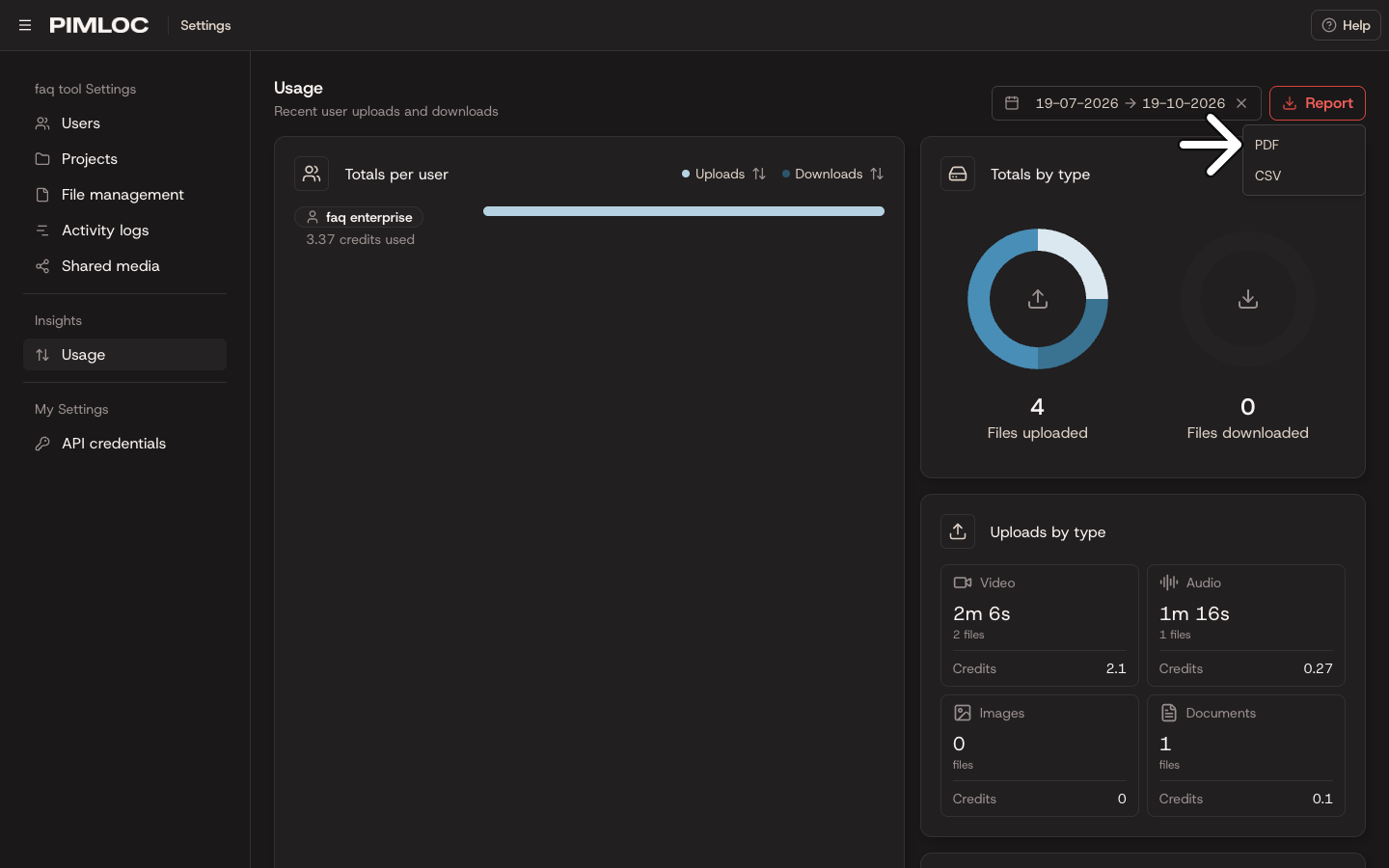
To download a report for the time period, click Report, then choose PDF or CSV.
For how credits work, see How to upload a file.
API credentials
The API credentials page lets you connect Pimloc Redact to your own systems through our API. Every user can create their own credentials here. Click API docs for how to use the API.
Create a credential
Click New credential.
Click Generate.
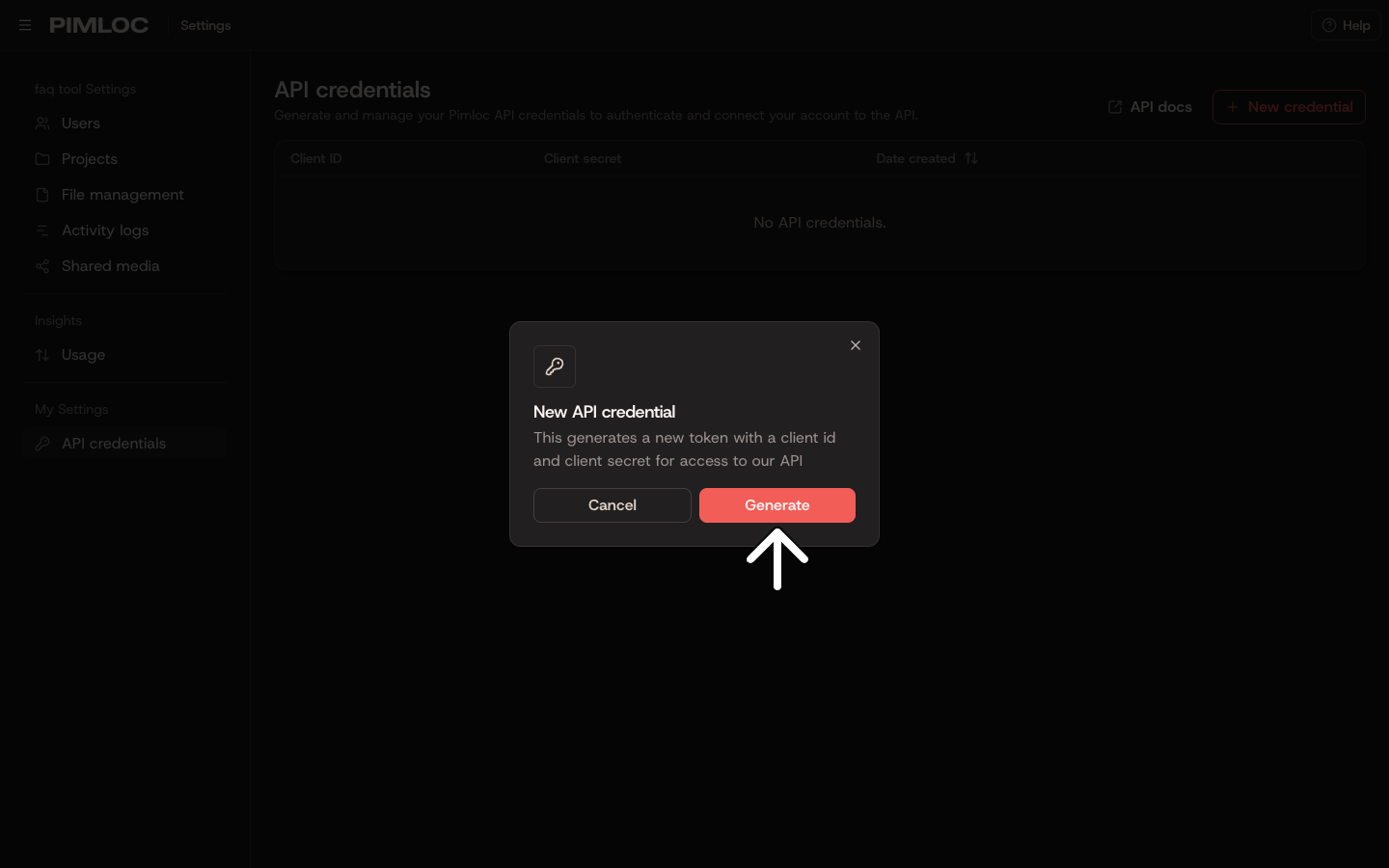
Copy the Client ID and Client secret, and store them somewhere safe. The secret is only shown once. After you click Done, the list shows it hidden.
If you lose the secret, delete the credential and create a new one.
Remove a credential
Click the bin at the end of the credential's row, then Delete credential. Anything using it stops working. This can't be undone.
Keyboard Shortcuts
The Settings pages don't have keyboard shortcuts. In the dialogs, press Esc to close without saving. If you've made changes, you're asked whether to discard them.