How to use Video Search
Use Video Search to locate individuals, artefacts related to people or find specific scenes across large volumes of video, or within a specific video, via natural language queries.
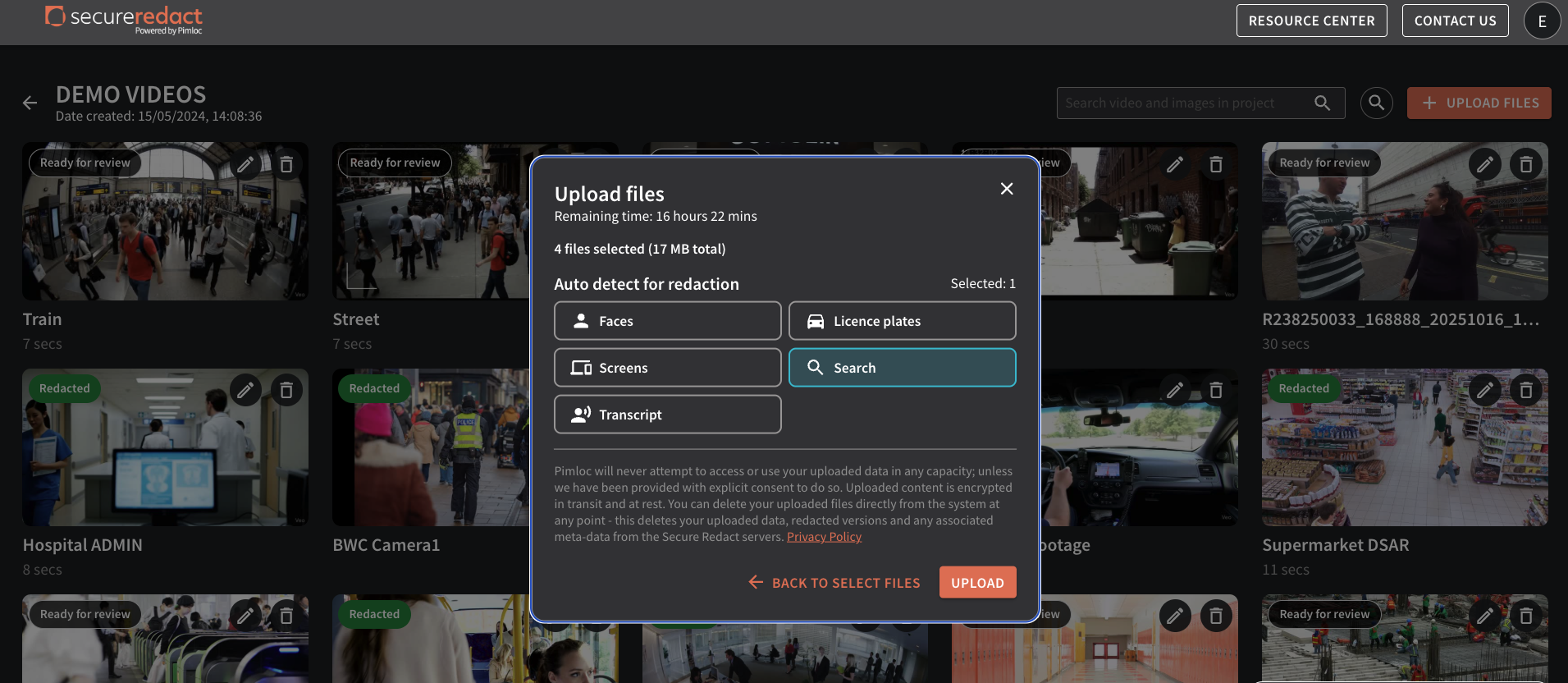
Important: to use Video Search, Search must be selected on upload.
On upload, select Search from the auto-detect for redaction section in the Upload Panel.
If you are on a Basic Tier, you can Search within the video itself only. If you are an Enterprise customer, you can Search within the video itself and across multiple videos within a project. Whether you are on the Basic Tier or an Enterprise customer, you must select Search on upload to use this feature.
To search within a project, across multiple videos
The Search bar will appear top right of the homepage.
Use natural language such as “red shirt”, “the number 5”, “the Hollywood sign”. Click the Search button or ENTER.
The results will show all videos where “red shirt” appears.
From here, you can filter the results.
People = matches just the contents of a box around a person.
Scene = matches against the whole image within a video frame.
Click on a thumbnail to preview where “red shirt” appears in a particular video. From here, click View Video to go to edit mode and edit/redact that particular video.
To search within a video
Open the Search Panel (right).
Use natural language such as “red shirt”, “the number 5”, “the Hollywood sign”. Click the Search button or ENTER.
The results will show all thumbnails where “red shirt” appears.
From here, you can filter the results.
People = matches just the contents of a box around a person.
Scene = matches against the whole image within a video frame.
Click on a thumbnail to preview where “red shirt” appears in the video. From here, apply any of the features from the Toolbar to edit/redact.