
How to redact speech using the transcript in the Pimloc Redact Video Editor
The transcript shows everything said in your video as text. This page explains how to open it, redact words and speakers, search it, edit it, change timestamps, download it, and use the PII and Flagged speech tabs.
When you redact words in the transcript, Pimloc mutes or bleeps the same moments in the video's audio. It's usually quicker than finding the words on the waveform by ear.
For an audio file, the transcript opens on its own page instead. See How to redact an audio file using its transcript.
How to use the Transcript Panel in the Video Editor’s Sidebar
Click Transcript in the tools on the left. The transcript opens in a panel next to the video.
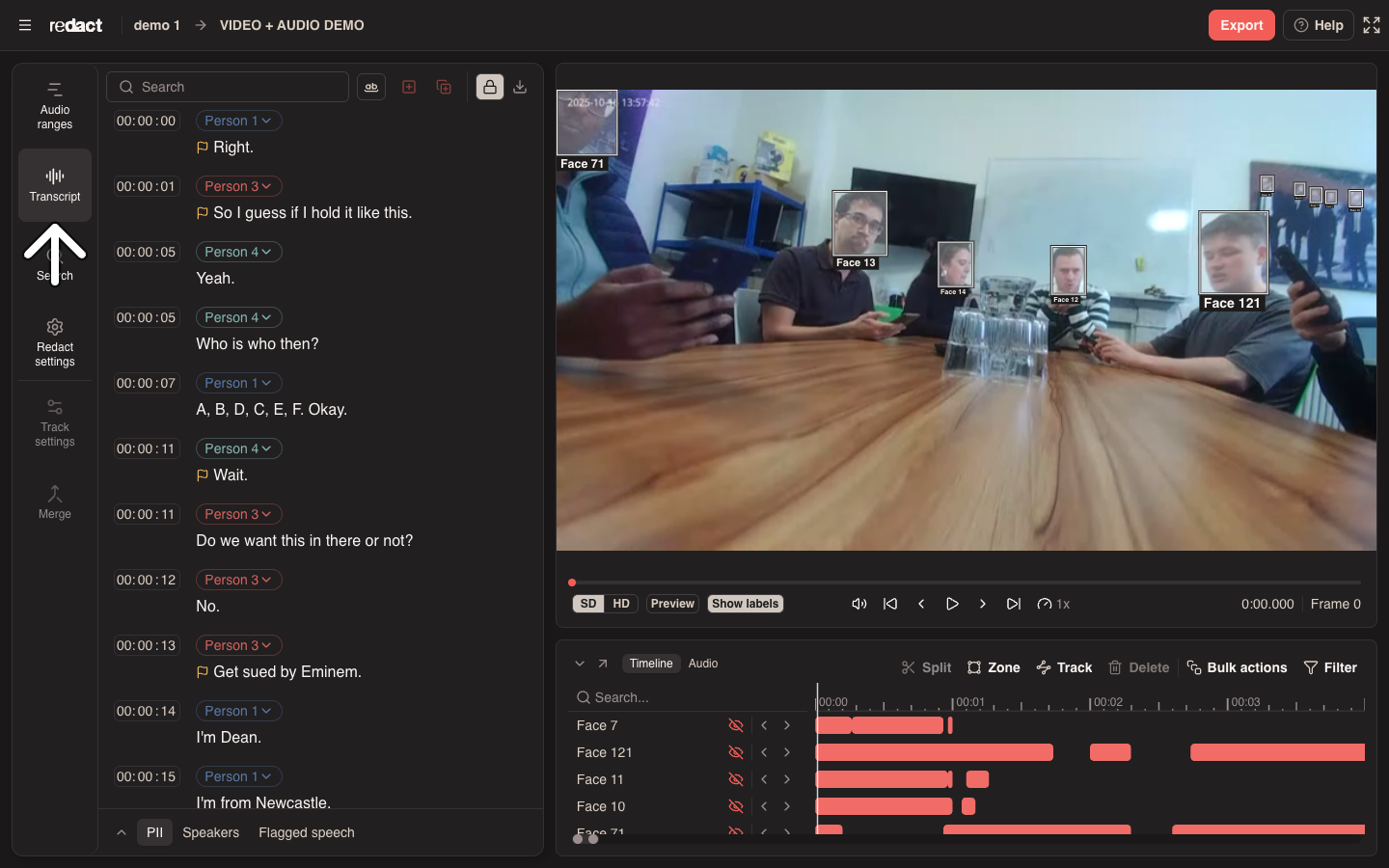
The panel has three parts:
The Search bar at the top, with search, the redact buttons, the lock and download.
The Transcript = each block of speech shows its start time, its speaker and what was said.
The tabs at the bottom: PII, Speakers and Flagged speech.
Click a word to move the video to the moment it's said. The word being spoken is highlighted as the video plays.
If the file has no transcript, the panel says so. To get one, click Generate transcript.
How to redact words and relevant audio
There are three ways to do this:
1) Select a word or phrase in the transcript. A small menu appears next to it. Click Redact. To undo it, select the words again and click Unredact. The matching audio redaction is removed or shortened.
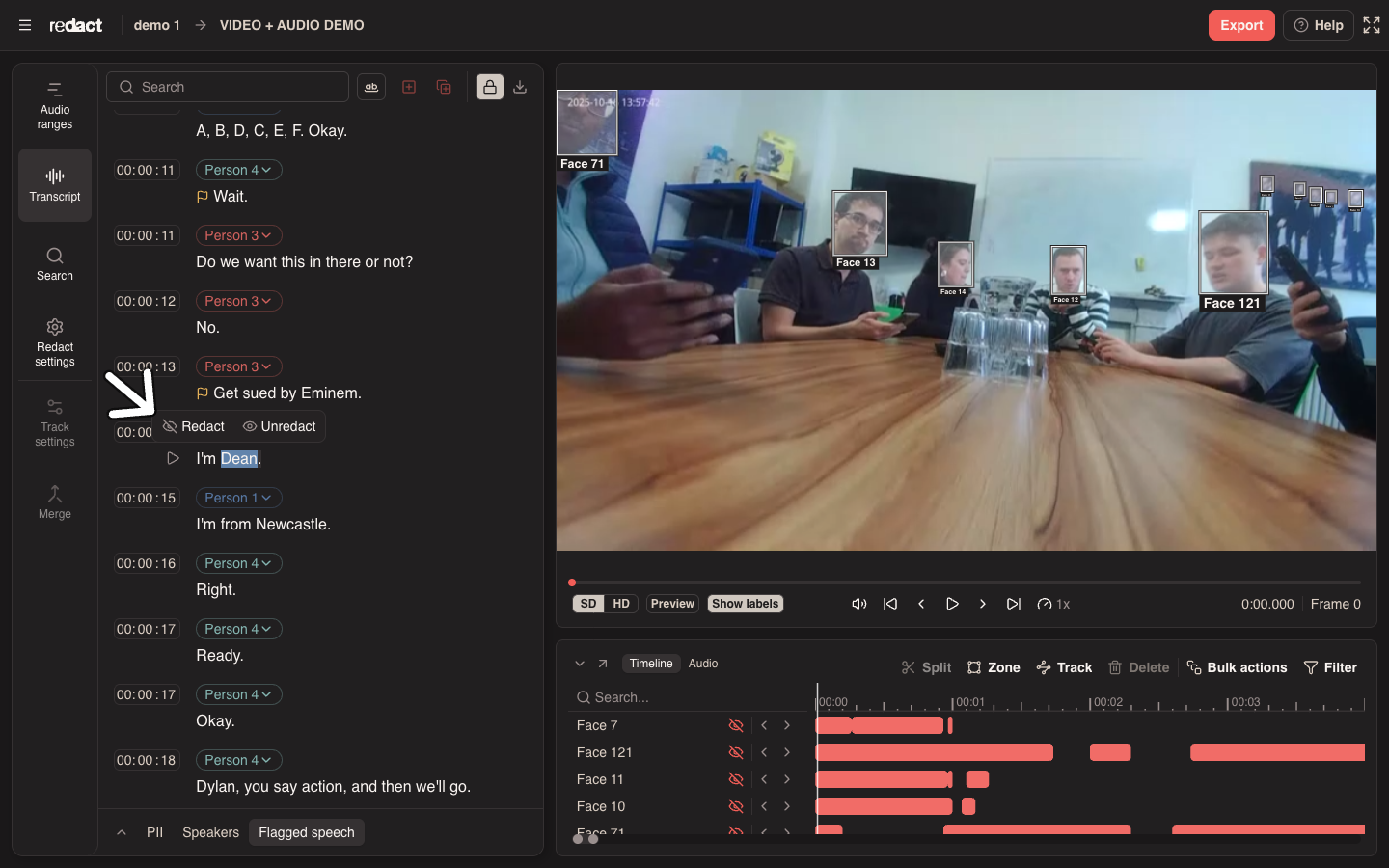
Redacted words are crossed out in orange. At the same moment, Pimloc Transcribe adds an audio redaction covering when those words are spoken. It shows as an orange range on the waveform in the Audio tab under the video, and in the Audio ranges tool. See How to add and edit audio ranges and How to redact audio on the audio timeline.
To undo it, select the words again and click Unredact. The matching audio redaction is removed or shortened.
It works the other way too. If you add or change an audio range on the waveform, the words spoken in that range are redacted in the transcript.
Two messages can appear when you redact:
No audio redaction added. The words have no timing, so there's nothing to mute in the audio. This can happen with words you've typed in yourself.
Audio redaction needs review. Your selection includes words you've edited, whose timing may be slightly off. Check the audio range covers the right moment.
Speakers
Every block of speech has a speaker, shown as a coloured label above the text, such as "Person 1".
Change who's speaking
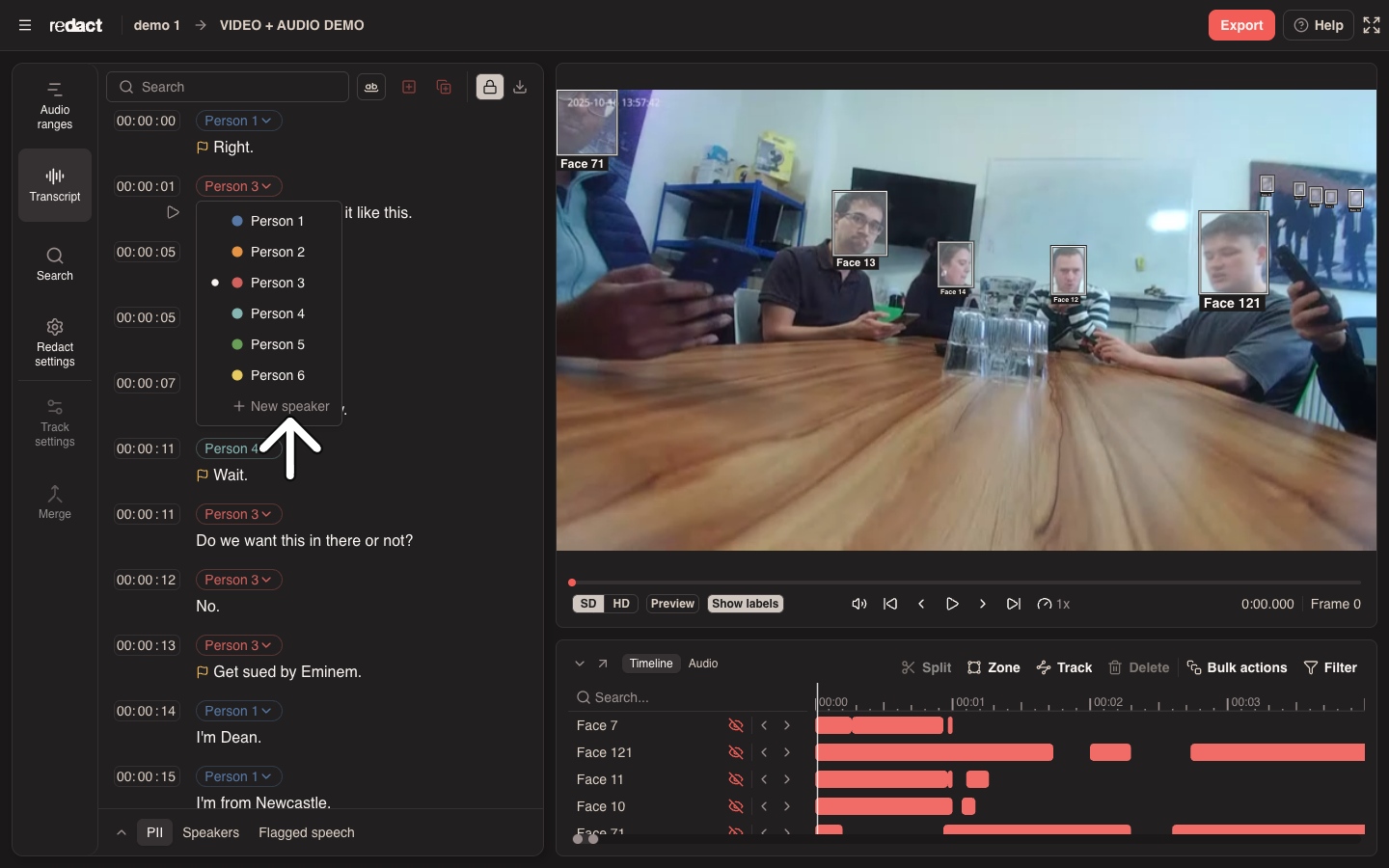
Click the speaker label on a block and choose a different speaker. Choose New speaker to add one. New speakers are named "Person" and the next free number.
Manage speakers in the Speakers tab
Click Speakers at the bottom of the panel to see everyone in the transcript.
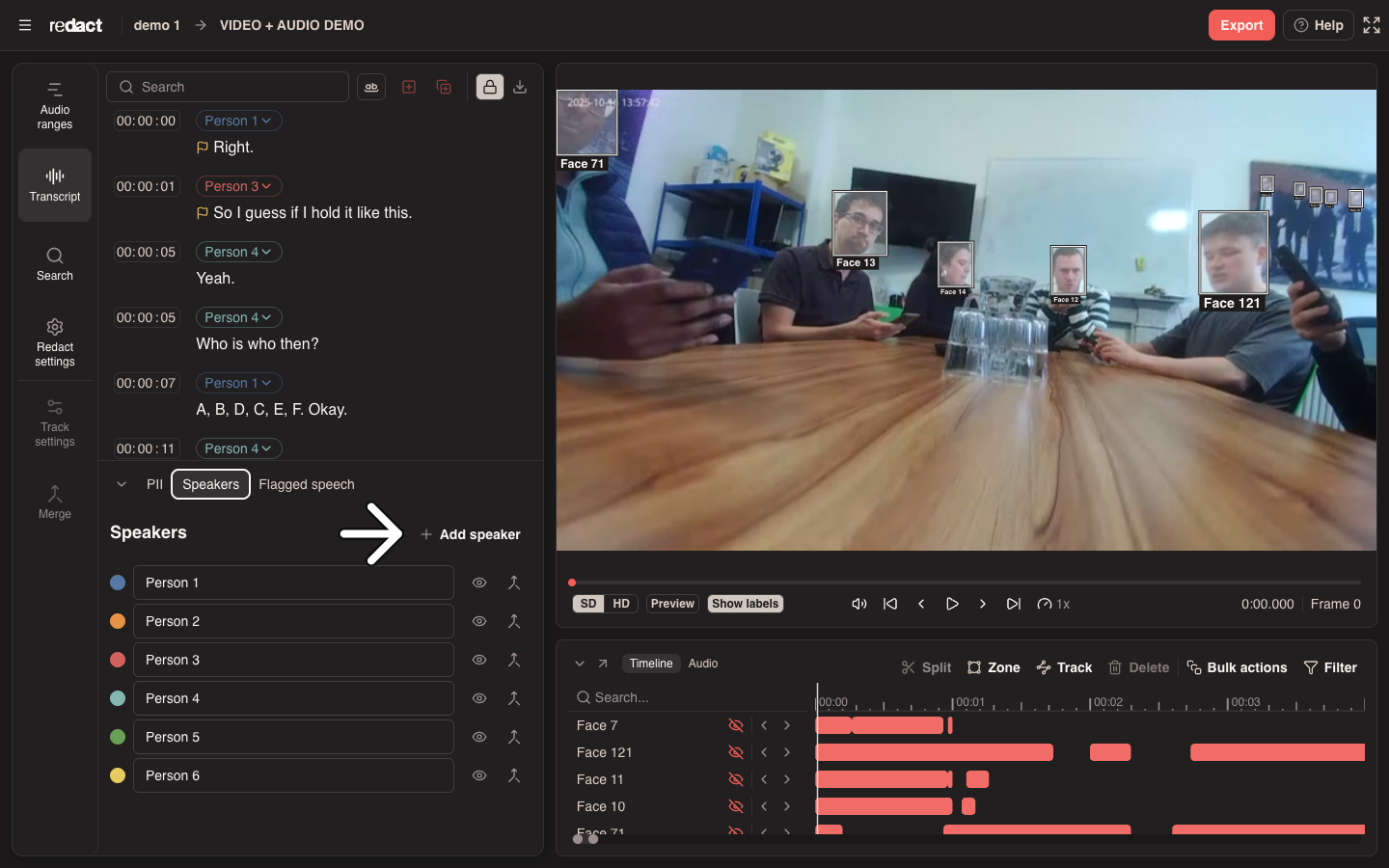
Rename a speaker. Click their name, type a new one and press Enter.
Add a speaker. Click Add speaker.
Redact everything a speaker says. Click the eye next to their name. Every block they speak is redacted, in the transcript and the audio. A redacted speaker has an orange, crossed-out eye. Click it again to unredact them. Anyone else's speech that's redacted stays redacted.
Merge two speakers. If the same person has been split into two speakers, click Merge speaker on one of them and choose who to merge into. All their blocks move to that speaker, and the first speaker is removed.
Change a block's start time
Each block starts with its time, as hours, minutes and seconds. To change it, click the time, type the new value and press Enter. Press Esc to cancel.
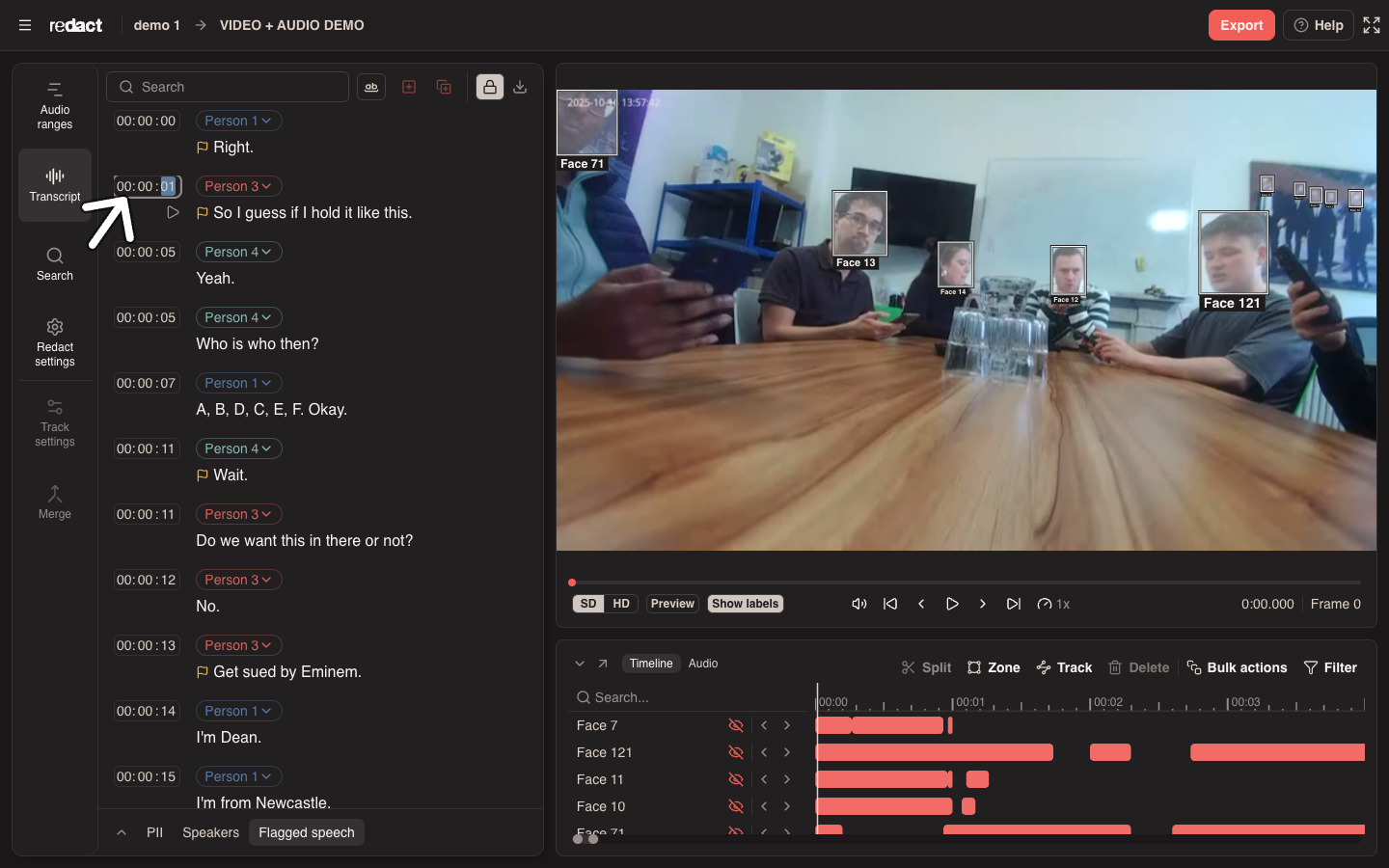
This only changes the block's start time. It doesn't move the words or any audio redaction.
Hover over a block's time and click the play button underneath to play just that block.
Search the transcript
Type in Search at the top of the panel. Matches are highlighted in yellow, and the toolbar shows how many there are, for example "2 / 5". Use the arrows, or press Enter and Shift + Enter, to move between them.
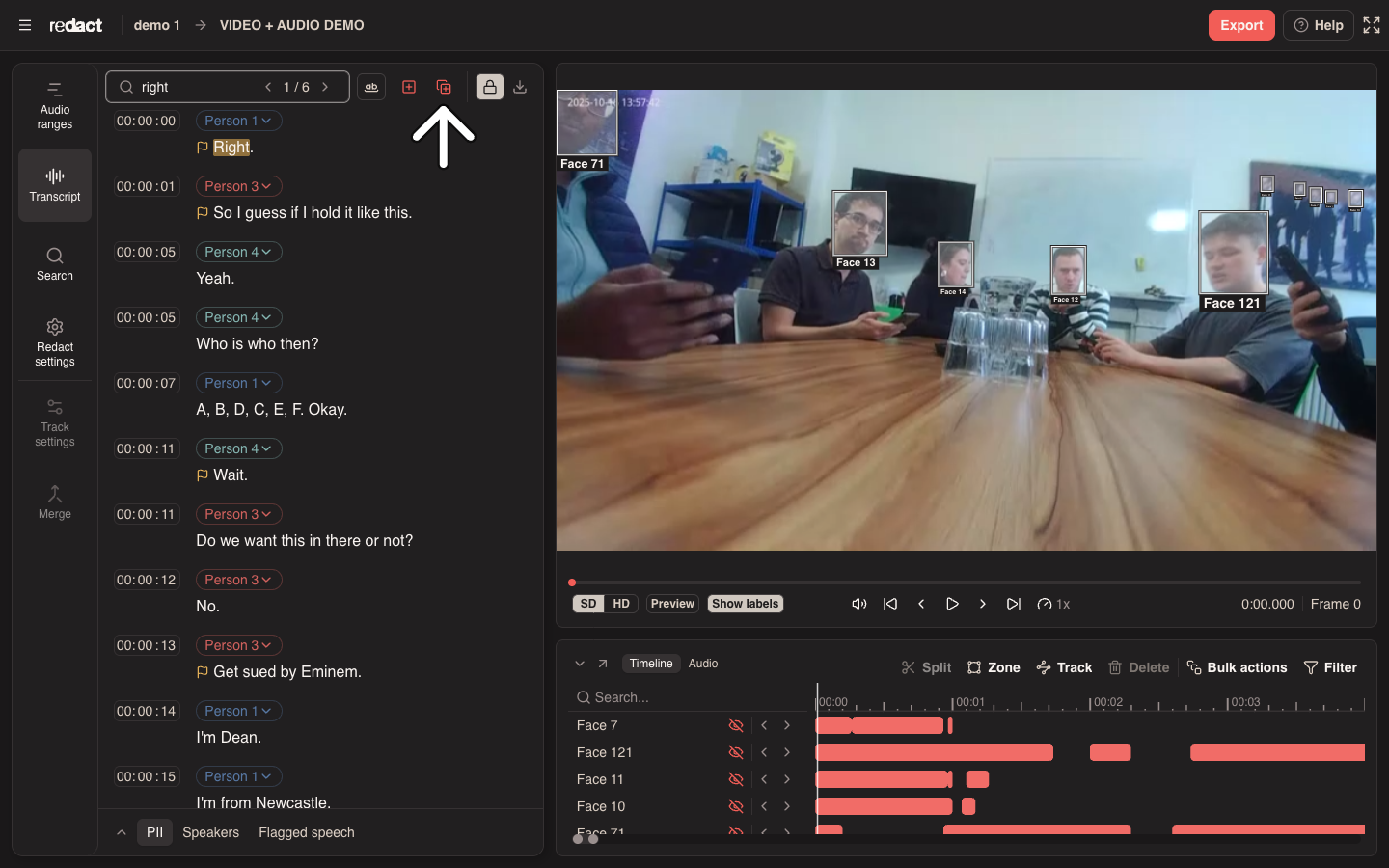
Search ignores capital letters and finds matches inside longer words. For example, "art" finds "start" and "Art".
Match whole word only finds the word on its own. With it on, "art" finds "Art" but not "start". You can also type the word in quotes, such as "art".
Search finds plain text only. You can't use wildcards or regular expressions.
A match must be within one block of speech.
To redact what you've found:
Redact current result redacts the highlighted match.
Redact all results redacts every match.
Both add audio redactions, as when you redact words by hand. To undo a search redaction, select the words and click Unredact.
Edit the transcript
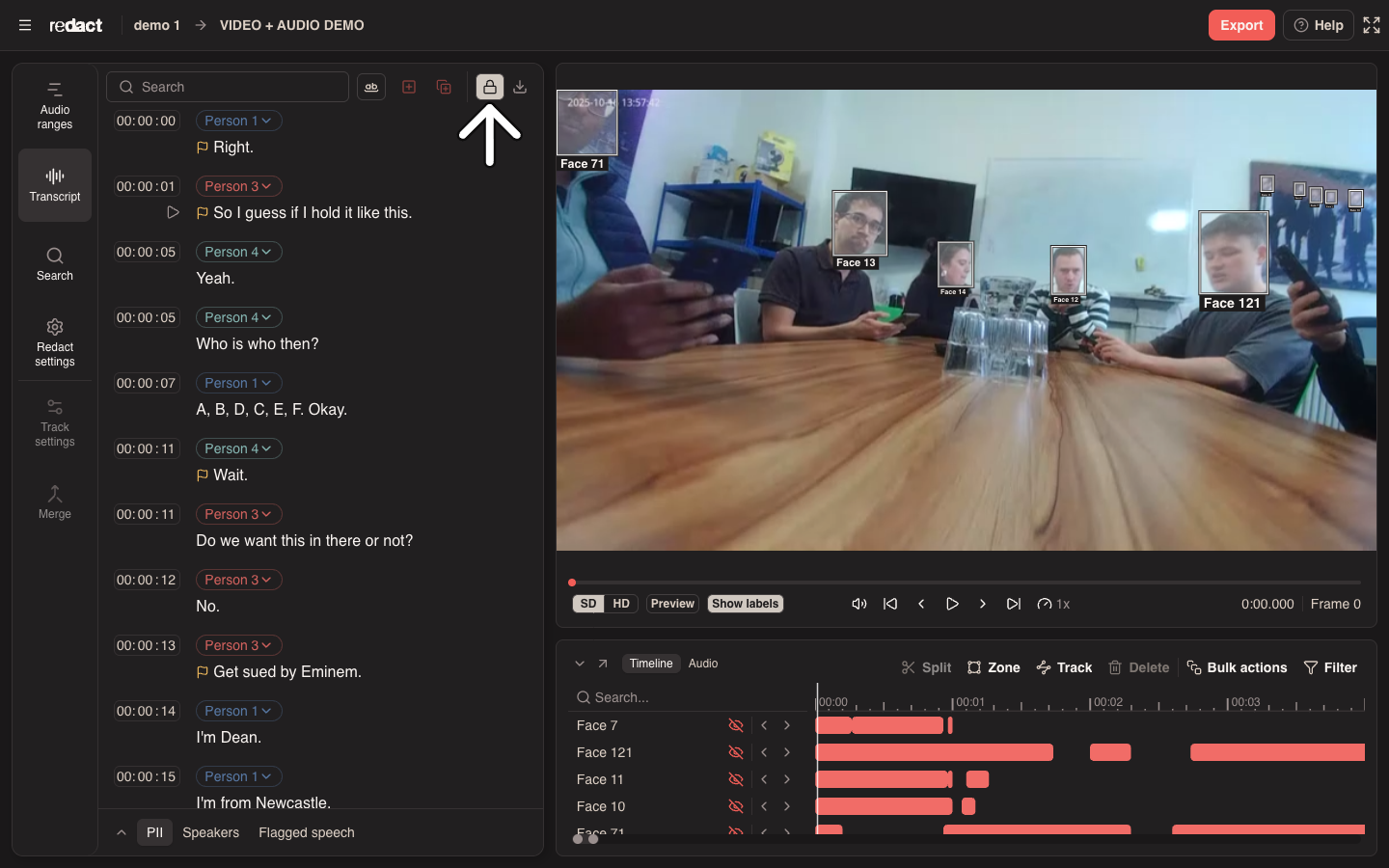
The transcript is locked when you open it, so you can't change the text by accident. You can still redact, change speakers and times, and search while it's locked.
To correct the text, click the lock in the toolbar to unlock it.
Then type in the transcript as you would in a document:
Press Enter to split a block in two. The new block keeps the same speaker.
Press Backspace at the start of a block to join it to the one before.
Press Cmd + Z (Ctrl + Z on Windows) to undo, and Shift + Cmd + Z or Cmd + Y to redo.
Edited words have a dashed underline. Their timing is estimated from the words around them, so check any redaction that includes them.
Your changes save automatically a moment after you stop typing. Click the lock again when you've finished.
Download the transcript
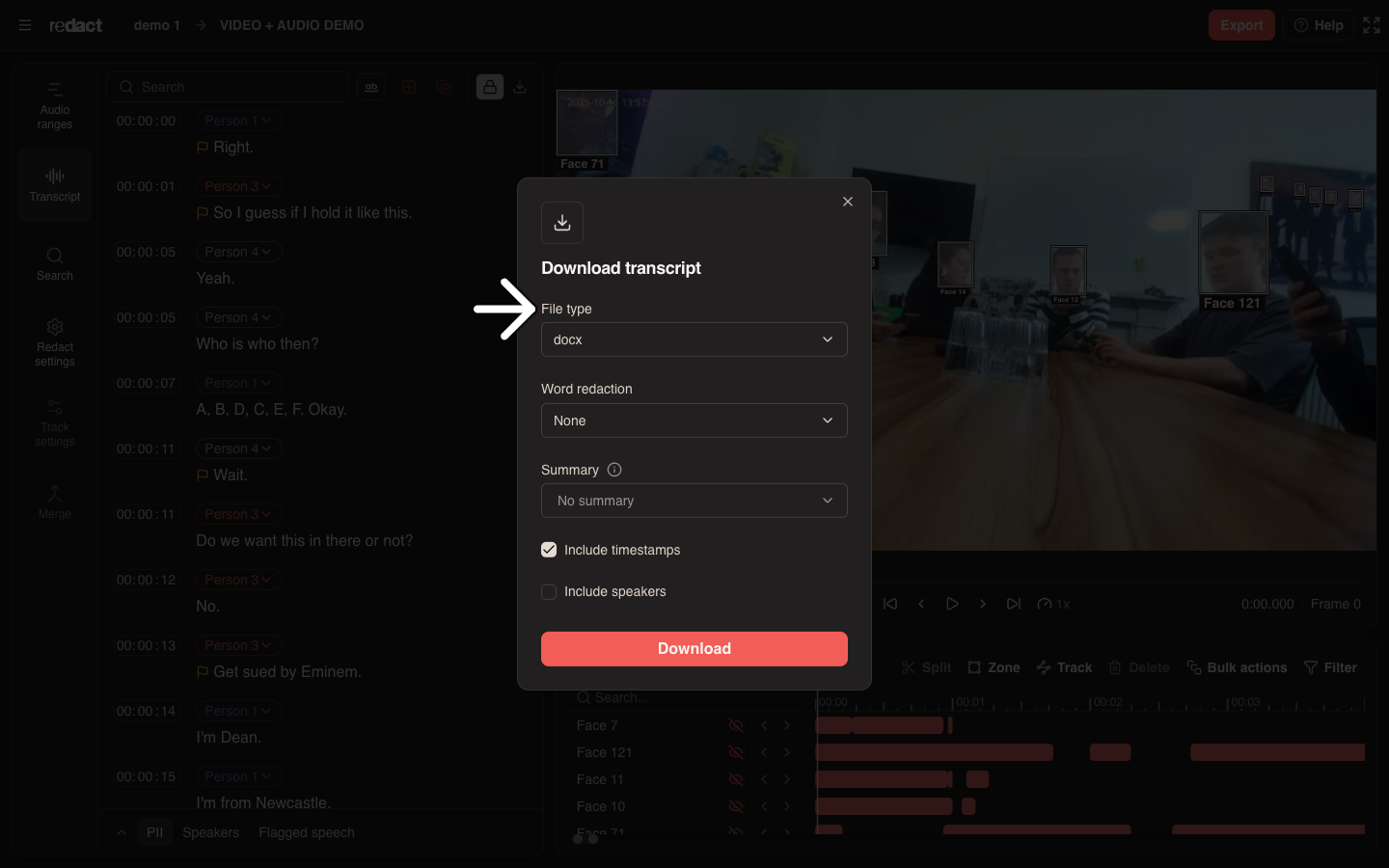
Click the download button at the right of the toolbar.
Choose:
File type: Word (docx), PDF or plain text.
Word redaction:
Redact removes redacted words from the download.
Highlight marks them so you can see what's redacted.
None includes every word as it is.
Summary adds a summary of what was said. Choose one or more styles: Brief, Detailed or Bullet points. It's off to start with.
Include timestamps adds each block's start time. It's on to start with.
Include speakers adds each block's speaker.
Include translation adds the English translation. This only appears if the transcript was translated, and you can't use it with Redact.
Then click Download.
Find personal information with the PII tab
Click PII at the bottom of the panel. It lists the personal information found in the transcript, such as names, places, dates and organisations, grouped by type.
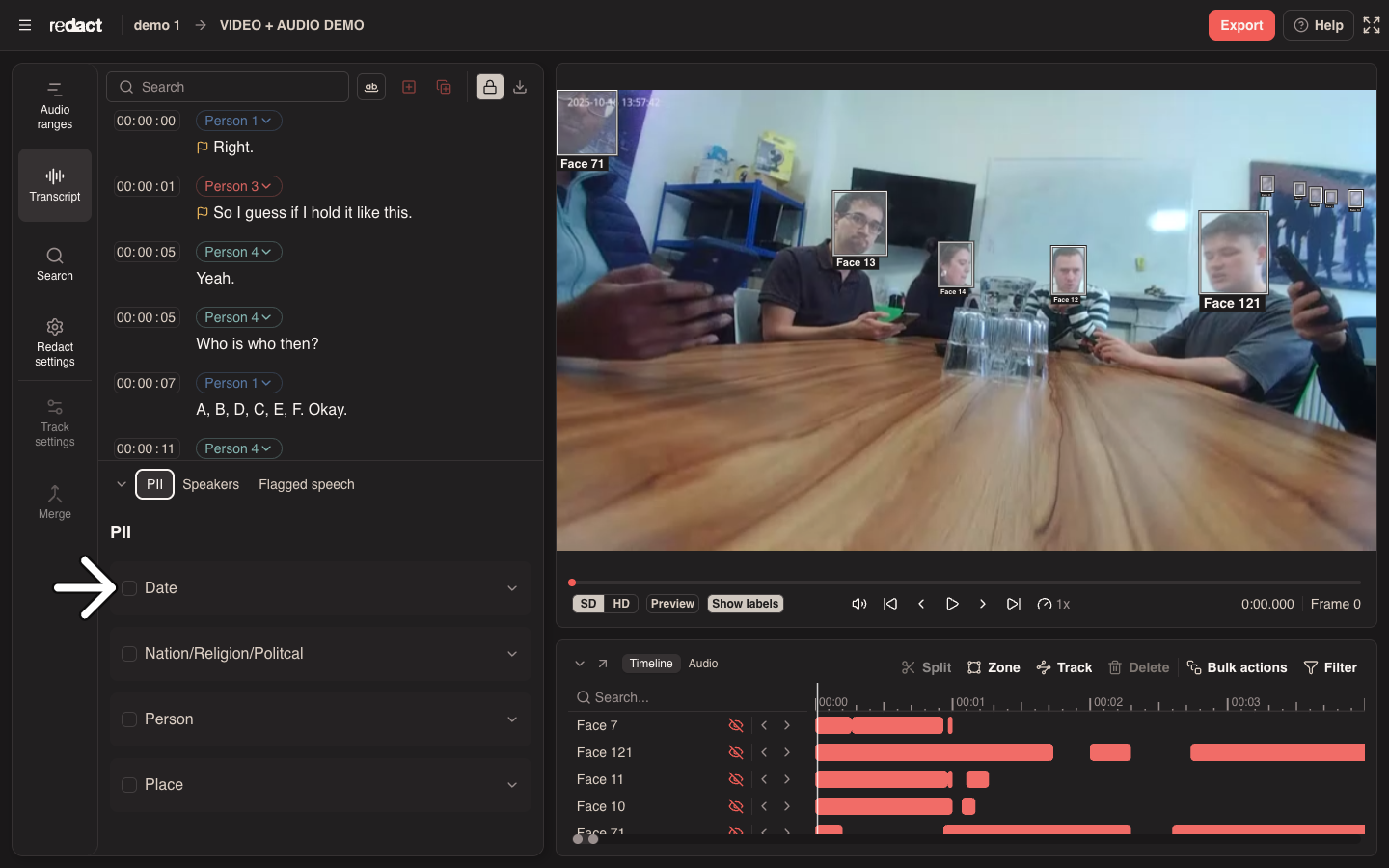
Tick a word to redact every place it appears, in the transcript and the audio.
Tick a type, such as Person, to redact every word of that type.
Click a word to jump to it in the transcript. If it appears more than once, use the arrows next to it to step through each one.
Untick to unredact. The PII tab finds a lot, but it isn't perfect, so read the transcript as well.
Check flagged speech
Pimloc Transcribe flags speech it may have got wrong, so you know where to listen closely. Flagged blocks have a yellow flag in front of the text. Hover over the flag to see why.
Multiple speakers = More than one person may be talking in this block
Missing speech = Some speech may not have been transcribed
Misaligned speech = The words may not line up exactly with when they're spoken
Prolonged speech = A word or sound is drawn out, which can affect the timingLow audio qualityThe audio is hard to hear, so the words may be wrong
Click Flagged speech at the bottom of the panel, or click a flag, to see every flagged block.
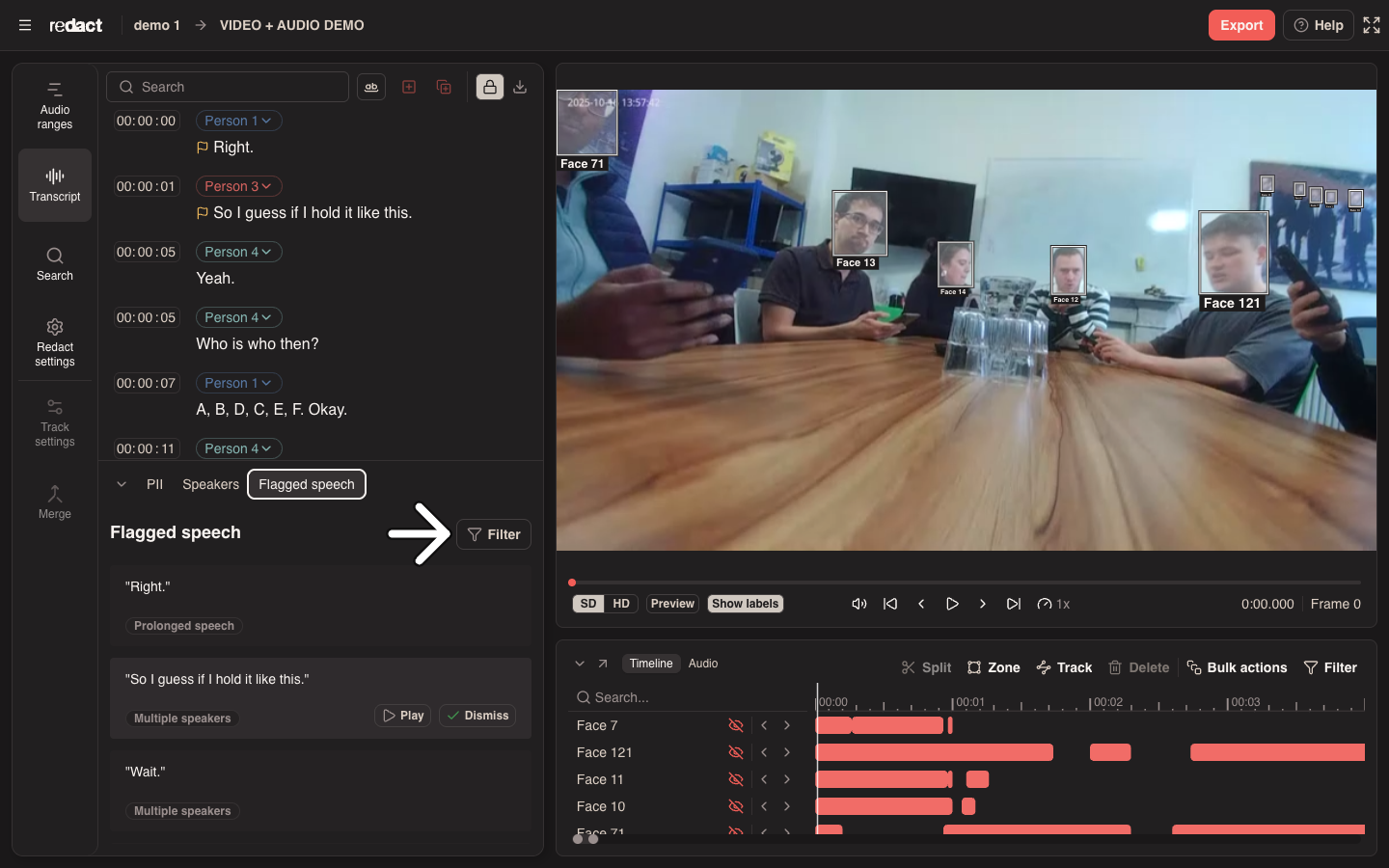
Click a row to jump to that block.
Hover over a row and click Play to hear it.
Click Dismiss once you've checked it, to clear its flags.
Click Filter and choose a Caution type to see only one kind of flag.
Make the tabs bigger
Click the arrow at the bottom left of the panel, or click any tab, to expand the tabs. They take up half the panel. Click the arrow again to collapse them.
Translated transcripts
If you chose a language other than English when you uploaded the file, each block shows the English translation in italics underneath the original. You can't edit or select the translation.