Spotlight
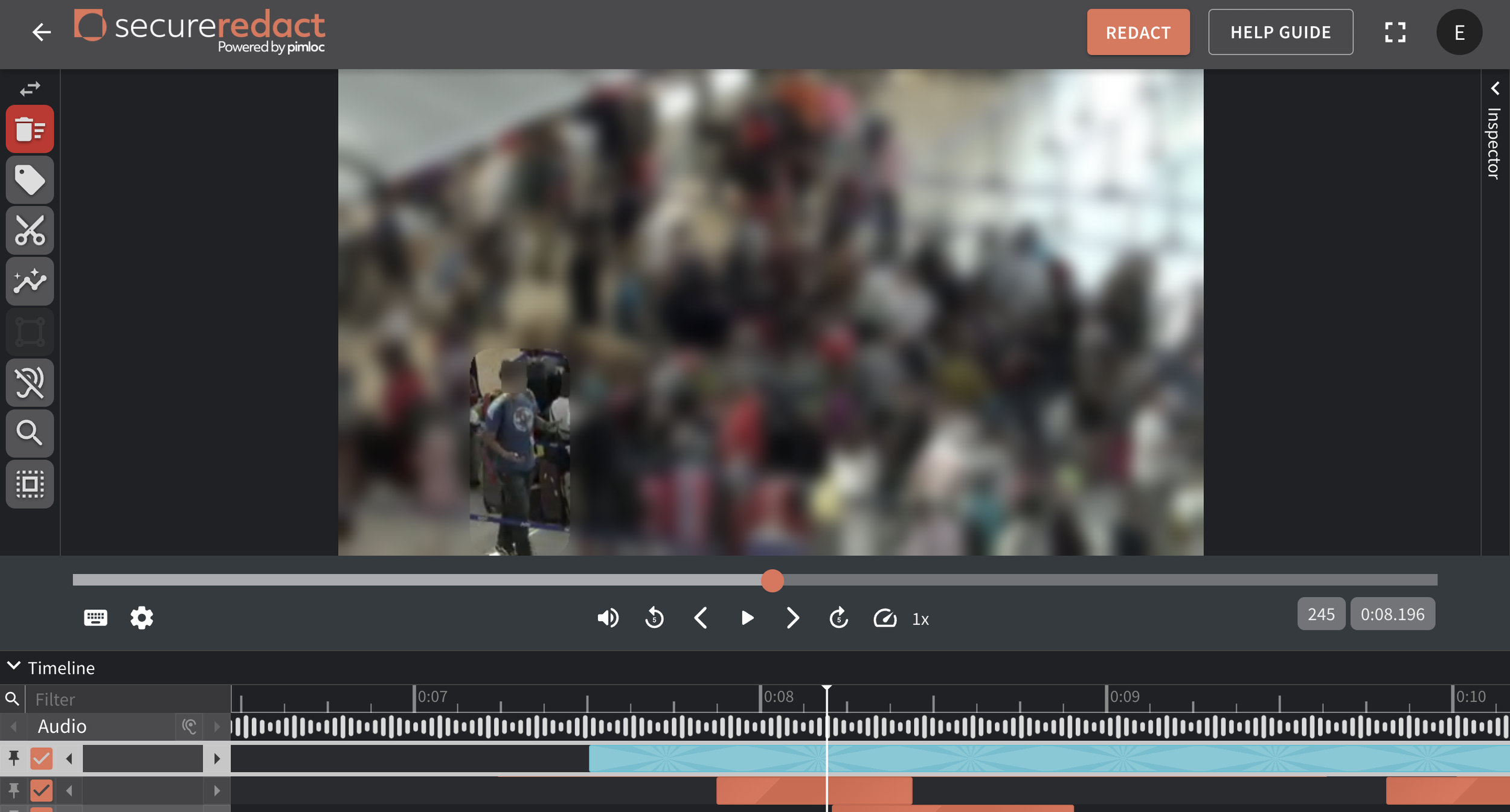
Spotlight (also known as a highlight window) allows you to inverse the blur - blurring the entire video screen except for what is the Spotlight box(es). It is ideal for busy or sensitive scenes where you need to focus on specific areas while anonymizing the background.
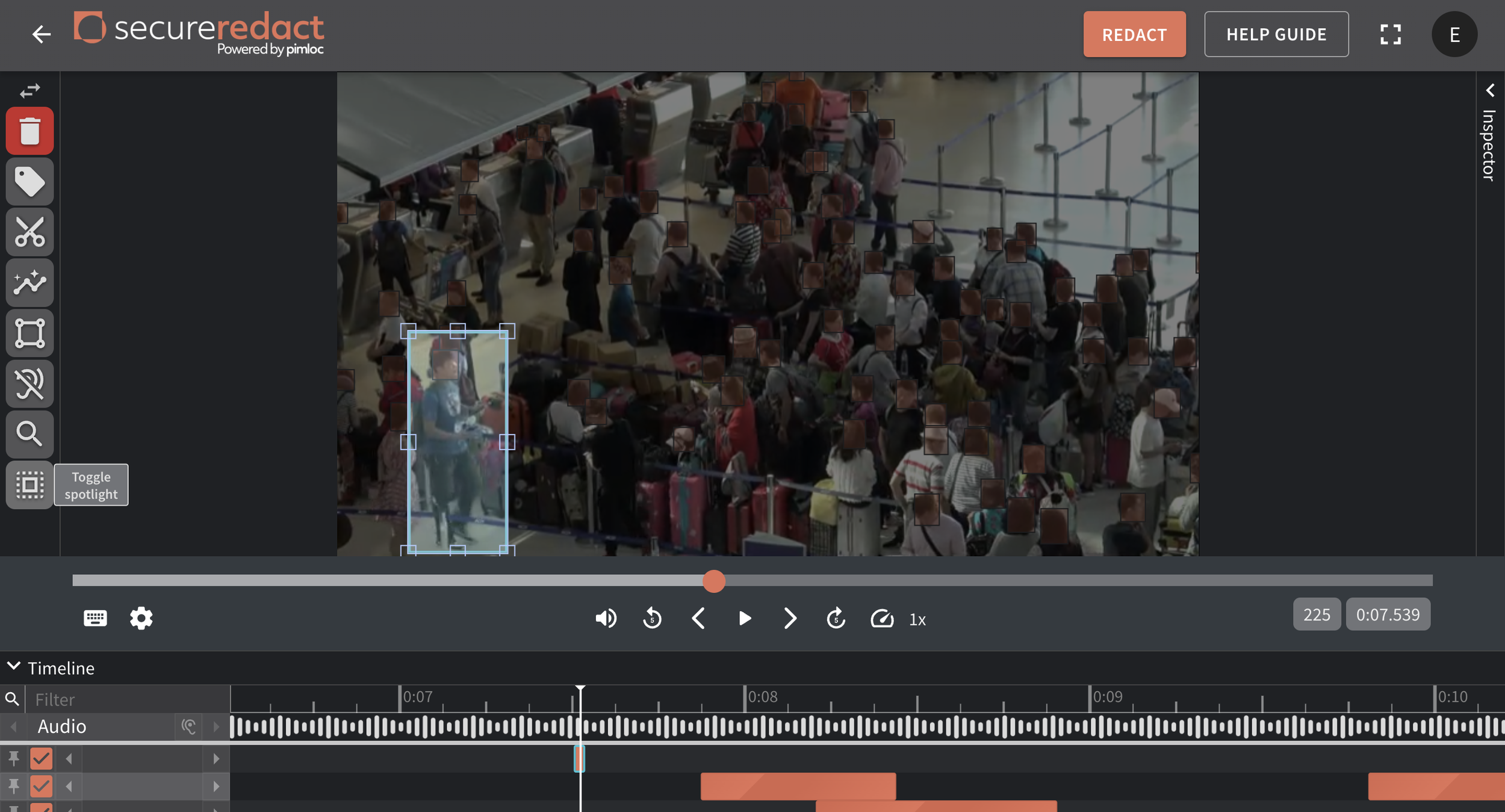
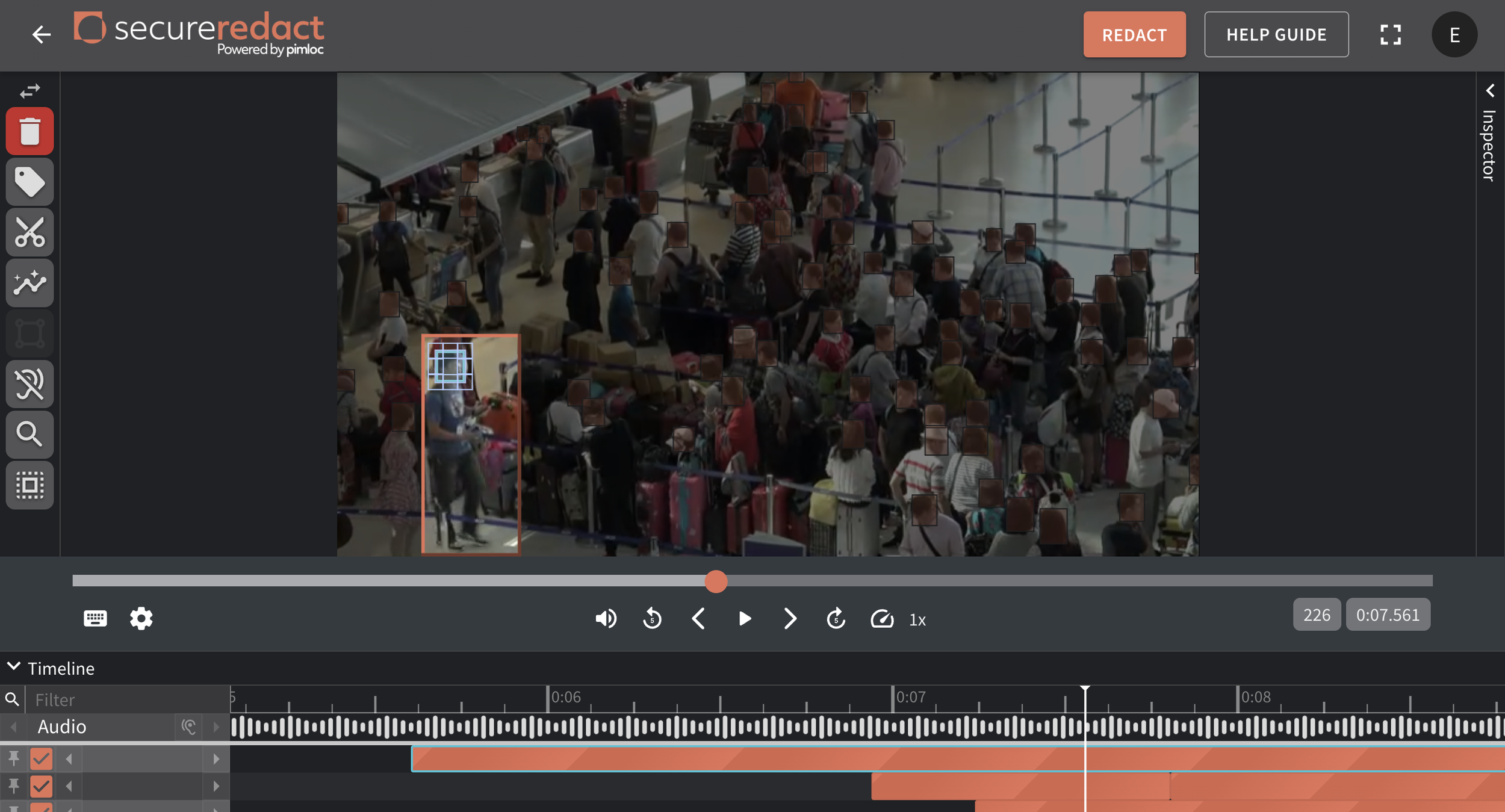
Click and draw a redaction box over an area to spotlight in the Video Player (or click on an existing redaction box).
Click Toggle Spotlight from the Toolbar. This will turn the redaction box into a Spotlight box. The surrounding video darkens (blurred area), while the interior remains light to confirm unredacted content.
Keyboard shortcut: H
Click the Spotlight box in the Video Player - the corresponding Timeline row will be selected. Label and Pin the Timeline row for easy access.
At this point, the Spotlight box only exists in this video frame. To create a Spotlight Track that follows a person/object in the video, you can:
Use Tracker if it’s a moving area.
Use Manual Tracker for more control.
Use Zone if it’s a fixed area.
To make an individual/object visible within the Spotlight Track, un-tick their Timeline row to unredact them.
In the Redact Panel:
Turn on Blur Preview, and
Adjust the Blur Level.
Then, press Play to preview the Spotlight Track.
To turn a Spotlight Track back into a normal Track, select it and click Toggle Spotlight again.
N.B.: Any video frames outside the Spotlight Track's start and end points will be completely blurred.
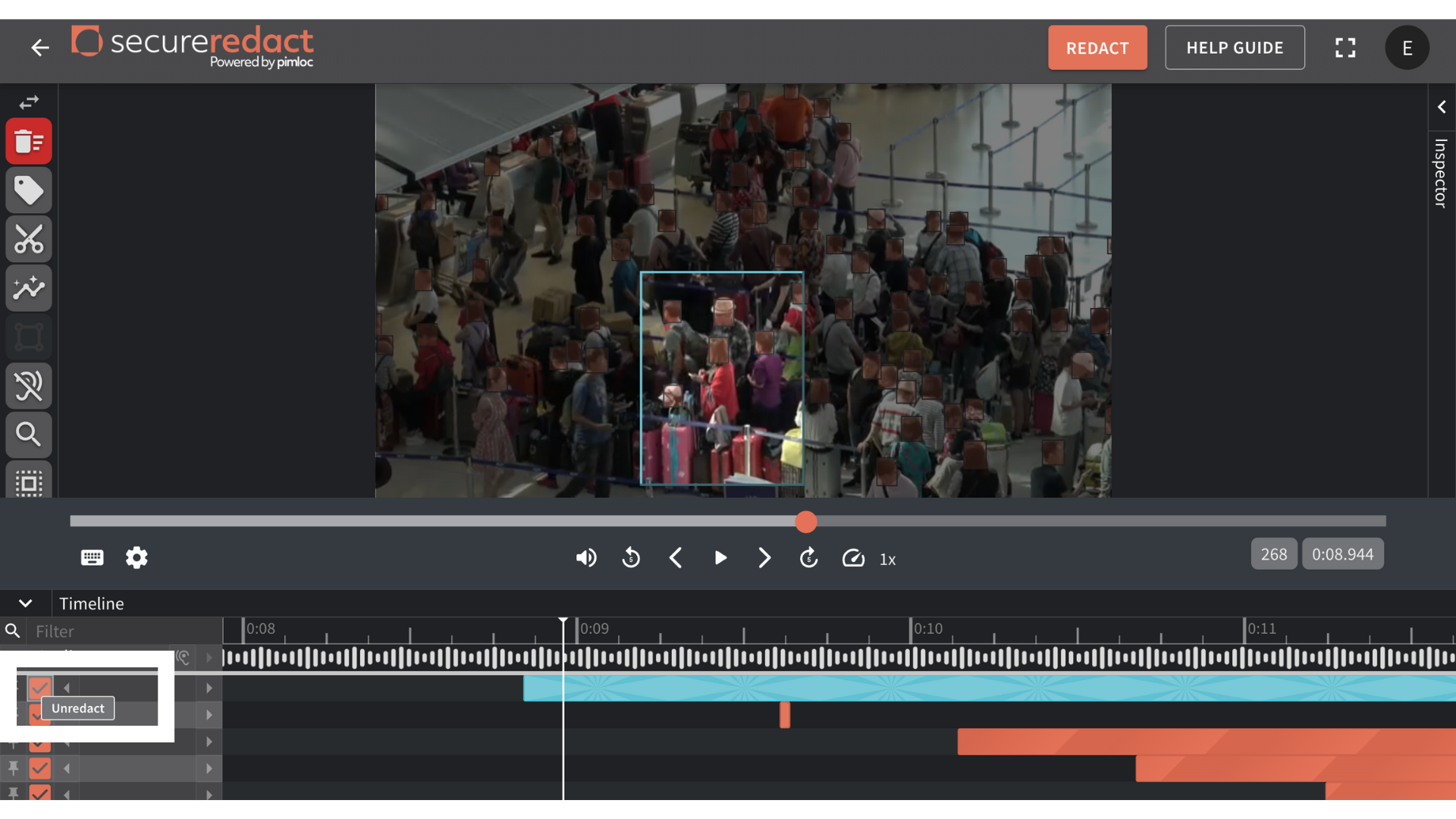
Timeline view explained (in relation to Spotlight tracks)
The corresponding orange track in the Timeline view will have a Spotlight pattern on it to show it is a Spotlight Track.
Any other Tracks within the same row will become Spotlight Tracks too.
Any gaps between multiple tracks in a Spotlight row will mean that the whole video will be blurred.