
How to upload a file to the Pimloc Platform
Upload video, audio, images or documents, and choose whether to use Pimloc Redact, Pimloc Transcribe or Pimloc Investigate. This page covers choosing files, credits, detection options, trimming a video and adding detections after upload.
Before you can redact a file, you need to upload it. While you upload, you also choose what Pimloc should look for. Detection then starts as soon as the upload finishes.
The Upload files button is in the top right. You can upload video, audio, images and documents. You can upload several files at once, and they don't need to be the same type.
1) Choose the files to upload
Click Upload files. Then drag your files onto the dashed area, or click Add files or Choose folder.
Each file appears below the drop area, with the number of credits it will use. To remove a file, click the × next to it.
Things to check before you continue:
Credits: your remaining credits are shown in the top right. One credit covers 1 minute of video, 30 images, 5 minutes of audio or 10 documents. If you don't have enough credits for the files you've chosen, the dialog tells you and you can't continue.
File types we may not support: If your browser doesn't recognise a file type, the file is marked "File type may not be supported". Contact us to add a new file type.
Duplicates: If the project already has a file with the same name, the next step warns you. You can upload it anyway or skip it.
Enterprise only
Project: the project picker in the top left shows where the files will go. It starts on the project you were in.
Trim: If you choose one file that's longer than the time left on your account, you can tick Trim to cut the end off so it fits.
Click Next.
2) Choose a workflow
Accounts can choose between three workflows:
Redact finds personal data in video, images, audio and documents so you can review it and hide it.
Transcribe automatically transcribes audio that is editable, redactable, and downloadable. Click Redact to also show the Transcribe workflow.
Investigate is for searching footage and finding the same person or object across videos. Large files can be optimised so they process faster.
3) Redact a video, image, audio file or document
Choose what Pimloc Redact should find. Everything you choose runs as soon as the upload finishes. When it's done, the file is marked Ready for review, with the detections already in place.
N.B.: Documents don't have processing options. If every file you've chosen is a document, the button says Upload and your files upload straight away.
Under Auto detect for redaction, choose the types of personal data to look for:
Faces = All faces, including back of heads
People = Whole bodies
License plates = Vehicle license plates
Screens = Monitors, phones and other displays that could show personal data
Text = Text in the scene, such as signs, or digital text, such as messages on a screen
Choose any extra options, such as:
Include small detections = finds people and objects that are small or far from the camera. Processing takes longer. You only need it for footage with a higher resolution than standard HD.
Text type = tells Pimloc Redact what kind of text to look for. Choose scene text for things like street signs. Choose digital text for things like screen recordings of messaging apps.
Under Features, you can choose the following if you need them:
Search = lets you find moments in a video by describing them. For example, you could search for "a person sitting down".
Transcribe = turns the audio in a video or audio file into a transcript you can edit.
For a video, you can detect and transcribe in one upload. For example, select Faces and Transcribe to redact both the people you can see and what they say.
An audio file has nothing on screen to detect, so the only option is Transcribe. To redact what's said in an audio file, follow Transcribe an audio file.
To upload only part of the file, tick Trim. This is only available on Enterprise accounts.
Click Upload.
N.B.: If you don't choose anything, the dialog says "There will be no automatic detections". You can still upload the file. You can then draw boxes by hand, track objects or run detection later.
Trim a file before upload (Enterprise only)
On an Enterprise account, you can upload just part of a video or audio file. Tick Trim, then enter a start and end time as HH:MM:SS. Only that section is uploaded, and you only use credits for that section. The start time must be before the end time. You can't upload until it is. Trim only works with one file at a time.
4) Transcribe an audio file
Pimloc Transcribe turns speech into a written transcript. You can read, search and edit it, and redact words or sentences in it.
Click Upload files and choose your audio file. It uses one credit for every five minutes of audio. Click Next.
Transcribe is already selected, because it's the only option for an audio file.
Choose the language spoken in the file from Transcript language. It starts as English. If the file isn't in English, the transcript is translated into English. You can choose from 24 languages, including Arabic, French, Mandarin, Polish, Punjabi, Spanish, Urdu and Welsh.
To transcribe only part of the file, tick Trim and enter a start and end time. This is only available on Enterprise accounts.
Click Upload.
The transcript is ready when the file shows Ready for review. Click the file to open it.
To transcribe a video, select Transcribe when you redact a video or audio file. You can also add a transcript to a file you've already uploaded. See Add detections after upload.
5) Check upload and processing progress
An Uploads panel at the bottom of the page shows the progress of each file. Keep the tab open until every file reaches 100%. If you try to leave before then, your browser will warn you. If an upload fails, you can retry it from the panel.
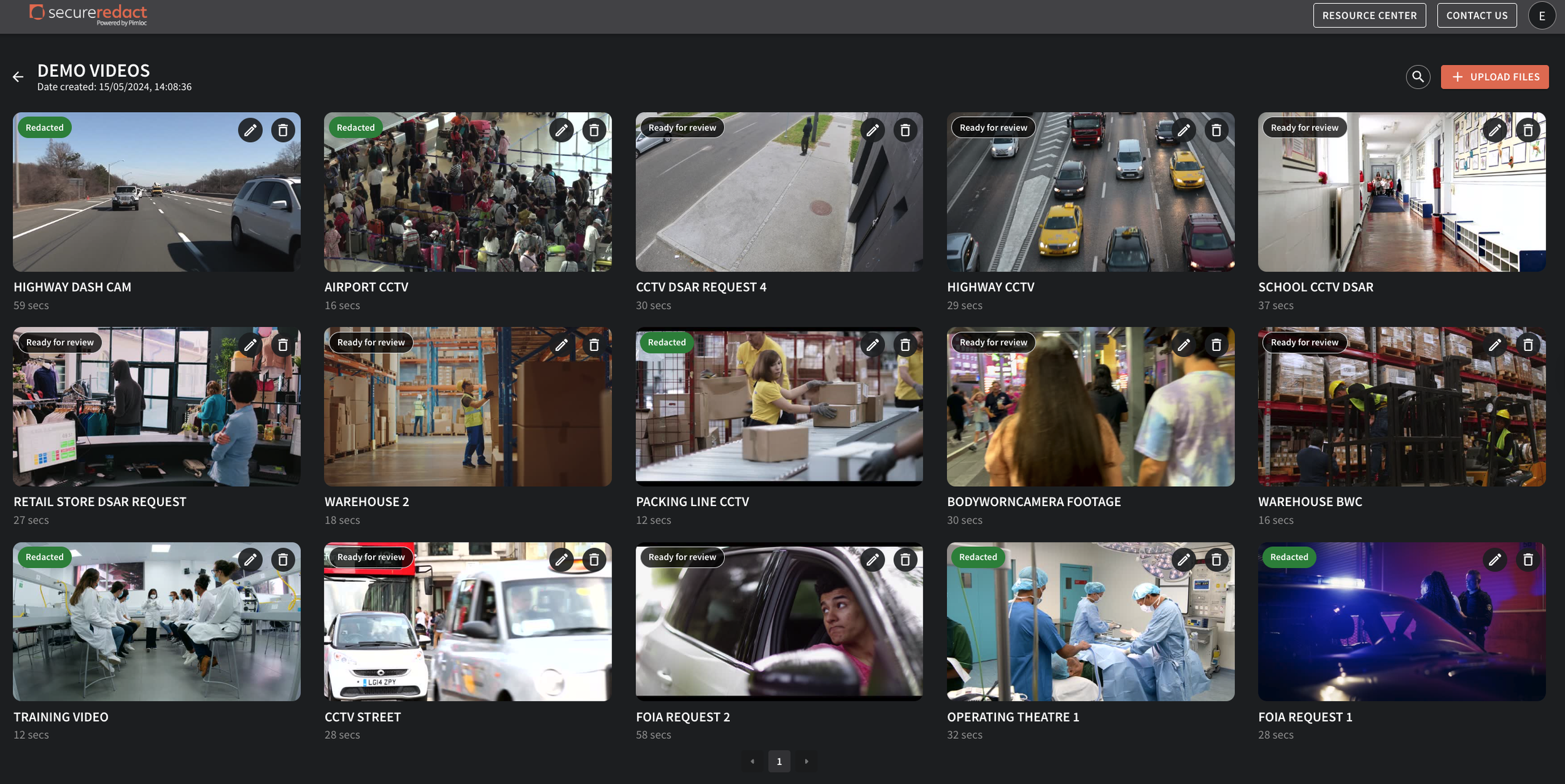
Once your files have uploaded, you can close the tab. Each file's card on the home page shows its status while it processes. When processing finishes, the status changes to Ready for review. Click the card to start reviewing.