
Audio transcription with Secure Redact
Automatically generate a Transcript from all audio in a video/audio file, which is editable, redactable and downloadable.
When uploading the video/audio file, click to auto-detect Transcribe to generate a transcript.
Choose to translate your audio into English from Arabic, Bulgarian, Farsi, Finnish, French, German, Hindi, Hungarian, Italian, Japanese, Lithuanian, Mandarin, Polish, Portuguese, Punjabi, Romanian, Spanish, Swedish, Thai, Turkish, Ukrainian, Urdu, Welsh
Once it is Ready for review, click the file to open it. For a video, click Transcript (right) to open your automatically generated transcription. The transcription shows all conversations said throughout the video/audio file, alongside a timestamp of when they were said. Hover on the seconds to play that particular phrase.
Edit the Transcript
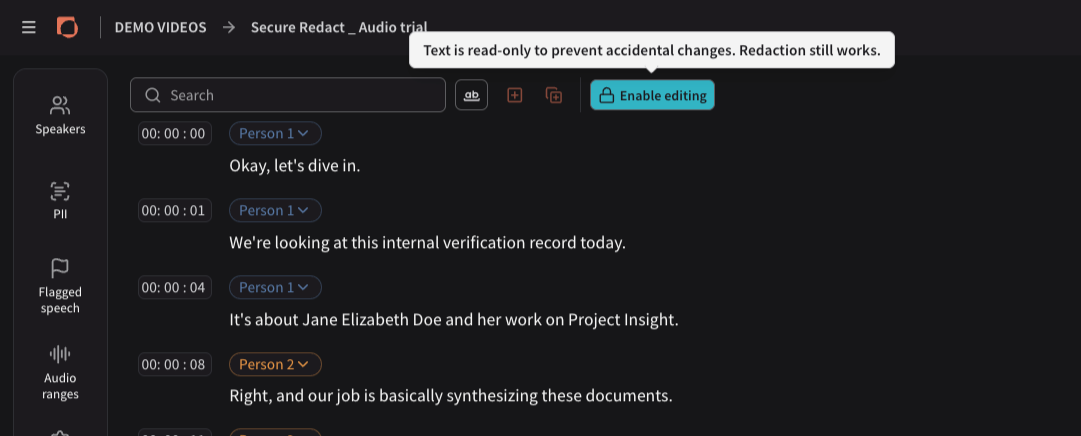
Click Enable editing.
From here, you can edit the auto-generated text. Simply click on a word or phrase and update the text via typing.
If a phrase is misattributed and part of it actually belongs to a different speaker, click at the point where the speaker changes and press Enter to split it. You can also update the timestamp.
To lock in your edits, click Disable editing to go back to the read-only view of the Transcript.
Redact audio and matching text in the Transcript
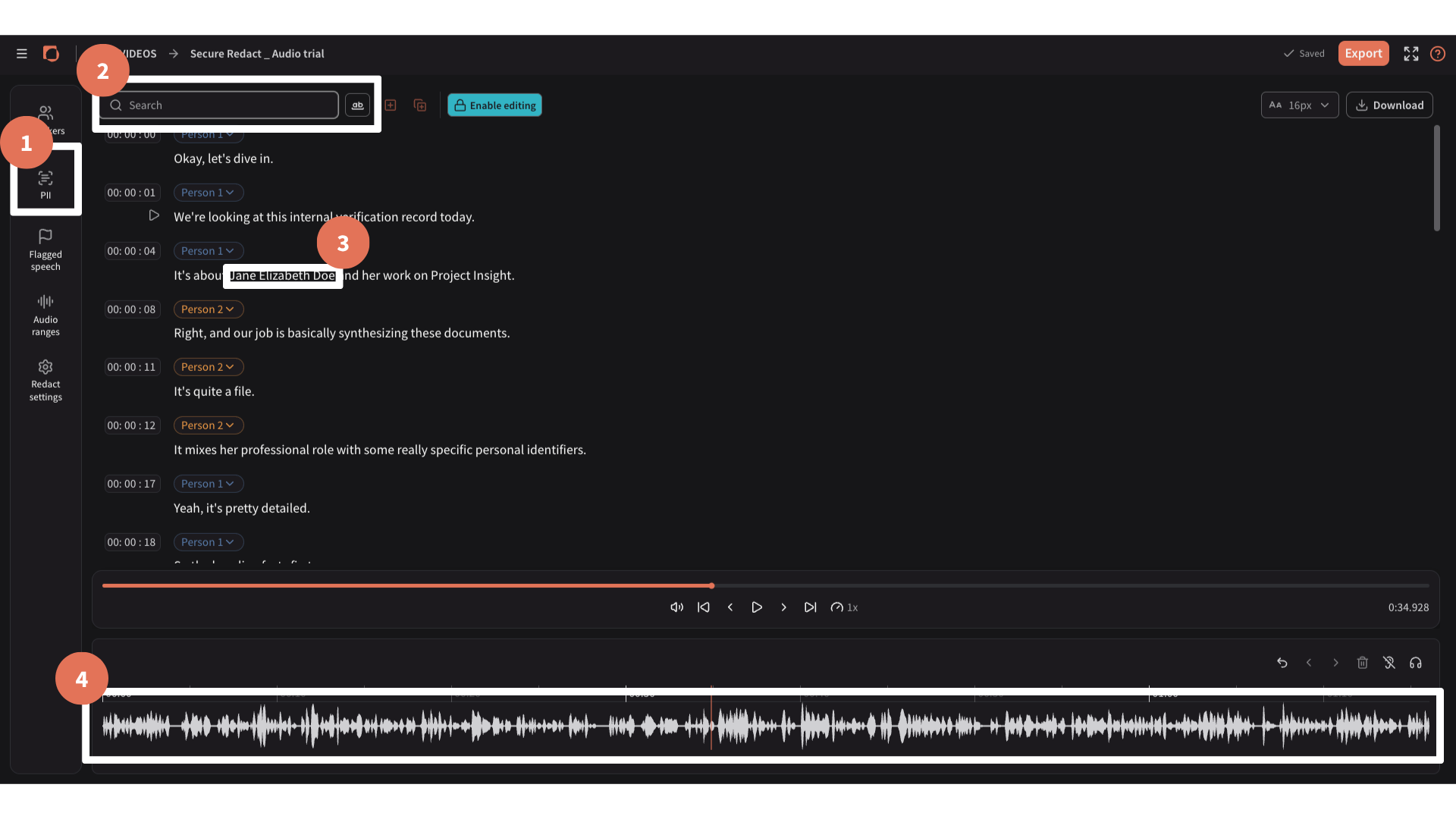
You can redact audio in 4 different ways:
Through our auto-detection of PII (via PII, right).
By searching for specific terms (via the Search bar).
By clicking on particular words/phrases in the Transcript.
By clicking to create audio ranges in the audio waveform or via the Audio ranges tab (right).
Understand more from our Audio redaction page.
Include Speaker diarization
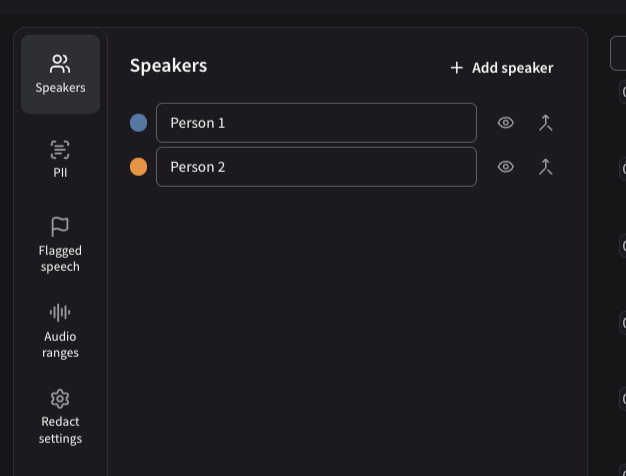
Audio is already assigned to speakers upon transcript generation (ie. Person 1, Person 2).
Go to Speakers, right.
Adjust speaker names by typing in the text box.
Add new speakers.
Merge speakers into each other. E.g. if you merge Person 2 into Person 1, Person 2 will no longer exist, and all associated speech will be attributed to Person 1.
In the Transcript, change what speech is attributed to which Speaker via the drop downs on each line of text.
On Download, you can choose to include speakers, which will automatically add speaker labels to your transcript.
Flagged speech
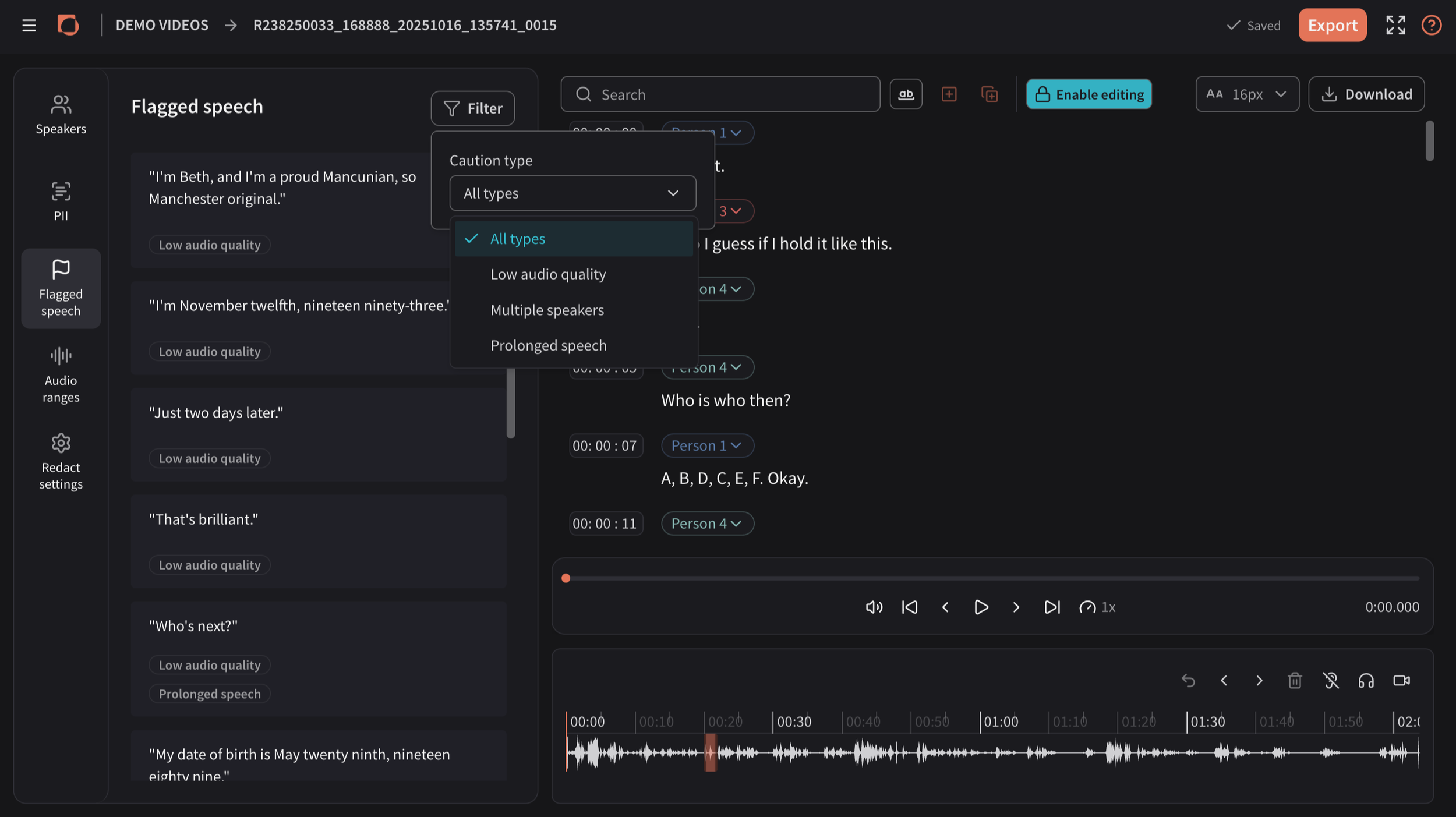
Flagged speech (left) flags any speech the system is unsure about - caused by low audio quality, missing speech, misalignment, or overlapping speakers. This allows you to quickly correct the Transcript.
Click Enable editing (top of Transcript).
Click Flagged speech (left-menu).
Filter the Flagged speech based on the issue (e.g. low audio quality).
Click on and play a flagged phrase to hear the audio.
Adjust the text in the Transcript where needed.
Click Dismiss to complete that flagged speech task.
Download the Transcript
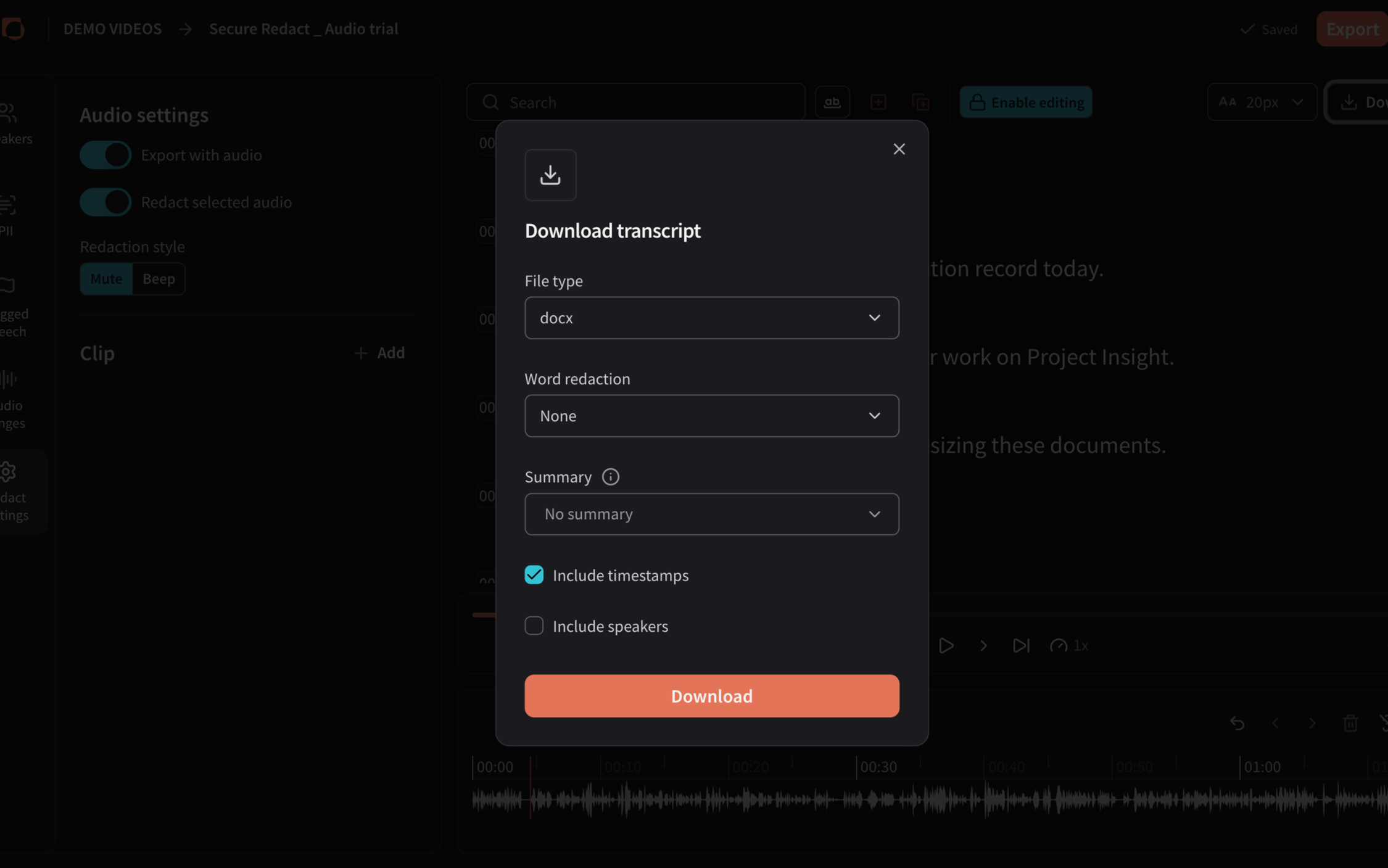
You can download the Transcript separately from the file. Simply click the Download button (top right). A pop-up will allow you to include:
Timestamps
Speakers
Download it as a particular file type (docx, pdf, txt)
Have no text redacted, Highlight (in yellow highlight) the selected words/phrases, or Redact the selected words/phrases (in black box).
Summary: choose to include a brief, bullet point and/or detailed summary of the whole document in the exported file.
Click Export (in the main nav bar) to download the redacted video/audio file.