
Audio redaction with Secure Redact
Automatically detect PII and generate a transcript, then use both to selectively redact audio in your video or audio files.
When uploading the video/audio file, click to auto-detect Transcribe to generate a transcript.
Choose to translate your audio into English from Arabic, Bulgarian, Farsi, Finnish, French, German, Hindi, Hungarian, Italian, Japanese, Lithuanian, Mandarin, Polish, Portuguese, Punjabi, Romanian, Spanish, Swedish, Thai, Turkish, Ukrainian, Urdu, Welsh
Once it is Ready for review, click the file to open it. The transcription shows all conversations said throughout the video/audio file, alongside a timestamp of when they were said. Hover on the seconds to play that particular phrase.
For a video, click Transcript (right) to open your automatically generated transcription.
Click Audio only in the Audio Timeline to use the Audio Editor in full-size mode (as shown below).
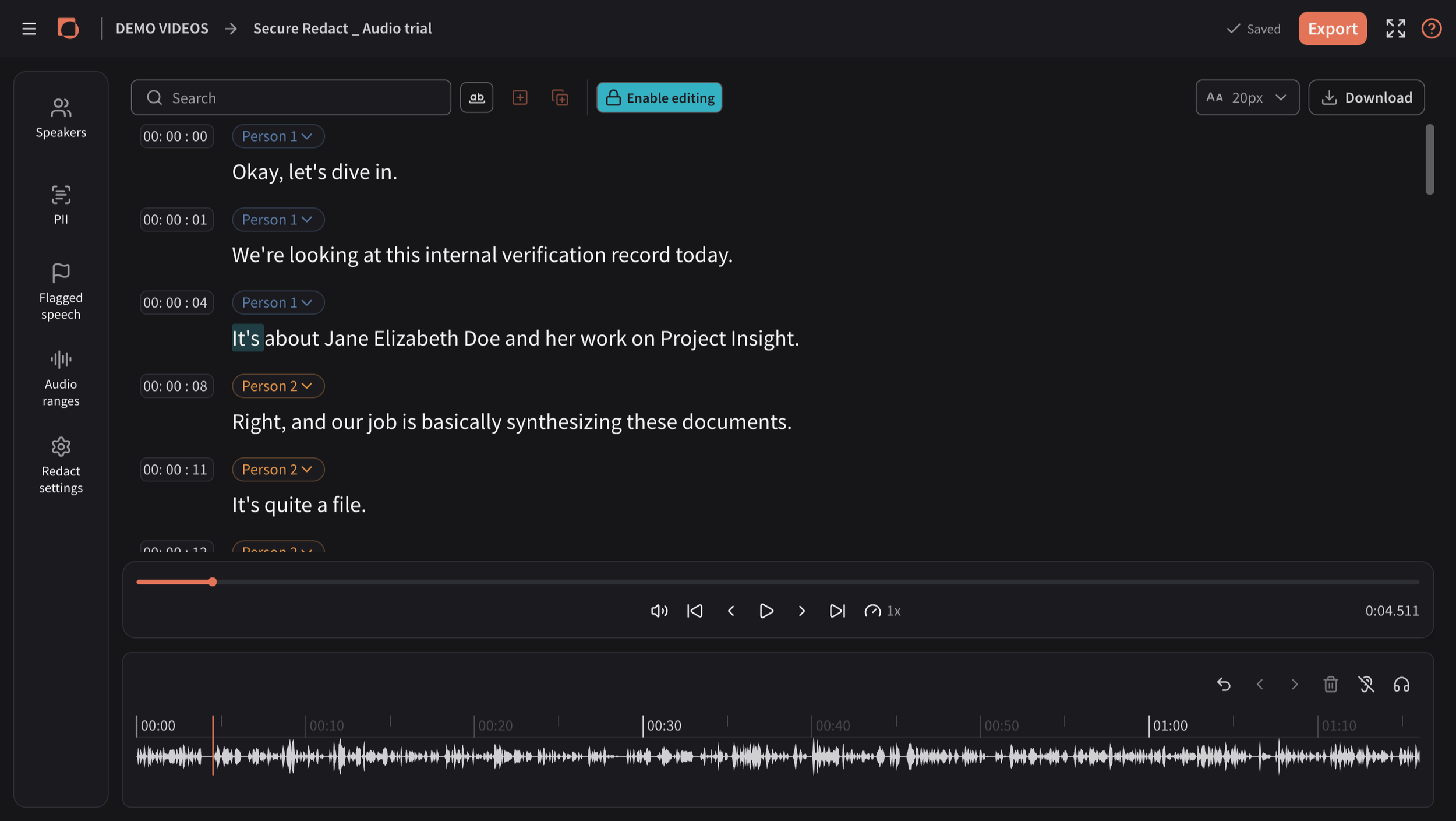
Transcript Editing Features
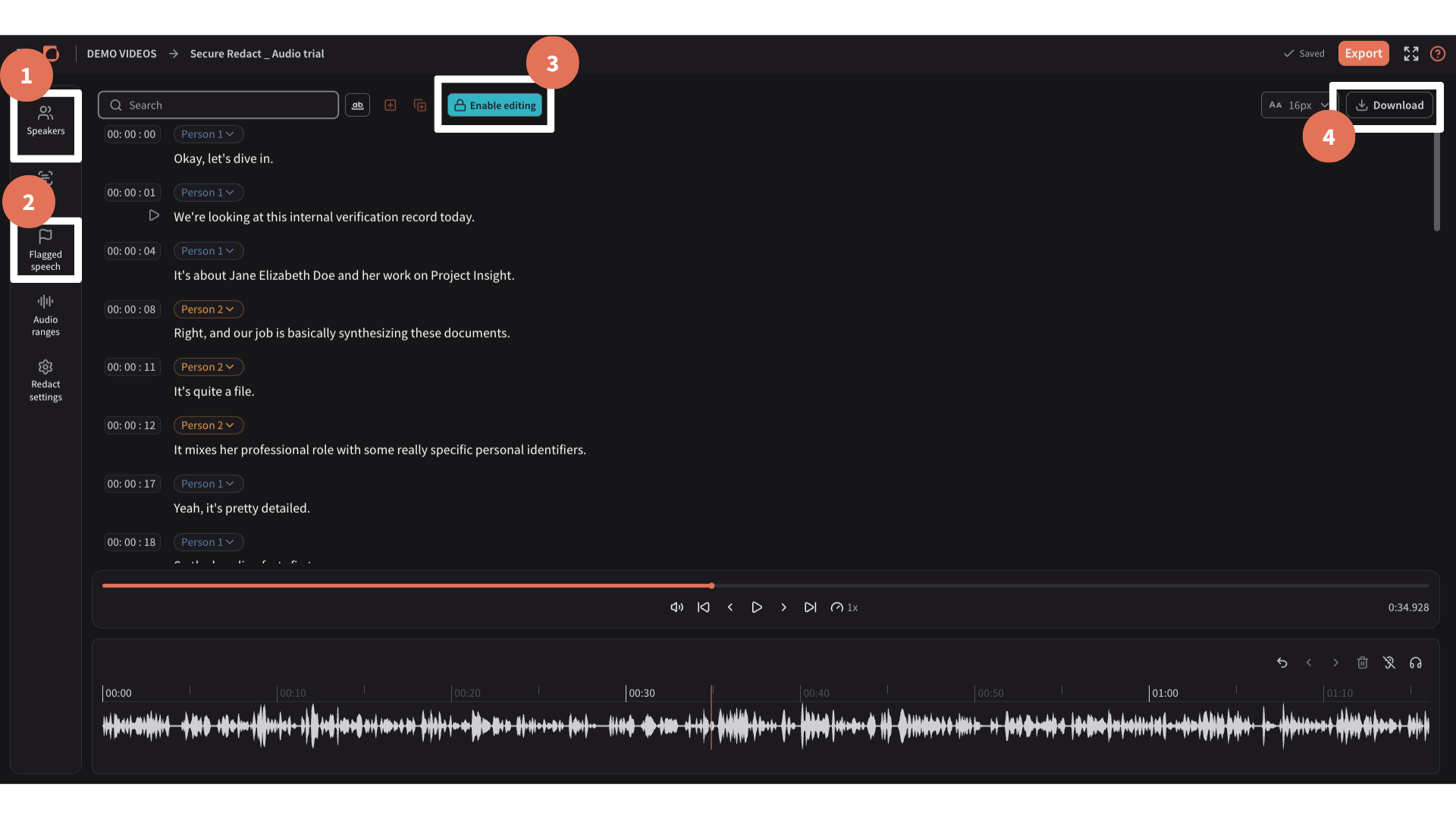
Once the transcript has been auto-generated, you'll have access to a few key features:
Speakers: text is automatically assigned to the relevant speaker.
Flagged speech: any speech the system is unsure about is flagged in this tab for review.
Editing: make manual edits to the transcript.
Download: export the transcript.
For more detail on how to use these features, visit the Audio Transcription page.
Redact audio and matching text in the Transcript
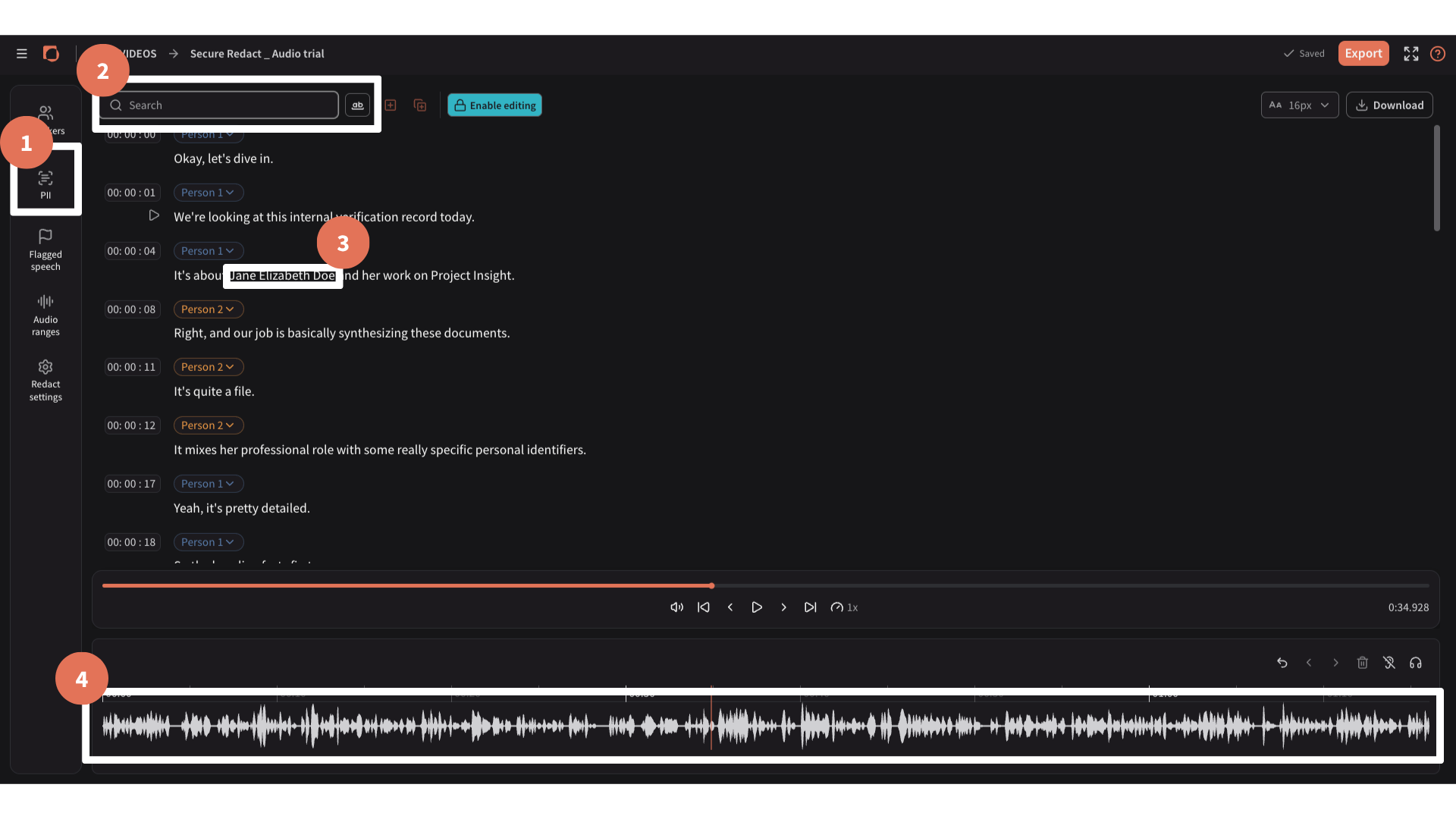
You can redact audio in 4 different ways:
Through our auto-detection of PII (via PII, right).
By searching for specific terms (via the Search bar).
By clicking on particular words/phrases in the Transcript.
By clicking to create audio ranges in the audio waveform or via the Audio ranges tab (right).
See below for more information.
Auto-detected PII
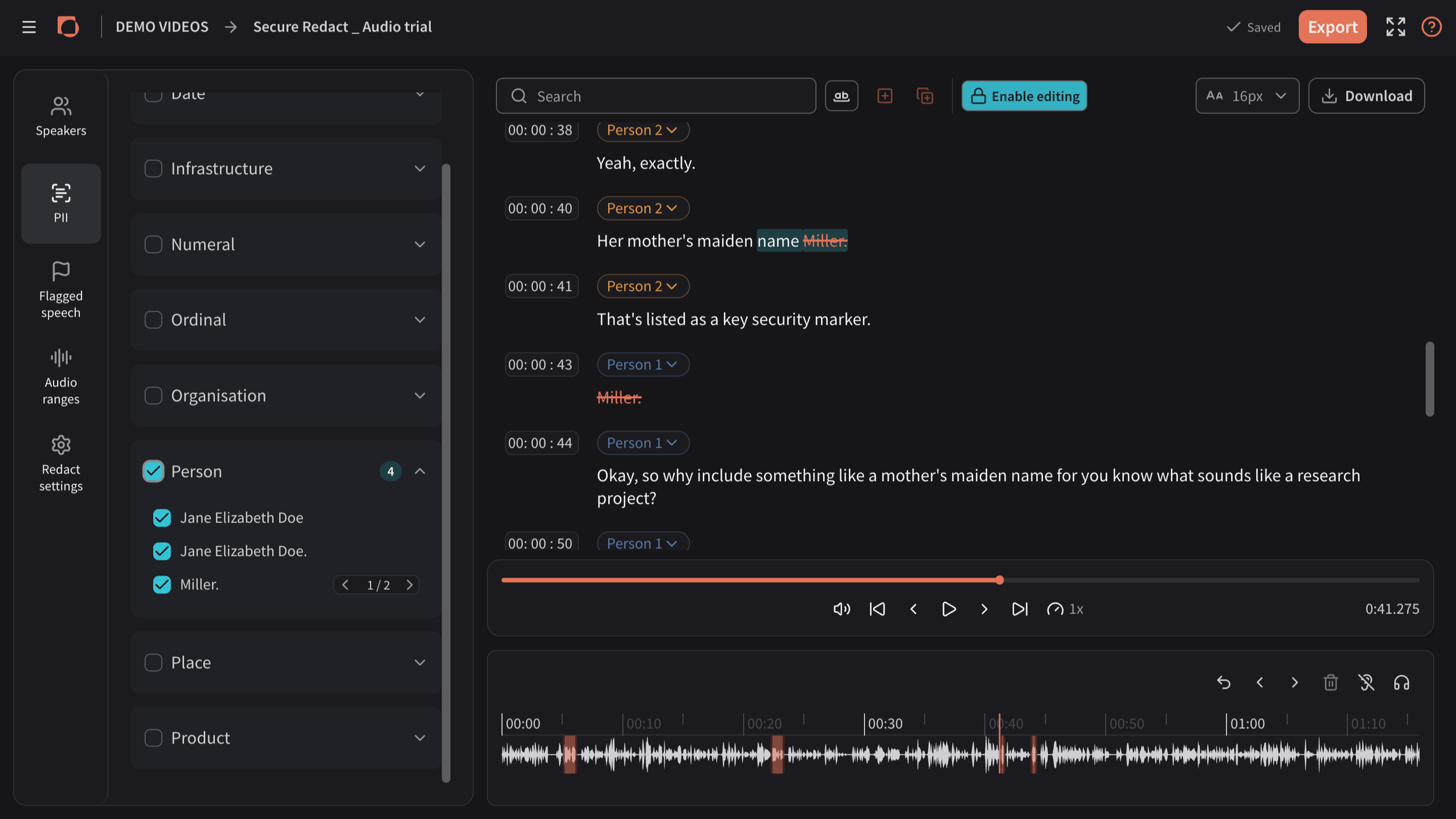
Click PII, left-menu.
Browse the detected PII categories (e.g. "Person", "Date", etc.).
Use the checkbox to select all detected PII within a category, or select individual instances within a category.
The associated text will appear redacted in the Transcript, and a corresponding audio range will be created on the waveform (shown as orange bars).
Untick PII to unredact it and keep it audible/visible in the transcript.
Search for specific terms/phrases
Click the Search bar at the top of the transcript.
Type in a word or phrase, then use the arrows to browse through all instances of it.
Use the button to the right of the Search bar to match that specific word or phrase exactly.
Orange + button: redacts the currently highlighted result.
Multiple boxes with + button: redacts all found instances at once.
Alternatively, double-click a word and click Redact.
How to use Audio-to-text transcription for redaction
When uploading the video, click to auto-detect Transcript to generate a transcript.
Choose to translate your audio into English from French, German, Hindi, Italian, Lithuanian, Polish, Punjabi, Romanian, Spanish, Swedish, Thai or Urdu.
Once it is Ready for review, click the video to open it.
Click Transcript to open your automatically generated transcription. This is the Transcript Panel. The transcription shows all conversations said throughout the video/audio file, alongside a timestamp of when they were said. Hover on the seconds to play that particular phrase.
You can highlight words or phrases in the Transcript to redact the corresponding audio in 3 ways:
Auto-detect PII
Click Find detected PII. Secure Redact auto-detects (yellow underline) people, places, dates and more for redaction.
Filter your detected words by "Person", "Date" etc. to create a Filtered list.
Use the Results drop-down to see your Filtered list.
Review instances individually or click Show All to view the complete Filtered list.
Selected instances are indicated with a white box.
Use the arrows to navigate through your detected words.
Click Redact all instances to redact all white-box selections. Words for redaction have an orange highlight.
Search for specific terms in the Search bar
Use this to redact/unredact all of a specific word in the transcript.
Click the Search button (Transcript Panel, top left) to find a particular word/phrase throughout the transcript (e.g. a name, an address or other forms of PII).
On individual words, click + (plus sign) or - (minus sign) to highlight or unselect them for redaction.
Click on words/phrases
Within the Transcript, click on specific words to unredact/redact them, or click and drag across phrases.
All selected words and phrases in the transcript are added as Audio ranges within the Audio tab in the Timeline. You can also follow the Audio ranges workflow (outlined below) whilst the Transcript Panel is open. Learn more about our Audio Transcription here.
How to use Audio-to-text transcription for redaction
When uploading the video, click to auto-detect Transcript to generate a transcript.
Choose to translate your audio into English from French, German, Hindi, Italian, Lithuanian, Polish, Punjabi, Romanian, Spanish, Swedish, Thai or Urdu.
Once it is Ready for review, click the video to open it.
Click Transcript to open your automatically generated transcription. This is the Transcript Panel. The transcription shows all conversations said throughout the video/audio file, alongside a timestamp of when they were said. Hover on the seconds to play that particular phrase.
You can highlight words or phrases in the Transcript to redact the corresponding audio in 3 ways:
Auto-detect PII
Click Find detected PII. Secure Redact auto-detects (yellow underline) people, places, dates and more for redaction.
Filter your detected words by "Person", "Date" etc. to create a Filtered list.
Use the Results drop-down to see your Filtered list.
Review instances individually or click Show All to view the complete Filtered list.
Selected instances are indicated with a white box.
Use the arrows to navigate through your detected words.
Click Redact all instances to redact all white-box selections. Words for redaction have an orange highlight.
Search for specific terms in the Search bar
Use this to redact/unredact all of a specific word in the transcript.
Click the Search button (Transcript Panel, top left) to find a particular word/phrase throughout the transcript (e.g. a name, an address or other forms of PII).
On individual words, click + (plus sign) or - (minus sign) to highlight or unselect them for redaction.
Click on words/phrases
Within the Transcript, click on specific words to unredact/redact them, or click and drag across phrases.
All selected words and phrases in the transcript are added as Audio ranges within the Audio tab in the Timeline. You can also follow the Audio ranges workflow (outlined below) whilst the Transcript Panel is open. Learn more about our Audio Transcription here.
How to use Audio-to-text transcription for redaction
When uploading the video, click to auto-detect Transcript to generate a transcript.
Choose to translate your audio into English from French, German, Hindi, Italian, Lithuanian, Polish, Punjabi, Romanian, Spanish, Swedish, Thai or Urdu.
Once it is Ready for review, click the video to open it.
Click Transcript to open your automatically generated transcription. This is the Transcript Panel. The transcription shows all conversations said throughout the video/audio file, alongside a timestamp of when they were said. Hover on the seconds to play that particular phrase.
You can highlight words or phrases in the Transcript to redact the corresponding audio in 3 ways:
Auto-detect PII
Click Find detected PII. Secure Redact auto-detects (yellow underline) people, places, dates and more for redaction.
Filter your detected words by "Person", "Date" etc. to create a Filtered list.
Use the Results drop-down to see your Filtered list.
Review instances individually or click Show All to view the complete Filtered list.
Selected instances are indicated with a white box.
Use the arrows to navigate through your detected words.
Click Redact all instances to redact all white-box selections. Words for redaction have an orange highlight.
Search for specific terms in the Search bar
Use this to redact/unredact all of a specific word in the transcript.
Click the Search button (Transcript Panel, top left) to find a particular word/phrase throughout the transcript (e.g. a name, an address or other forms of PII).
On individual words, click + (plus sign) or - (minus sign) to highlight or unselect them for redaction.
Click on words/phrases
Within the Transcript, click on specific words to unredact/redact them, or click and drag across phrases.
All selected words and phrases in the transcript are added as Audio ranges within the Audio tab in the Timeline. You can also follow the Audio ranges workflow (outlined below) whilst the Transcript Panel is open. Learn more about our Audio Transcription here.
How to use Audio ranges for audio redaction
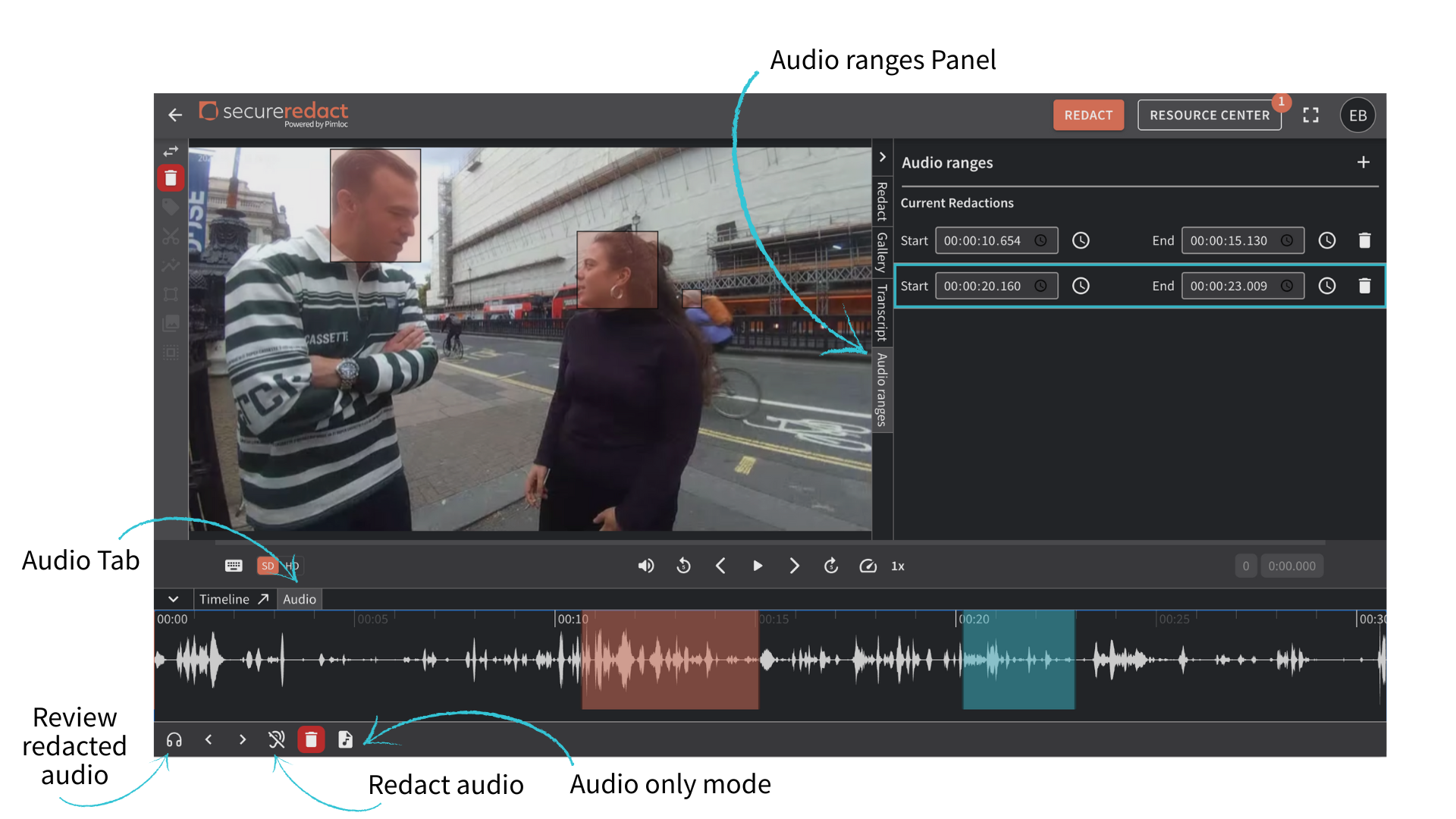
Open the Audio Tab next to the Timeline. Here you can see a waveform of the audio in your video/audio file.
There are two ways to create an Audio range (an audio range is a portion of audio that is selected for redaction).
Pause the video/audio file. Click Redact audio from the Audio Toolbar (bottom left in the Audio Tab). The video will begin to play. An orange bar (Audio range) will simultaneously be created on the audio waveform.
Click on the waveform and drag forwards to the point where you want to redact.
All Audio ranges are shown with exact timestamps in the Audio Ranges Panel on the right-hand side (to open, click Audio ranges, under Transcript, right).
Click, hold and move any orange bar on the waveform to adjust its position. You can also click and drag the Audio range ends to make them longer or shorter.
Also in the Audio Toolbar
Review redacted audio (Headphones button, bottom left) - used to preview your audio redaction. It will invert the audio, so that whilst you watch the video/listen to the audio file, you will only hear the selected Audio ranges and the rest of the video will be mute. This is extremely useful for ensuring that all parts of the audio that you need are fully selected for redaction.
Keyboard shortcut: A
Arrows - to go to skip to the start/end of Audio ranges.
Redact audio - to start/stop an Audio range.
Keyboard shortcut: G
Delete - to delete an Audio range (this cannot be undone).
Keyboard shortcut: backspace
Audio only mode - this temporarily dismisses the visual part of the video, and brings up the Transcript, so that you can focus solely on Audio redaction. Click Video mode to go back to editing both video/audio at the same time.