Timeline overview
The Timeline (below the Video Player) shows your video position and lets you view/edit tracks. The white vertical line moves as the video is played, showing the point in time where the video player is playing. You can drag the top of the Timeline up and down to enlarge or minimize the Timeline view.
Orange bars = Tracks
In the Timeline, orange bars are Tracks - one row per person/object. The bar’s length shows how long a Track is in the video, in relation to video seconds (seen at the top of the timeline). Secure Redact may create multiple Tracks for a moving person/object but aims to group related Tracks into one Timeline row.

When you click on a particular orange bar:
The orange bar will appear selected and turn blue,
The Video Player will jump to the point in time where you’ve clicked the orange bar, and
The corresponding orange box will be selected with a blue outline in the Video Player.
Drag orange bars to any labeled or pinned Timeline row (where needed). Related redaction boxes will have the same label in the Video Player.
Timeline rows
Each Timeline row represents one individual/object in the Video Player. Use the arrows in each row to skip to the start/end of the next Track. N.B.: Where Secure Redact is unsure what track relates to which individual or object, the track is put into its own row.
To better manage all Tracks for one individual/object, group them into one Timeline row.

Row tools
Label a row (label icon, left). This makes it easier to focus on one (or more) individuals or labelled objects in the video. It automatically pins the row and opens our Gallery feature - find out more here).
Pin the row (pin button, left) to freeze it at the top of the Timeline. N.B.: You can pin multiple rows.
Unredact/Redact button (eye icon, left). Click/unclick to unredact/redact the row. The corresponding person/object’s redaction boxes will disappear, leaving everyone else blurred.
Settings - open that particular row’s redaction settings in the Redact Panel.
Filter/Search option - use these to go directly to specific labeled rows, and to see which rows are redacted, labeled, Spotlight applied, or had specific redaction settings applied. You can also filter to see face, license plate, and screen detections.
Select all button - use this to select all the rows in the Timeline. From here, you can click an eye icon in any Timeline row to unredact or redact all. You can then redact only certain people whilst keeping everyone else visible.
Arrows - Skip to the beginning and end of tracks.
Keyboard shortcut: ALT/OPTION + < or >

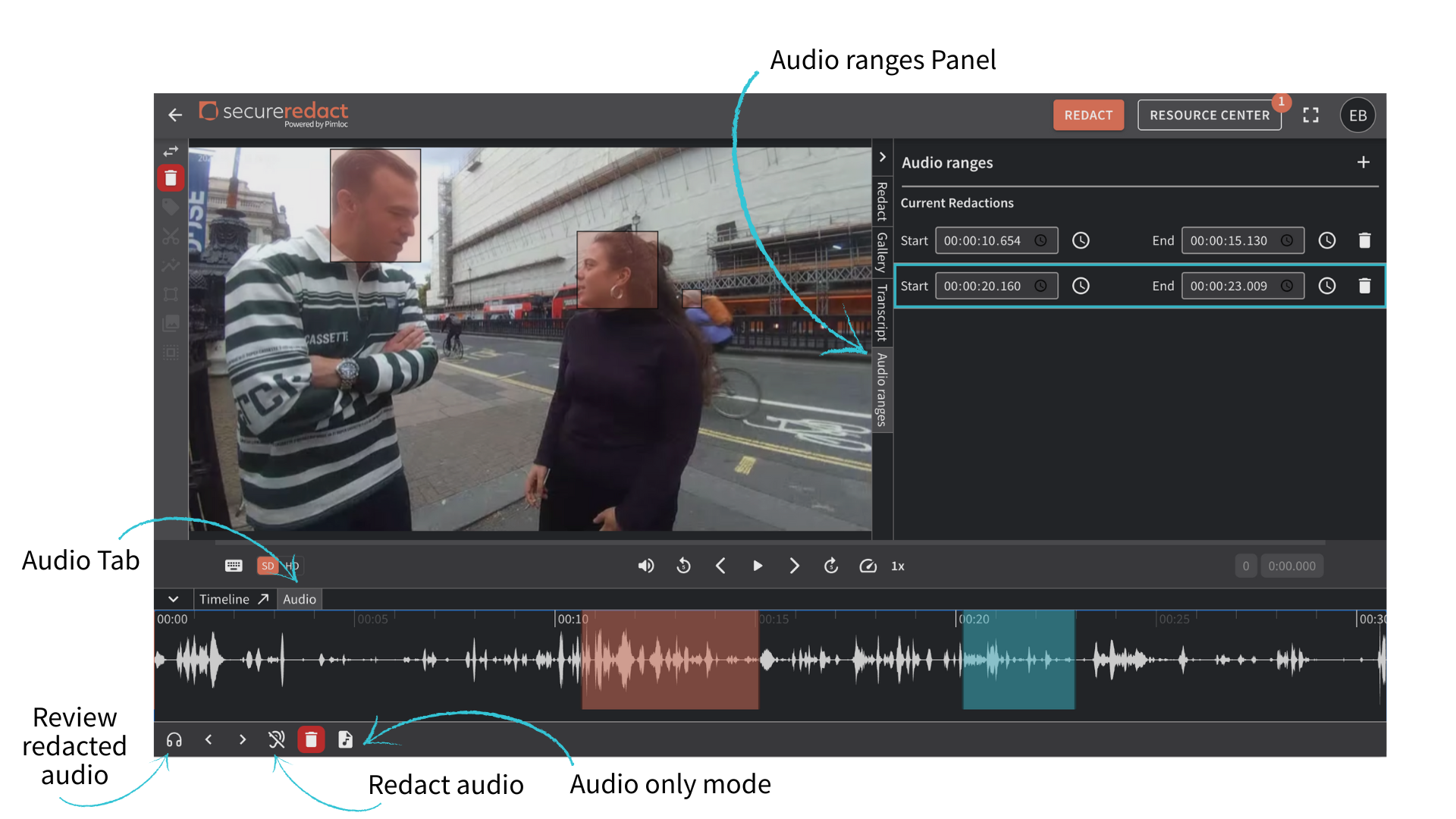
Audio Tab
The Audio Tab is for your audio redaction. Visit here, for all the information on how to audio redaction.