
Download our sample videos
Use our sample videos to try out all of Secure Redact’s features. From CCTV to body-worn camera examples, see how Secure Redact automatically detects faces, license plates, screens and more.
All the sample videos below have been created or purchased by Pimloc so you can use them to trial Secure Redact.
Body-worn video: faces/heads, license plates and screens
Download this video and follow these steps to test out our faces, license plates and screen detection for redaction:
Download this video to your desktop.
Upload it to Secure Redact using the Upload files button.
Select Faces, License plates and screens. Then click Upload.
Once the video is Ready for review, click it to open.
Press Play to review the video and its detections. An orange box represents a redaction box - ie. where Secure Redact has detected PII for redaction in a single video frame. A consecutive set of redaction boxes following the same face, license plate or object through the video, is known as a Track.
Click keyboard shortcut 'B' to turn Blur Preview on to view what your final video will look like.
Click Redact (top right). Adjust the blur settings as you see fit. Then click Export to redact the final video.
*N.B.: Screen redaction boxes are hidden by default. To preview and activate a screen redaction, hover over the screen in the video, then click it to apply.
*N.B.: This is a synthetic video, generated by Google Veo.
CCTV video: unredact an individual and keep everyone else blurred
Download this video to your desktop.
Upload it to Secure Redact using the Upload files button.
Select Faces. Then click Upload.
Once the video is Ready for review, click it to open.
An orange box represents a redaction box - ie. where Secure Redact has detected PII for redaction in a single video frame. A consecutive set of redaction boxes following the same face, license plate or object through the video, is known as a Track.
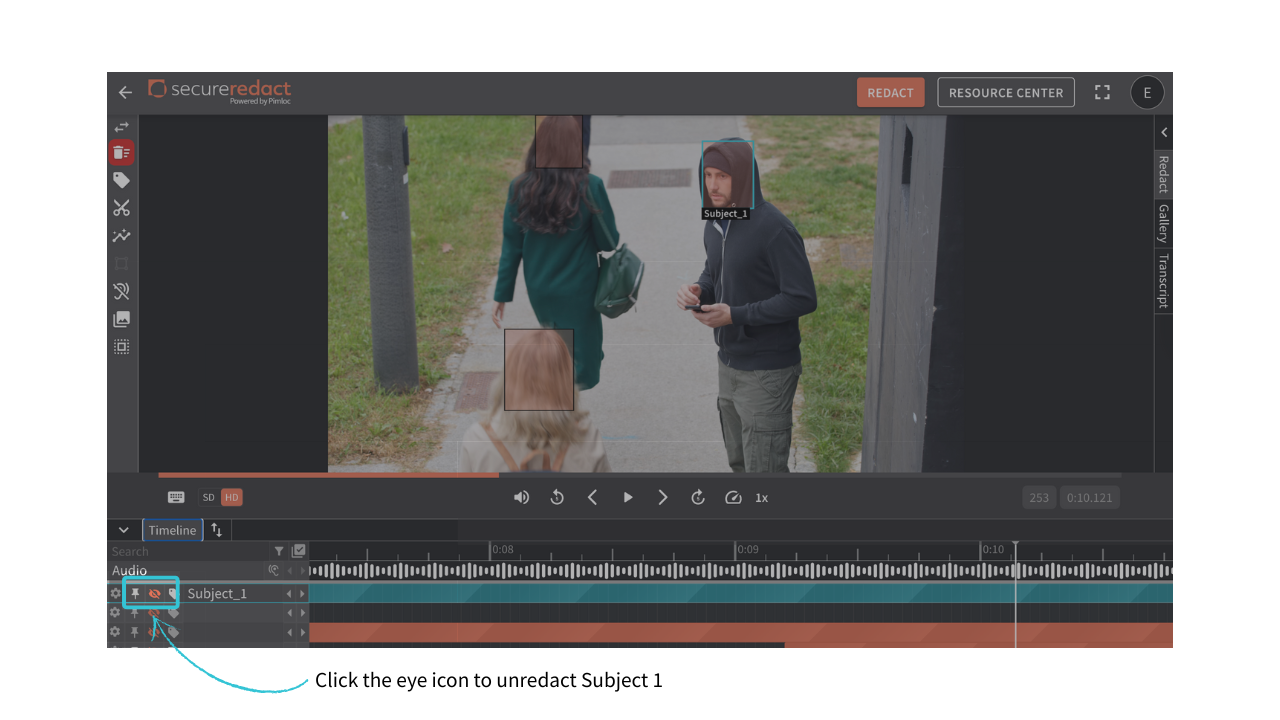
In the first video frame, click on the redaction box overlaid on the individual.
Click the label icon in the corresponding Timeline row and label this Track (e.g. Subject 1).
Close the panel that automatically opens on the right - this is not needed at this stage.
Press Play to review the video. If tracking shifts from the individual, drag the corresponding orange Timeline bar from Subject 1's row to an empty row.
Click the eye icon in Subject 1’s row. This will unredact the individual and keep everyone else blurred.
Click keyboard shortcut 'B' to turn Blur Preview on and view what your final video will look like.
*N.B.: This video was purchased by Pimloc from iStock.
CCTV video: track a new object for redaction with Tracker
Download this video to your desktop.
Upload it to Secure Redact using the Upload files button.
Select Faces. Then click Upload.
Once the video is Ready for review, click it to open.
Press Play to review the video and its detections. An orange box represents a redaction box - ie. where Secure Redact has detected PII for redaction in a single video frame. A consecutive set of redaction boxes following the same face, license plate or object through the video, is known as a Track.
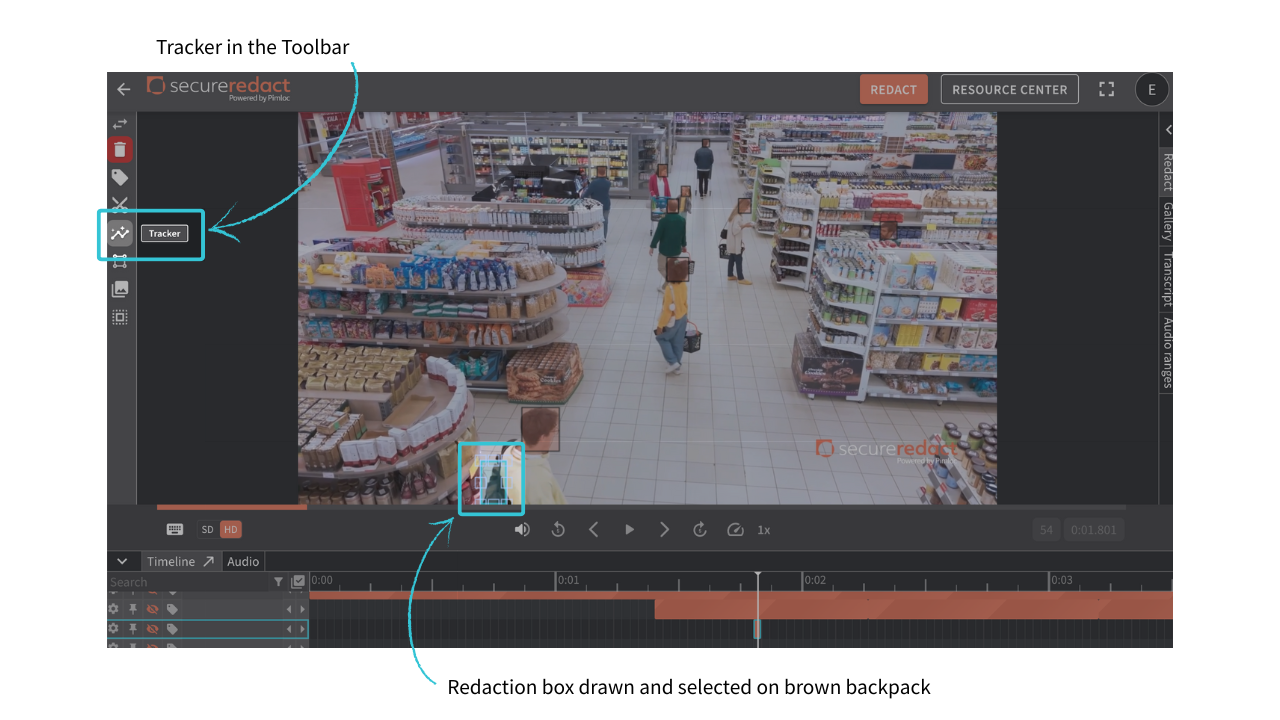
Our automated tracking tool, Tracker, lets you easily track new people/objects for redaction. Follow these steps:
Using your mouse, draw a redaction box over the target object (e.g., the brown backpack) in its first video frame.
Click Tracker from the Toolbar (or keyboard shortcut 'T').
Secure Redact's intelligent tracking will automatically follow the Click in the Video Player, and use the keyboard arrows to move forward through the video (or press Play).
A green arrow will appear on the animated blue bar, showing which frame you are in. object throughout the entire video. The Timeline bar animates blue to show the tracking progress.
Adjust the redaction box in the Video Player as needed. Tracker will auto-update the Track from that point onwards.
Click the grey animated bar in the Timeline to redisplay the green arrow.
Accept the predictive Track up to the frame you are currently in (green arrow) or discard it (red cross).
*N.B.: This video was purchased by Pimloc from iStock.
Audio file: use an auto-generated Transcript to redact audio
Download this audio file to your desktop.
Upload it to Secure Redact using the Upload files button.
Transcript will automatically be selected. Then click Upload.
Once the audio file is Ready for review, click it to open.
Follow the instructions below under Audio redaction, to test out our audio redaction and transcription features.