Redact and download your media
Once you have finished making any redaction edits, you’ll be ready to redact the video or audio file.
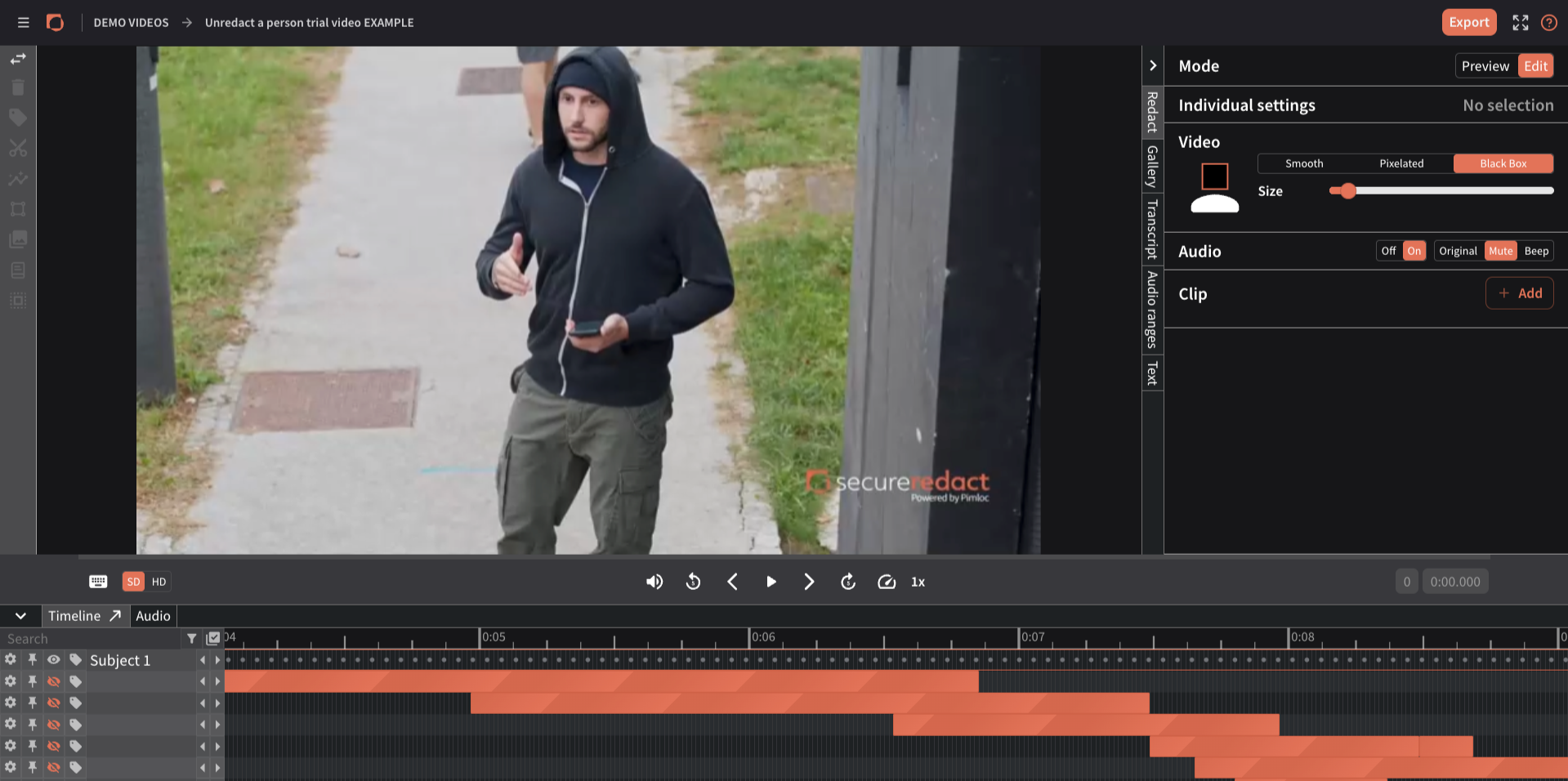
Open the Redact Panel (right).
Here, you can choose what kind of blur you’d like the redactions to have: Pixelated or Smooth blur, or Black Box. This can be tailored for individuals and/or set for the entire video.
Choose what audio you redact, and what (if any) noise you hear - mute or beep.
Clip your media so that only certain clips out of an entire video/audio file are exported.
Then, click Export (top right). The preview will show a summary of your chosen redaction settings, and you can also edit the Title and Description of the exported file.
Once it has finished processing, you can click on the file from your homepage. The video player will pop up with a final preview of what your video will look like on download. From here you can:
Click Edit to go back and continue to make any edits. Once you have finished again, repeat this process.
Download your redacted media, ready for use. You can also download your Audit log to receive an automatically generated audit trail of all access and edits to the file.